

Labels
Create labels in Whatsable, apply them automatically by keyword, from ads or by an AI agent, limit them to numbers, and use them to filter, route and schedule.
A label sorts your contacts: "Billing question", "Hot lead", "Spring campaign". It sits on the contact, so a person who writes to two of your numbers carries the same labels in both conversations.
What labels do
- Filter the inbox. The Labels filter in the inbox shows the conversations whose contact carries any label you pick, with a count for each.
- Decide who sees a conversation. An owner or an admin can limit a member to certain labels. That member then sees only conversations carrying one of them. See Route chats to the right teammate.
- Decide whether a scheduled message goes out. Only if labels match sends a scheduled message only if the contact has, or has none of, the labels you pick.
- Tell an AI agent what matters. An agent you allow to use labels reads each label's name and description to decide when to apply it.
- Export a view. The owner and Admins can export the conversations of a label filter as a CSV file. Export is hidden for members limited to certain labels.
Create and edit labels
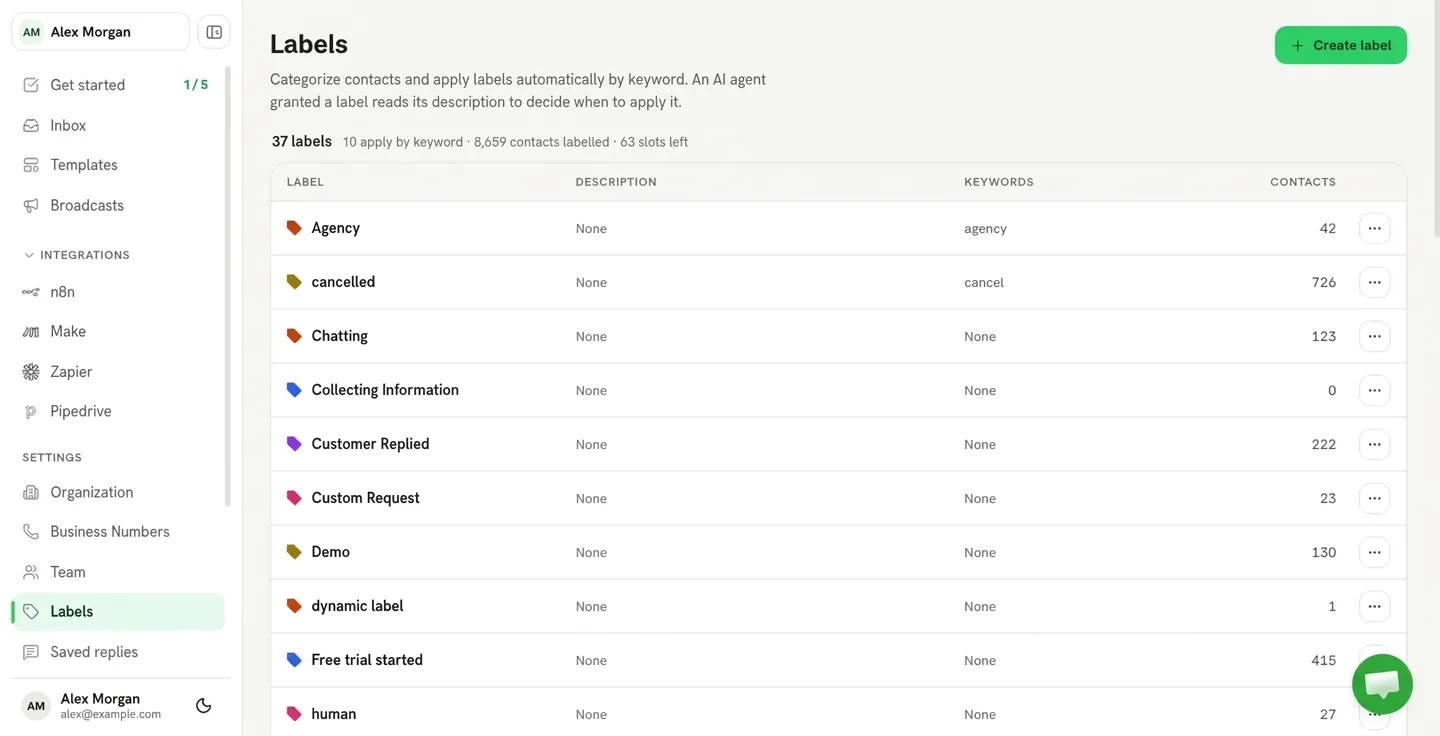
Labels are in Settings → Labels. Owners and admins create, edit and delete them. Members add and remove existing labels on a contact in the inbox.
Click Create label and fill in:
- Name: up to 60 characters.
- Color.
- Description: optional. An AI agent granted this label reads the description to decide when to apply it, so write it as a rule, for example "Anything about invoices, refunds or payment methods."
- Keywords: messages that contain a keyword apply the label automatically. Up to 20 keywords per label, each 2 to 40 characters.
The list shows each label's description, keywords and how many contacts carry it. You can create up to 100 labels yourself. Labels made from ads do not count toward that limit.
Deleting a label removes it from every contact that carries it. It cannot be undone.
How labels get applied
- By hand, in the contact panel of a conversation: + Add, or the × on a label to remove it.
- By keyword. A message a customer sends that contains one of the label's keywords applies the label. Matching ignores upper and lower case and accents, and looks for whole words.
- By an AI agent. In the agent's Labels settings, turn on Let this agent add labels (and, if you want, Let this agent remove labels) and choose the labels it may use. The inbox shows each label change the agent made, and you can rate it. See Bot configuration.
- From an ad. With Label leads from ads automatically on, a chat that starts from one of your Facebook or Instagram ads labels the contact with the ad's headline. Ads without a headline get no label. The switch is on by default. Turn it off and new leads from ads are not labelled; labels already on contacts stay. Ad labels show an Ad tag in the list and sit under Ads in the inbox filter.
- By the away message. A contact who gets your away message is labelled Needs Review. See Automatic replies.
- By a broadcast. A broadcast can add labels to each recipient after their message is sent. See Broadcasts.
- By your automations. Make, Zapier, n8n and the API can add and remove labels.
Limit a label to some numbers
With two or more numbers connected, the label form has a Number field and an Advanced section. Choose:
- Only this number: the label is offered and applied automatically on that number only.
- All numbers: every number, including numbers you connect later. This is the default.
- Specific numbers: the number above plus the others you pick.
A limited label is offered in the inbox, applied by keyword, and applied by an AI agent only on its numbers. A label already on a contact stays when you change the limit.
Related
Work a conversation in the inbox
Search and filter the inbox, reply with quotes, files, voice notes and saved replies, schedule messages with conditions, write notes, and use the contact panel.
Automatic replies
Away message outside office hours, with different hours per day and dated exceptions, a follow-up that keeps the 24-hour window open, and saved replies the team inserts.