

Access and connections
Choose what an AI app can do in WhatsAble and which numbers it can use, see every connected AI app, and revoke one. Removing the app on the AI side does not revoke it.
When you connect an AI app, WhatsAble asks you to sign in and approve what the app may do. The approval creates a connection. A connection works like an API key that only that AI app holds: it has the access and the numbers you chose, and you can revoke it.
What you approve
The AI app sends you to WhatsAble in your browser. There are three steps.
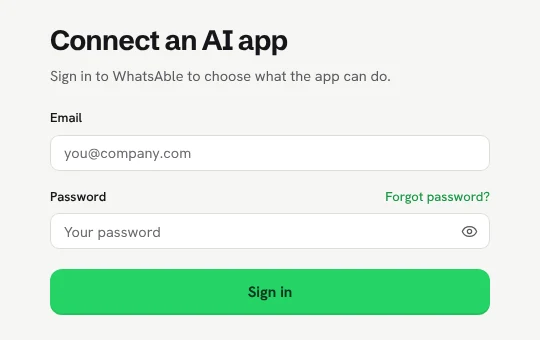
Sign in
Sign in with your WhatsAble account. If you are already signed in, choose Continue as your name.
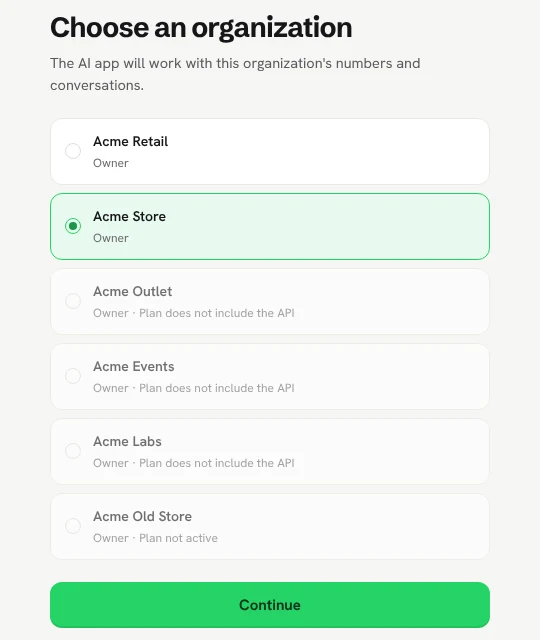
Choose the organization
Pick the organization the app will work with. An organization is greyed out when you cannot connect it, and the page says why: its plan is not active, or its plan does not include the API. Only owners and admins can connect an AI app.
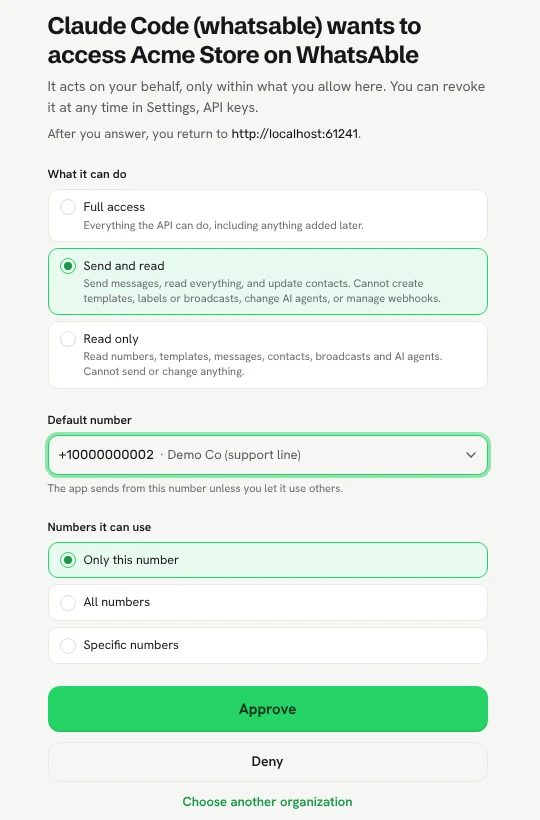
Approve the access
The page names the AI app and the organization. Choose:
- What it can do: one of the three access levels below.
- Default number: the number the app sends from unless it is told otherwise.
- Numbers it can use: only the default number, all numbers, or specific numbers.
Under the title, the page shows where you go back to after you answer. Check that it is the AI app you started from. Then choose Approve, or Deny to cancel.
The access levels
| Access | What the assistant can do |
|---|---|
| Full access | Everything the API can do, including anything added later: send, create templates, labels and broadcasts, turn the AI on or off in a conversation, and change AI agents. |
| Send and read | Send messages, read everything, add, update and label contacts, turn the AI off or on in a conversation, turn a contact's AI follow-ups off or on, and choose which AI agent answers on a number. It cannot create, rename or delete labels, create templates or broadcasts, or edit an AI agent. |
| Read only | Read numbers, templates, messages, contacts, broadcasts and AI agents. It cannot send or change anything. |
A connection or API key made with Send and read before it could turn the AI off and on shows as Custom and lacks that. To get it, revoke it and connect again.
The assistant sees only the tools its access allows. Choose Read only to let it answer questions about your conversations with no risk of a send. Choose Full access only when you want it to set things up for you, such as templates, broadcasts or AI agents.
See your connected AI apps
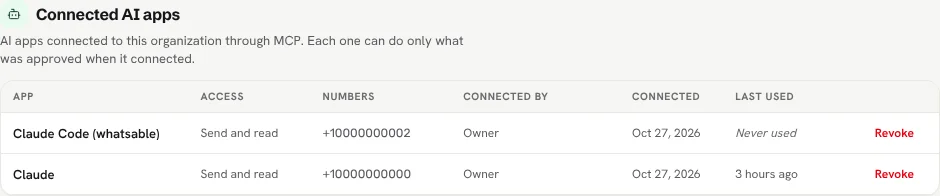
Go to Settings > API keys in WhatsAble. The Connected AI apps list shows every app connected to the organization: its access, its numbers, who connected it, when, and when it was last used.
Revoke a connection
In Connected AI apps, choose Revoke on the app's row, then Revoke now. The app stops working with this organization at its next request.
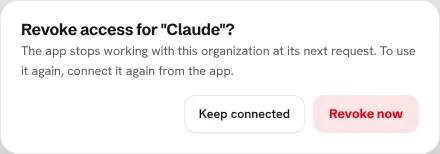
Removing WhatsAble from your AI app does not revoke the connection. Claude, ChatGPT and the others delete their copy of the connection, but WhatsAble still lists it until you revoke it here. Revoke it in WhatsAble whenever you stop using an app.
A connection is also revoked by itself when the person who approved it stops being an owner or an admin of the organization, or leaves it.
Change what an app can do
You cannot edit a connection. To change its access or its numbers, revoke it in WhatsAble, then connect the app again. The approval page opens again, and you choose anew.
Connect with an API key instead
Apps that you configure with a file, such as Claude Code, Cursor, VS Code and the Gemini CLI, can also send an API key instead of signing in. Create one in Settings > API keys, then send it in the Authorization header:
Authorization: Bearer nfy_live_...The key's own access and numbers then apply. Each connection guide shows where the header goes. Prefer signing in when your app supports it: the key is a secret that sits in a file, and anyone who reads the file can use it.
Other apps
Connect WhatsAble to any app that speaks MCP: the settings it needs, how sign-in works, how to send an API key instead, and how to bridge an app that only runs local servers.
Troubleshooting
What to do when your AI app cannot connect to WhatsAble, a tool is missing, a message comes back Not sent, or the app suddenly asks you to sign in again.