

Notifyer System Integration with Monday.com

Automate your WhatsApp messaging workflows with Monday.com and Notifyer System
Prerequisites
Before getting started, make sure you have:Notifyer System Account
Monday.com Account
Setting up your Notifyer System account
Complete the Embedding Process
Set up message templates
Option A: Template messages
Option A: Template messages
WhatsApp templates are pre-approved message formats that allow for personalization while maintaining compliance with WhatsApp policies.
Navigate to Templates
Create Template
Fill out the form
{{1}}, {{2}} format for personalizationSubmit for review
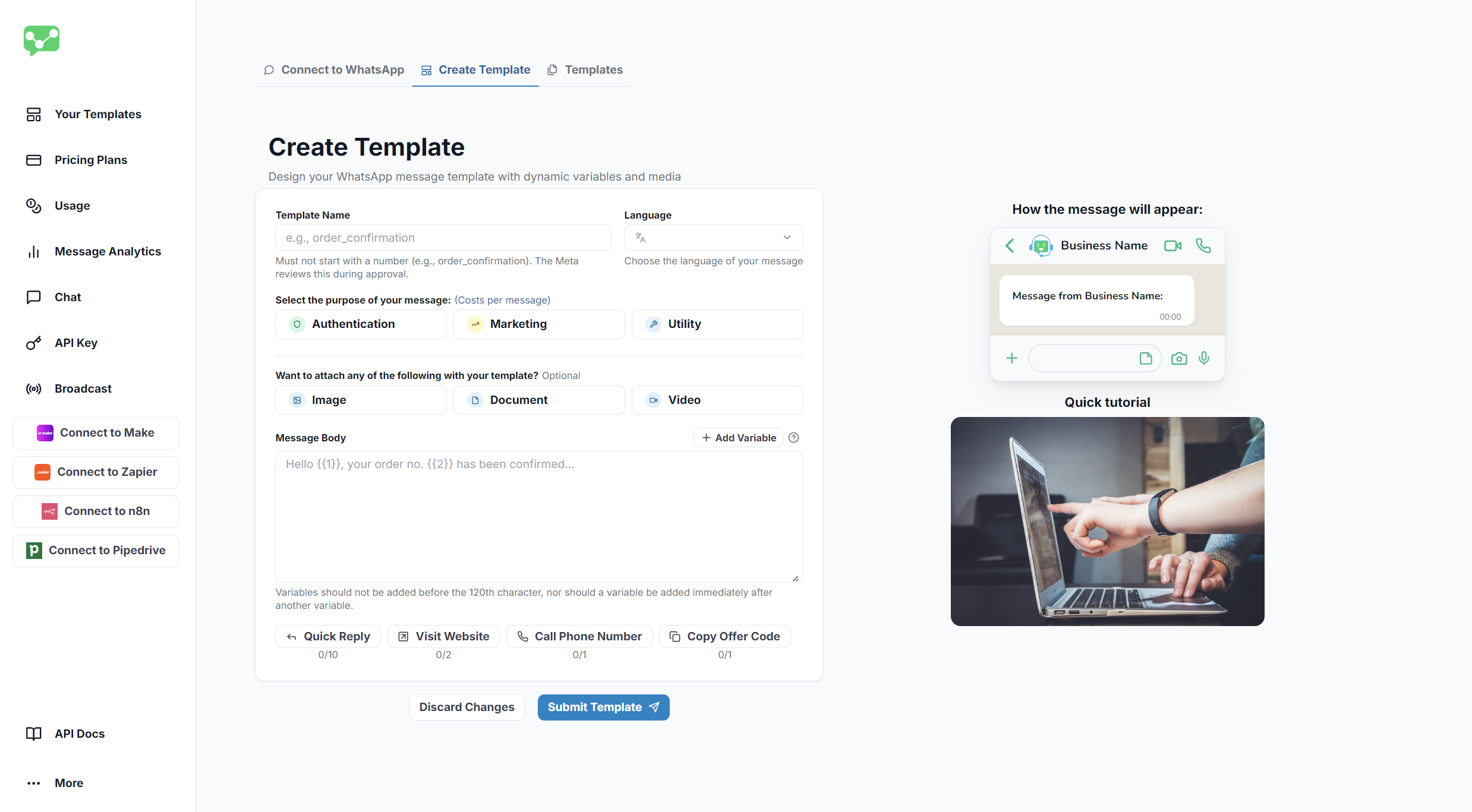
Template Creation Interface
Option B: Non-template messages
Option B: Non-template messages
For simpler communications within the 24-hour window, you can send non-template messages that include:
Text
Images
Documents
Videos
Connect Notifyer System to Monday.com
Now that your Notifyer System account is configured, follow these steps to connect Monday.com and start building workflows.Open the Monday integration page
- Log in to your Notifyer Console
- In the left sidebar, scroll to the Connect To section
- Click Monday from the list of available integrations (Make, Zapier, n8n, Pipedrive, Monday)
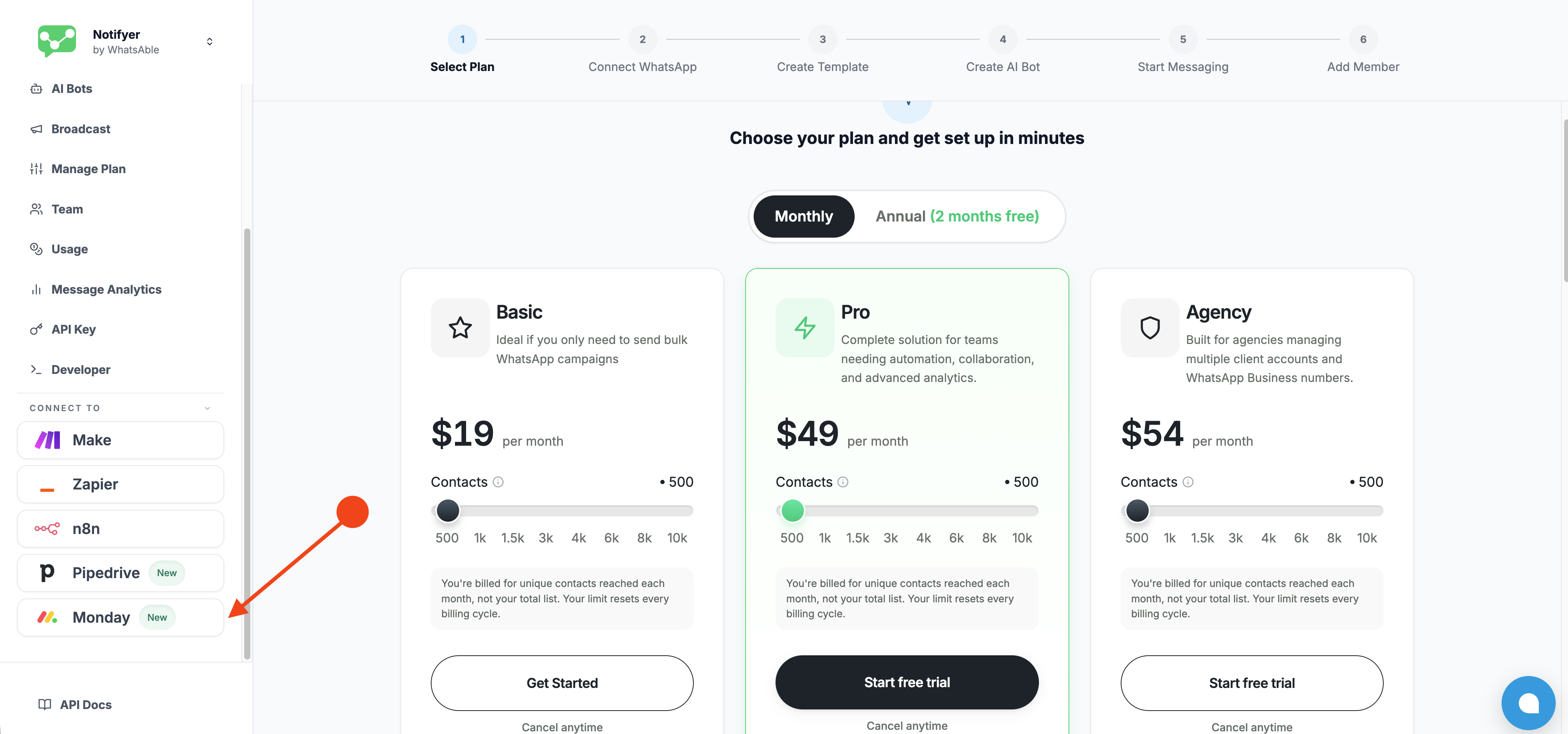
Monday option in the Notifyer sidebar under Connect To
Install WhatsAble on Monday
- On the integration page, click the green Install WhatsAble button next to Step 1
- You will be redirected to the Monday.com marketplace listing
- Follow Monday’s standard installation flow to add WhatsAble to your workspace
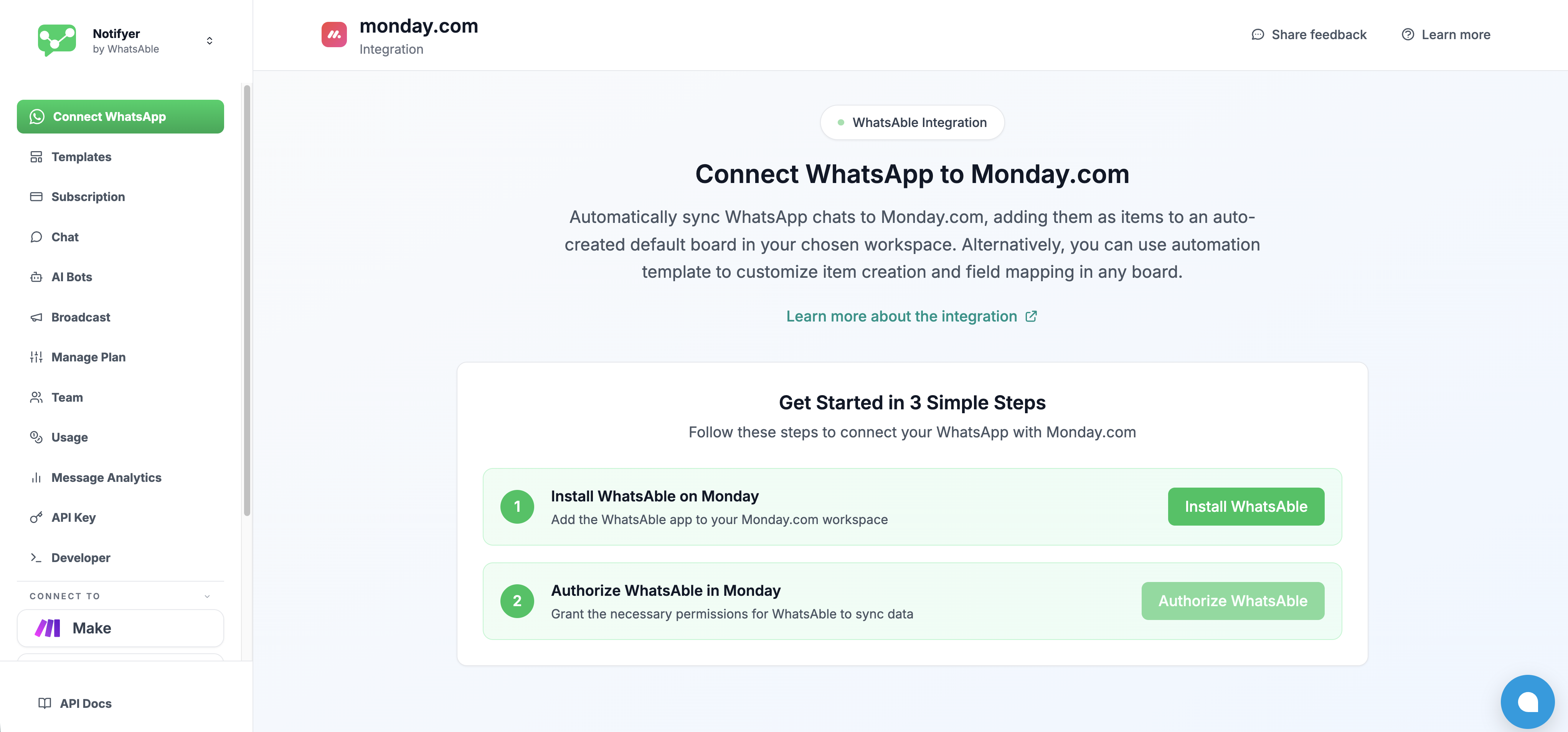
Install WhatsAble button on the Monday integration page
Log in and authorize WhatsAble
- Sign in to Monday.com using Email and password, Google, or Microsoft
- Review the permission consent screen titled Authorize WhatsAble — WhatsApp Automation with AI
- Click Authorize to grant the required permissions
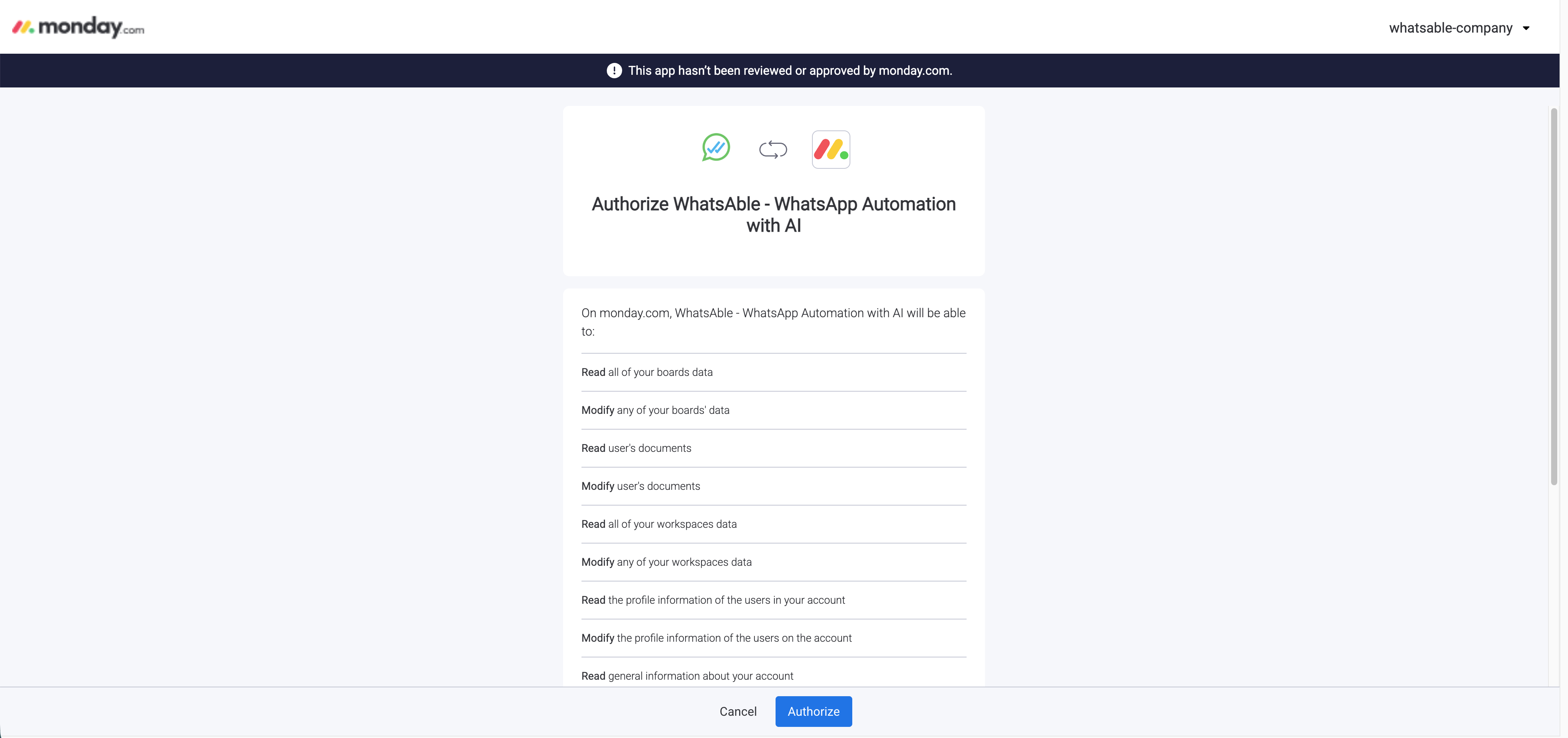
Monday authorization permissions screen for WhatsAble
Confirm the connection
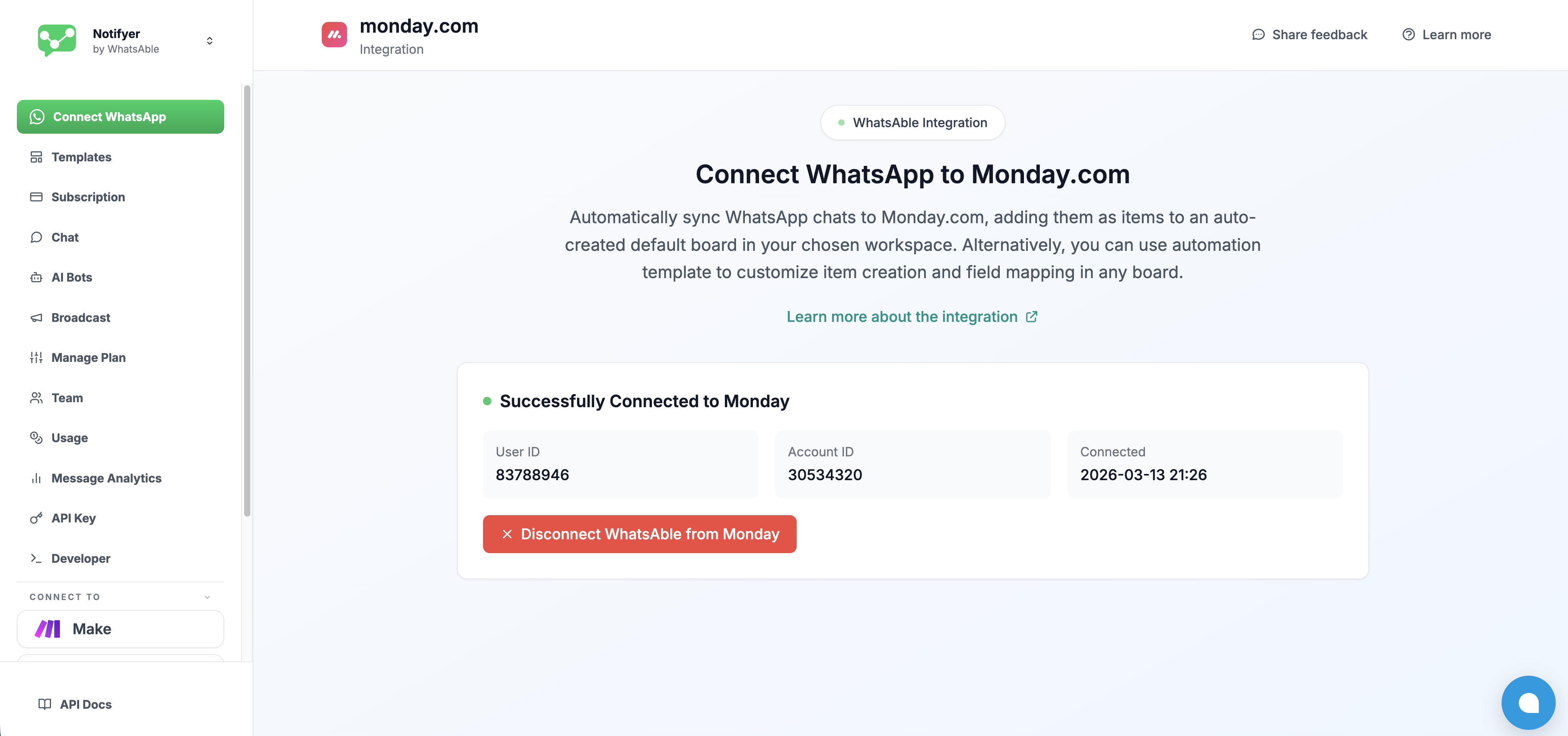
Successfully Connected to Monday confirmation screen
Workflow automation
With the integration connected, WhatsAble exposes 3 triggers and 2 actions directly inside Monday’s Workflow Builder.What you can do
Sync leads to boards
Keep items in sync
Trigger from status
Map WhatsApp data
Triggers
Triggers define when a workflow fires.Trigger 1 — When New Incoming Chat Received
Fires: Once, the first time an unknown contact sends your business a WhatsApp message. This trigger activates when a message arrives from a phone number that does not yet exist as a recipient in your WhatsAble system. If the contact already exists, this trigger will not fire again.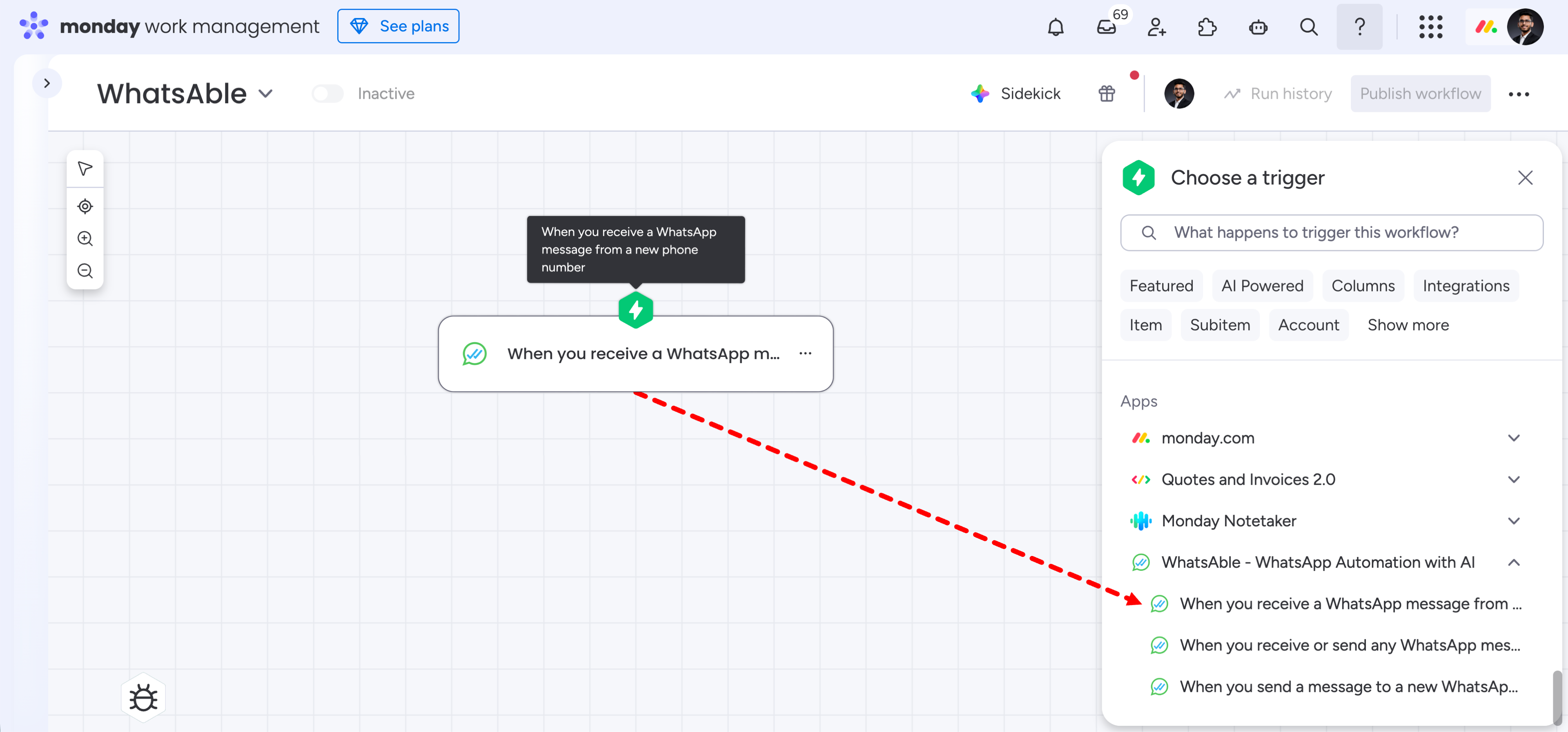
Select 'When you receive a WhatsApp message from a new phone number' in the Choose a trigger panel
sent_by and is_incoming are not available on this trigger — the message is always incoming by definition.Trigger 2 — When New Outgoing Chat Created
Fires: Once, the first time you send a WhatsApp message to a contact that does not yet exist in your WhatsAble system. This trigger activates when your team initiates a conversation with a brand-new contact, whether via WhatsAble’s chat interface, Make, Zapier, n8n, or any connected platform.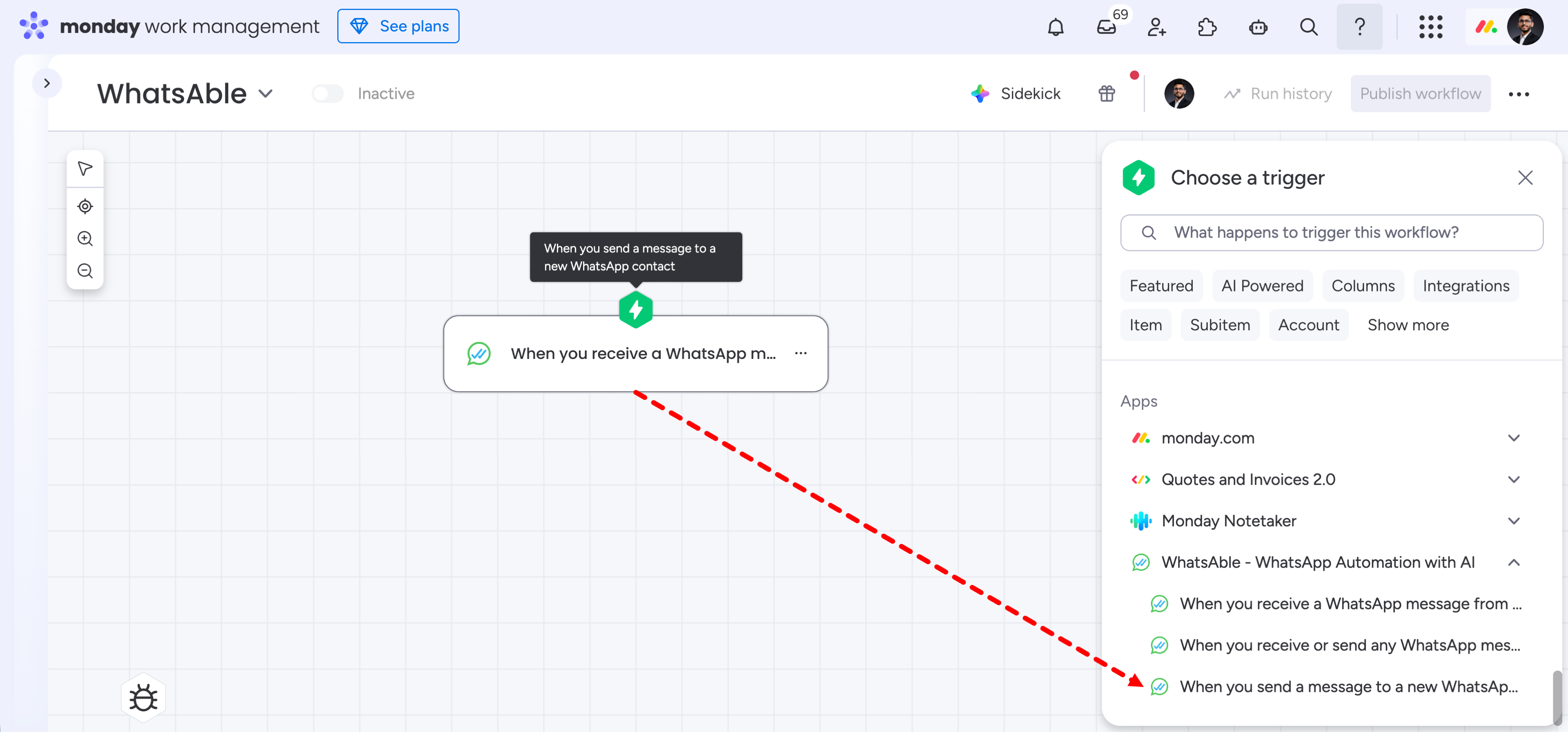
Select 'When you send a message to a new WhatsApp contact' in the Choose a trigger panel
is_incoming is not available on this trigger — the message is always outgoing by definition.Trigger 3 — When New Message Received or Sent in WhatsApp
Fires: Every time, for every message — both incoming and outgoing — for any contact, new or existing. Unlike Triggers 1 and 2, this trigger is not limited to first-time contacts. It fires on every message event, making it ideal for keeping Monday items continuously in sync with live conversations.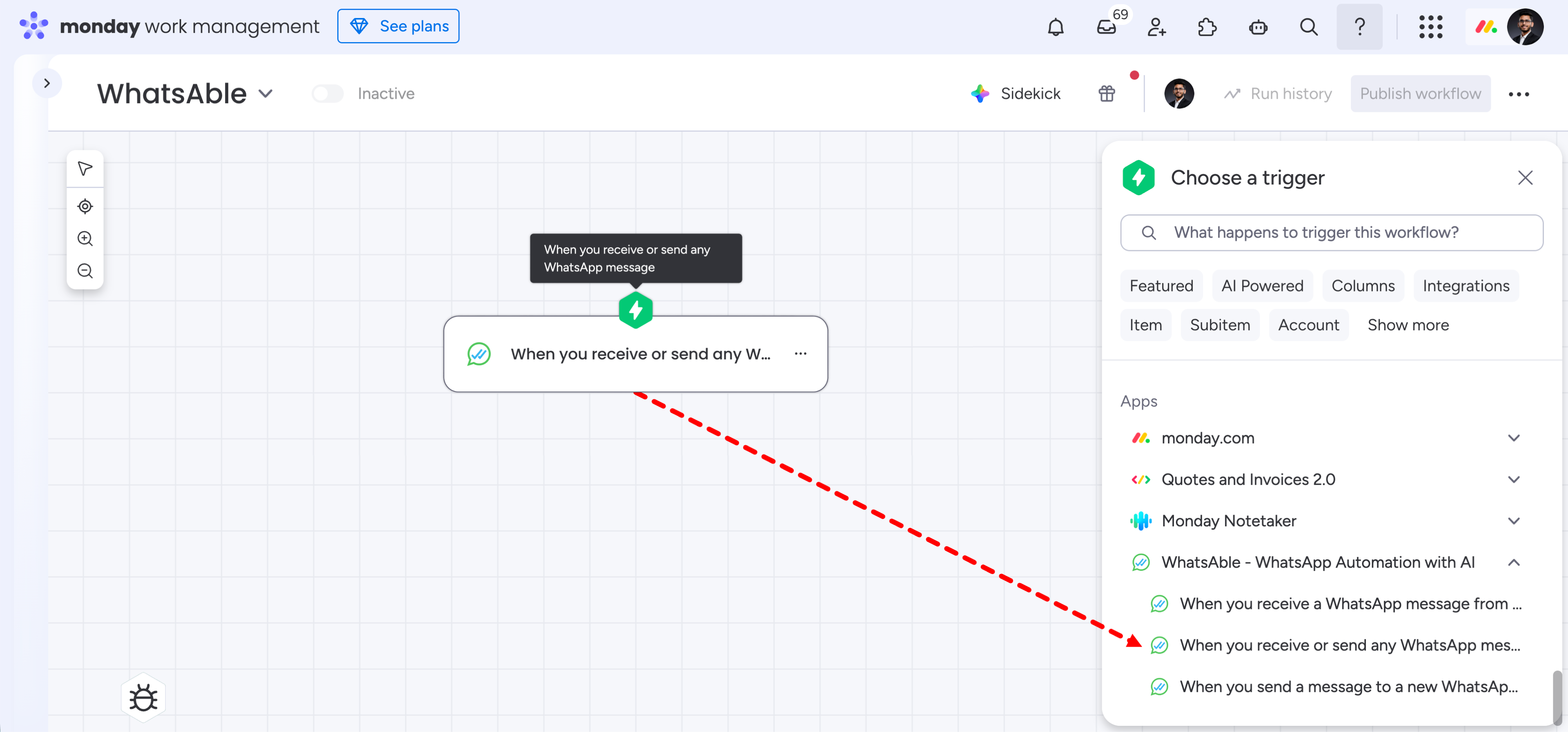
Select 'When you receive or send any WhatsApp message' in the Choose a trigger panel
Trigger quick reference
Actions
Actions define what happens when a trigger fires. WhatsAble provides two actions.Action 1 — Send Template Message
Sends an approved WhatsApp Business template message to a contact.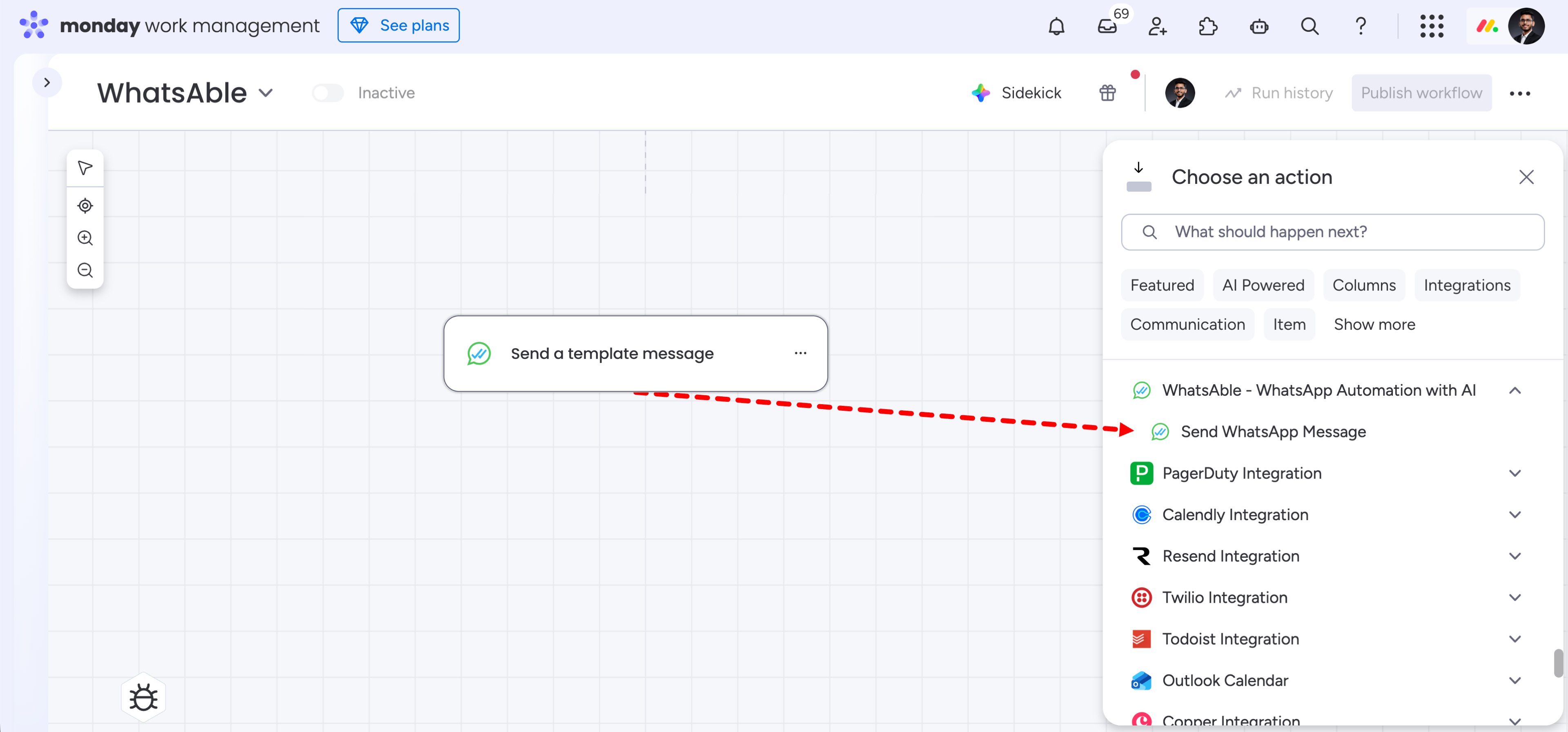
Select 'Send WhatsApp Message' in the Choose an action panel
- Select Send Template Message from the WhatsAble action list in Workflow Builder
- Choose the template from the dropdown — all Meta-approved templates in your WABA account are listed
- Map each template variable (e.g.
{{1}},{{2}}) to a column value from your Monday board - Map the phone number field to your board’s phone/mobile column
Action 2 — Send Follow-Up Message
Data field reference
Accessing trigger data: All trigger fields are accessible inside Monday’s action configuration via the dynamic data picker. When mapping a field, click the dropdown and look for Step 1 — [Trigger Name] to find WhatsAble’s data outputs. Boolean fields:ai_enabled and is_incoming return true or false. Map these to Checkbox columns in Monday. They cannot be mapped to text or status columns directly.
Attachment handling: attachment_url returns a direct URL to any media file sent in the message — image, video, PDF, or audio. Map it to a Link column to make files accessible from the board. When mapped inside a Create Update action, the media appears inline in the board item’s activity feed.
sent_by field: Identifies the sender of an outgoing message — "WhatsApp App" when typed in the WhatsApp Business app, the logged-in user’s name from the Notifyer chat UI, or the automation/app name for Make, Zapier, n8n, or API. Not available on Trigger 1 (Incoming Chat). You do not need to delete the WhatsApp Business app; coexistence is supported.
automation_note field: Populated only when a WhatsAble automation rule explicitly injects a note. Blank for manually sent messages or automations without a configured note.
Workflow examples
The following examples are real working workflows you can replicate inside Monday’s Workflow Builder using WhatsAble triggers and actions.Example 1 — Sync Every WhatsApp Message to Your Board
What it does: Every time a WhatsApp message is sent or received — from any contact, new or existing — this workflow either updates the matching Monday item or creates a new one if it doesn’t exist yet. This is the recommended workflow for teams who want a live, always-current view of their WhatsApp conversations inside Monday. Trigger: When New Message Received or Sent in WhatsApp Workflow structure:- Step 1 — Trigger: When you receive or send any WhatsApp message
- Step 2 — Find matching item (Column: mobile)
- Found → Step 3: Create update on the matched item
- Not found → Step 4: Create item on the Development board
- Step 5: Create update on the new item
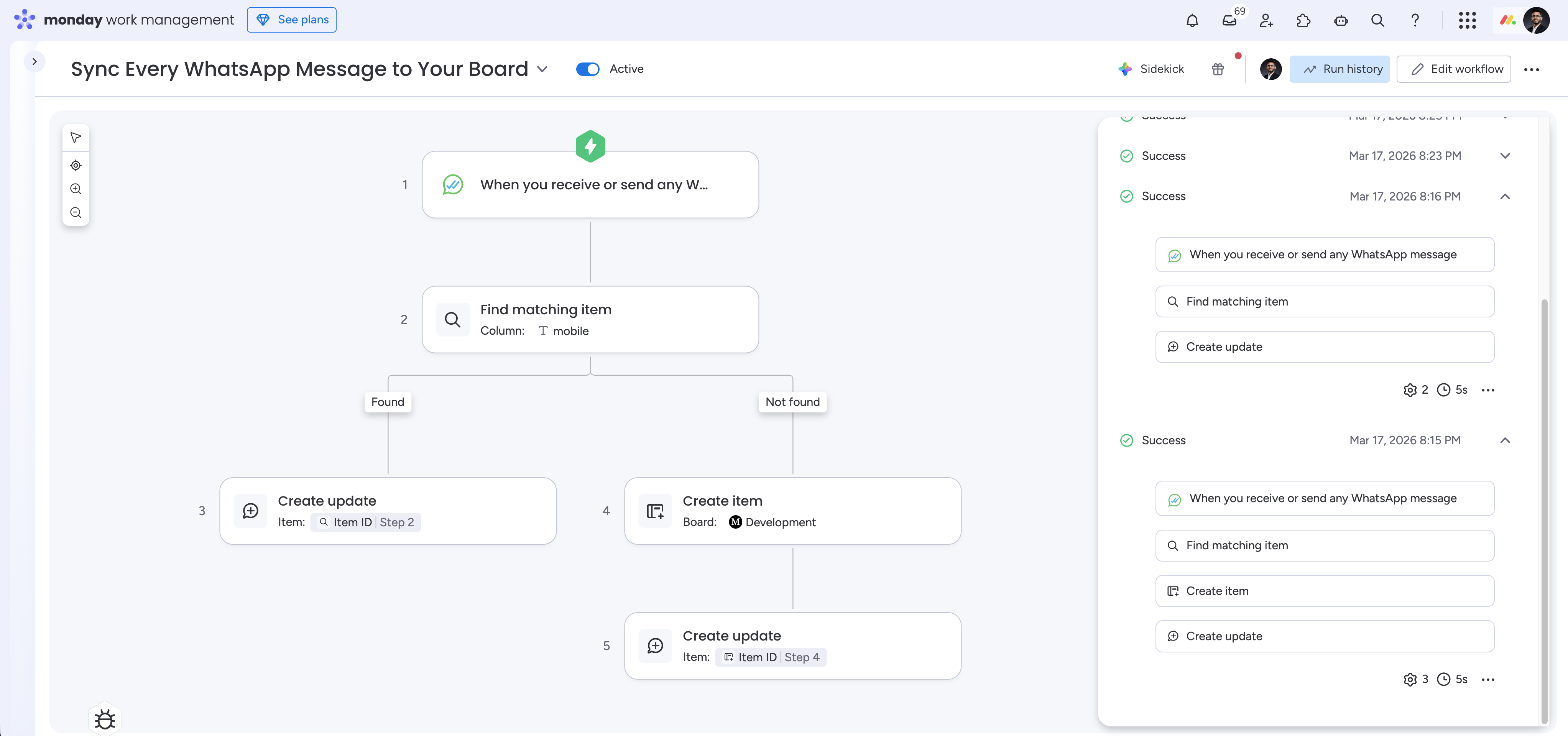
Sync Every WhatsApp Message to Your Board — workflow with Find Matching Item, Found/Not found branches
Add trigger and Find Matching Item
- Open Workflow Builder on your Monday board → Create Workflow
- Add trigger → search WhatsAble → select When New Message Received or Sent in WhatsApp
- Add Find Matching Item (Monday native):
- Board: your target board
- Column: your phone/mobile column
- Value:
{phone}from Step 1 - If multiple matches: Last Created Item
Configure Found branch
- Found branch → Add Create Update:
- Item: Item ID from Step 2
- Update body:
{message}from Step 1
Configure Not Found branch
- Not Found branch → Add Create Item:
- Board: your target board
- Map Name →
{name}, Phone →{phone}, Country →{country}, Label →{label}, Last Message Time →{last_message_time}, AI Active →{ai_enabled}
- Below Create Item → Add Create Update:
- Item: Item ID from Step 4
- Update body:
{message}from Step 1
- Click Publish
+34612345678) — make sure your mobile column stores numbers in the same format.Example 2 — Log New Outbound Contacts as Monday Items
What it does: The moment your team sends a WhatsApp message to a contact that doesn’t yet exist in WhatsAble, this workflow automatically creates a Monday item on your board and logs the opening message as a board activity update. Trigger: When New Outgoing Chat Created Workflow structure:- Step 1 — Trigger: When you send a message to a new WhatsApp contact
- Step 2 — Create item on the Development board
- Step 3 — Create update on the new item (Item ID from Step 2)
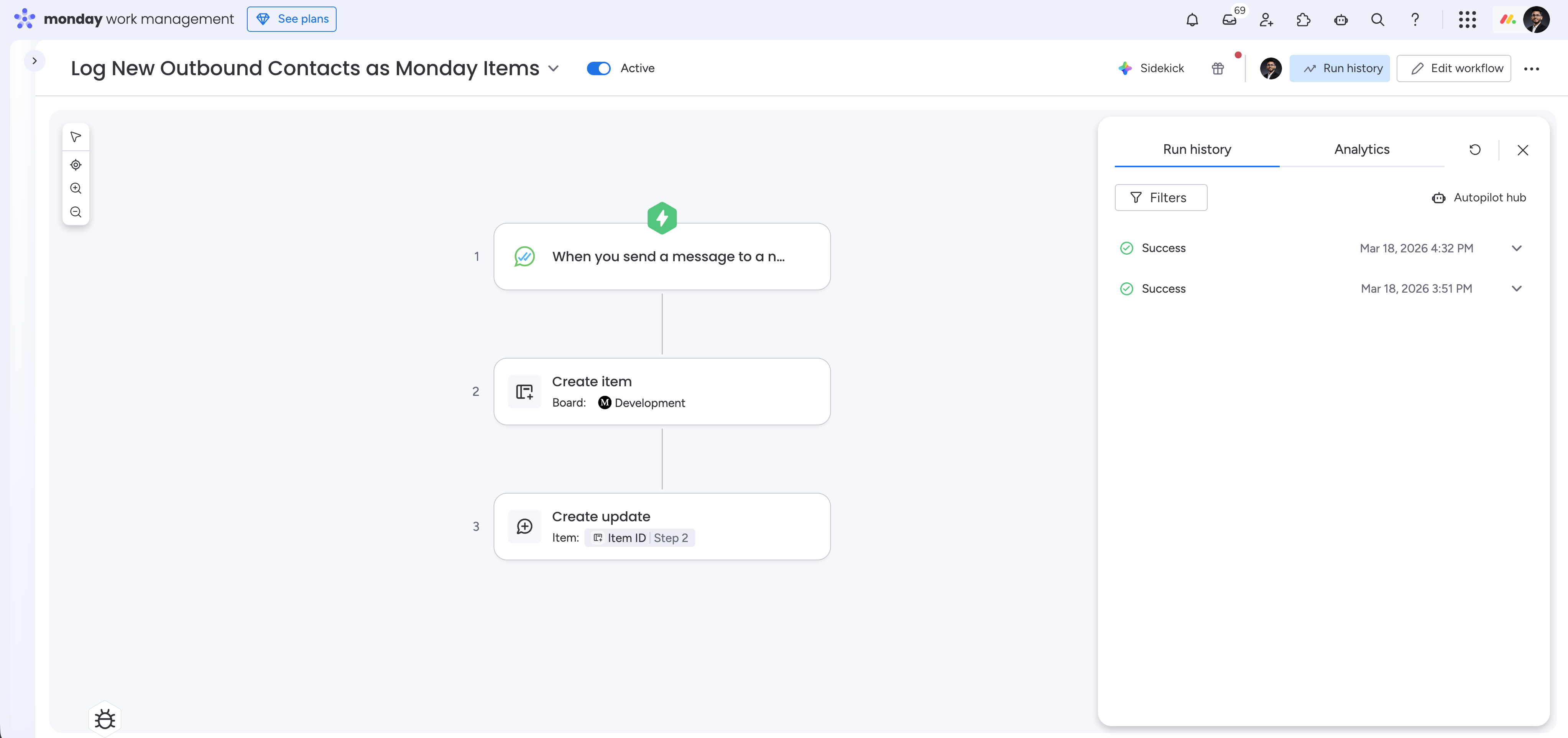
Log New Outbound Contacts as Monday Items — workflow with Create Item and Create Update
Add trigger and Create Item
- Open Workflow Builder → Create Workflow
- Add trigger → search WhatsAble → select When New Outgoing Chat Created
- Add Create Item (Monday native):
- Board: your target board
- Group: your preferred group (e.g. Leads, Prospects)
- Map Name →
{name}, Phone →{phone}, Country →{country}, Label →{label}, Sent By →{sent_by}, Last Message Time →{last_message_time}, AI Active →{ai_enabled}
Add Create Update and publish
- Add Create Update:
- Item: Item ID from Step 2
- Update body:
{message}from Step 1
- Click Publish
sent_by field tells you which team member or automation initiated the conversation.
Example 3 — Notify Customer via WhatsApp on Status Change
What it does: When a Monday item’s status column changes, this workflow automatically sends the contact an approved WhatsApp template message. Use it to notify customers when their order is shipped, their ticket is resolved, their proposal is ready, or any other status-driven event. Trigger: Monday native — When status changes to something Workflow structure:- Step 1 — Trigger: When status changes to [value] (Monday native)
- Step 2 — Send a template message (WhatsAble action)
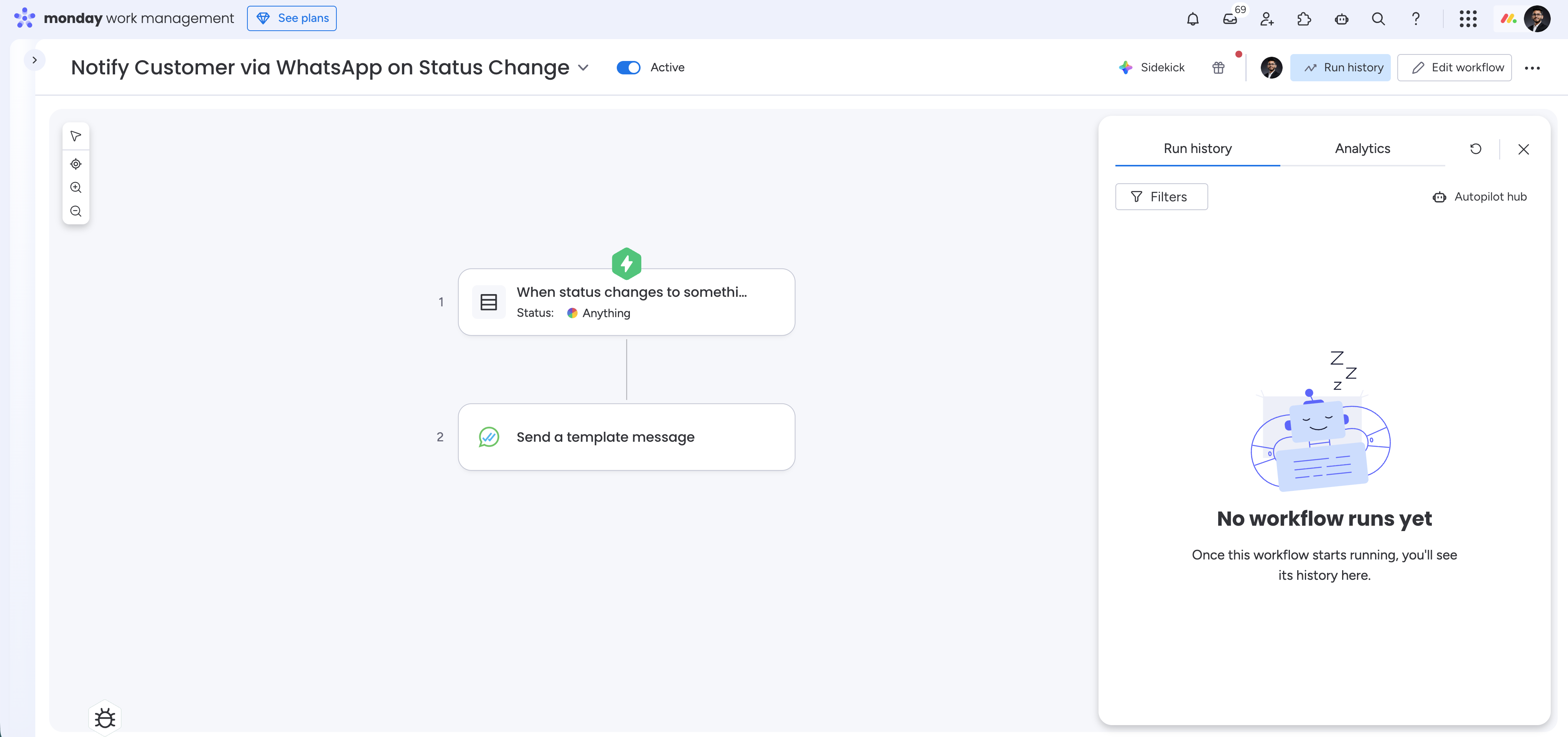
Notify Customer via WhatsApp on Status Change — workflow with status trigger and Send Template Message
Add trigger
- Open Workflow Builder → Create Workflow
- Add trigger → use Monday’s default When status changes to something:
- Select your Status column
- Set the value to the status that should fire the workflow (e.g. Done, Shipped, Resolved)
Add Send Template Message and publish
- Add WhatsAble action Send a Template Message:
- Select your approved template from the dropdown
- Map each template variable (e.g.
{{1}}) to a board column — typically the contact’s name - Map Phone Number → your board’s phone/mobile column
- Click Publish
Example use cases
Lead capture
Support tickets
Order confirmations
Sales follow-up
Activity updates
Appointment reminders
Disconnecting
To remove the connection, go to Notifyer Console → Connect To → Monday and click the red Disconnect WhatsAble from Monday button. To reconnect, repeat the connection steps above. Your existing Monday workflow configurations remain intact — only the authorization needs to be re-established.Best practices
Use Find Matching Item for deduplication
Use Find Matching Item for deduplication
equals | Result: last_created_item | Branch: found / not_foundStore phone numbers in E.164 format
Store phone numbers in E.164 format
+34612345678). Ensure your Monday phone column stores numbers in the same format for reliable matching.Use templates for compliance
Use templates for compliance
Test workflows before production
Test workflows before production
Monitor Run History
Monitor Run History
Troubleshooting
Step 1 still shows incomplete after installation
Step 1 still shows incomplete after installation
Refresh the page
Workflow triggered but no item was created
Workflow triggered but no item was created
Check contact status
Phone number not matching in Find Matching Item
Phone number not matching in Find Matching Item
Verify format
+34612345678). Ensure your Monday phone column stores numbers in the same format.Template not appearing in Send Template dropdown
Template not appearing in Send Template dropdown
Check approval status
sent_by field is blank
sent_by field is blank
Understand field availability
sent_by is only populated on outgoing messages. It is always empty on Trigger 1 (Incoming Chat), and blank for incoming messages on Trigger 3.Workflow shows Failed in Run History
Workflow shows Failed in Run History
Diagnose the failure