

Shared Team Inbox
How the shared WhatsApp inbox works on Pro and Agency: first open, who sees what, labels and notes, AI and human handoff, Coexistence, and more than one number.
The shared team inbox is on the Pro and Agency plans, and on the free plan you start with. Bulk Message does not include the inbox: it sends one-way broadcasts only.
The Inbox is where your team reads WhatsApp conversations as they arrive and replies as your business. This page explains what a new team sees and who sees what. For the controls inside a conversation (replying, attachments, scheduling, notes and the contact panel), see Work a conversation in the inbox.
Bulk Message is built for one-way broadcast sending and has no inbox. Upgrade to Pro or Agency to get it. On Pro and Agency, Inbox is in the left-side menu.
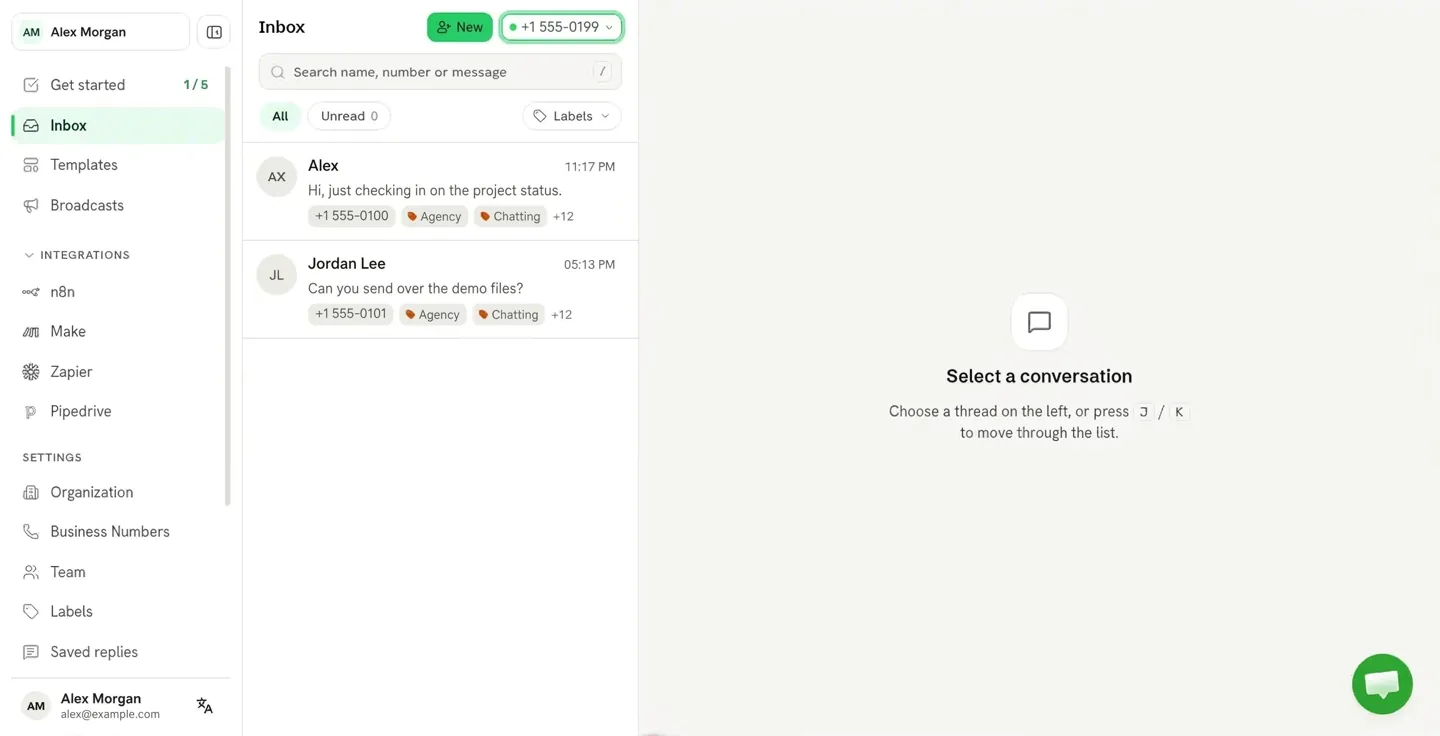
First open: what you'll see
After you connect a WhatsApp number, the inbox shows only real conversations. It stays empty until a customer messages you, or until a history import finishes.
If you connect the number through Meta WhatsApp Coexistence, you can import about the last 6 months of chats from the WhatsApp Business app. The import can take hours. If the inbox looks emptier than expected right after you connect, the import is usually still running.
The conversation list and new conversations
The list shows the conversation with the newest activity first. Each new message, received or sent, moves its conversation to the top. Search, filters and paging are described in Work a conversation in the inbox.
To write to a customer first, click New. In Start a conversation, enter the Phone number and pick your business number under Send from. The new conversation shows on top of the list, so you can send the first template at once. A first message to a new contact must be an approved template. If you send nothing, newer conversations move above it: it does not stay pinned to the top.
The phone field has a country selector, which starts at the country your browser is in. Type the number without its country code, or paste the full number with a + in front. The field shows a warning when a number looks mistyped:
- the number starts with a
0after the country code (for example+40 0722 545 251), - the country code is typed twice (for example
+40 40 749 905 361), - the number is longer than numbers in the selected country, which usually means you pasted a number with its own country code but without the
+.
The warning shows the number you probably meant. Click it to use that number. The warning never stops you: some valid numbers look like this, so you can still start the conversation as typed.
Who sees what
Every person on your team has one of three roles:
- Owner: sees everything, and is the only one who manages billing.
- Admin: replies, invites people, edits templates and sends broadcasts. Sees every conversation and number, everything except billing.
- Member: replies in the inbox, inside the conversations and numbers you give them.
An owner or an admin can narrow what a member sees with Edit access on the Team page:
Numbers
Which numbers can they work in? All numbers, or Only these numbers. A member reads every conversation on their numbers and sends from them.
Labels
Narrow it to certain conversations? All conversations, or Only these labels. The member then sees only conversations whose contact carries one of those labels.
Both limits apply together. A member limited by labels sees a note at the top of the list: "You can see conversations with your assigned labels." Roles and invitations are covered in Team roles.
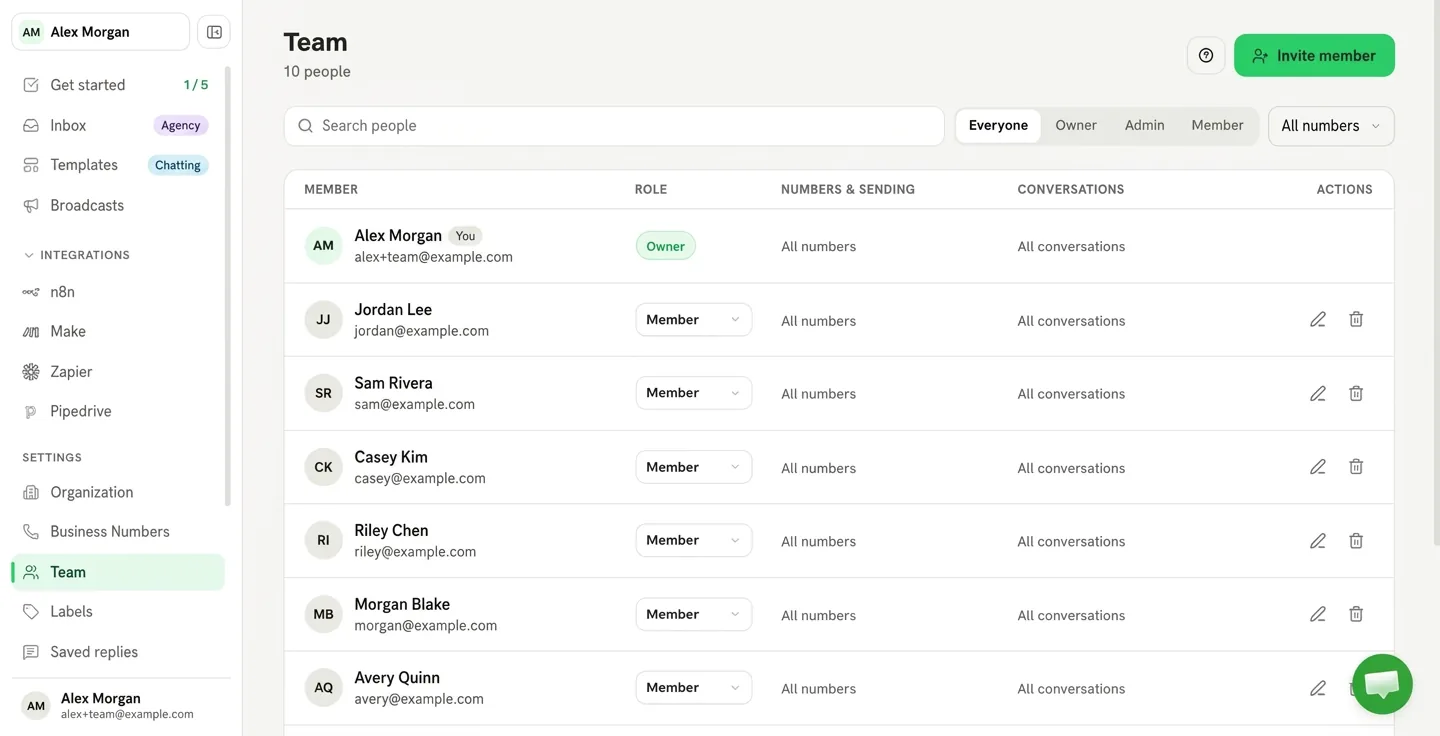
Whatsable has no "assign to a teammate" field on a conversation. To send a chat to the right person, you add a label that matches their access. See Route chats to the right teammate.
Labels and notes
These look similar but do different jobs:
Labels
Organize and route. A label sits on the contact. Use labels to filter the inbox, to limit what a member sees, and as a condition on a scheduled message. They can be added by hand, by keyword, by an AI agent, from an ad, or by your automations.
Notes
Give context. Internal notes are your team's messages inside a conversation, never sent to the customer. Each contact also has one Contact note your team writes and one Automation note your automations write. The AI agent reads both.
Hand a conversation between the agent and your team
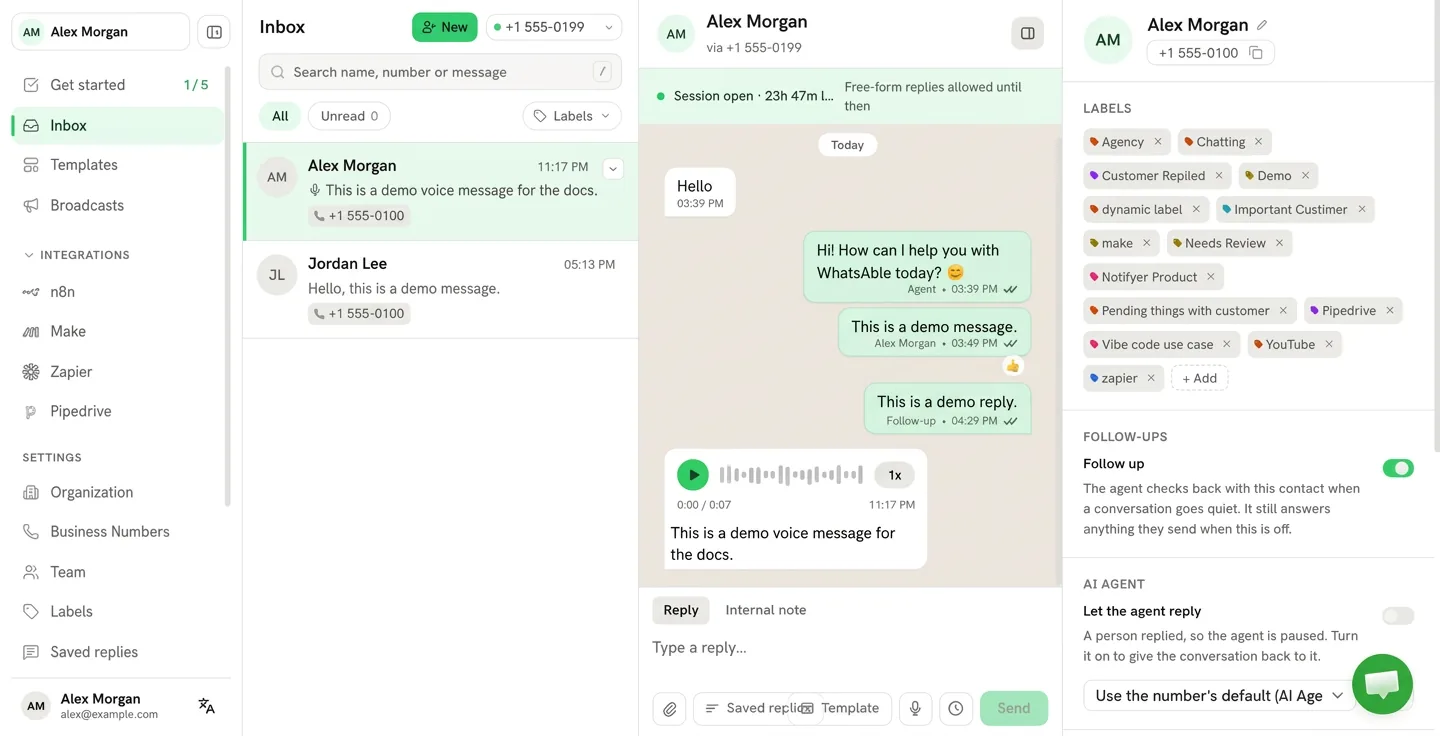
Open a conversation and look at the AI agent section of the contact panel:
- Let the agent reply controls whether the AI agent answers this conversation on its own. Turn it off and the agent stops at once. Turn it on to give the conversation back to the agent.
- When a person on your team replies by hand, the agent pauses on that conversation. The panel says: "A person replied, so the agent is paused."
- When the agent hands a conversation to a person, it turns itself off there. If the agent's Tell the team when a customer asks for a person switch is on, your team also gets an AI handoff notification.
- A reply typed in the WhatsApp Business app also pauses the agent. It counts as a reply by a person. See Coexistence below.
- A reply from an AI assistant connected through the MCP server pauses the agent too, by default, and the assistant tells you. A message sent through the API v1 pauses it only when the request sets
pause_ai, and broadcasts and scheduled messages never pause it.
The history stays as it was, agent messages included.
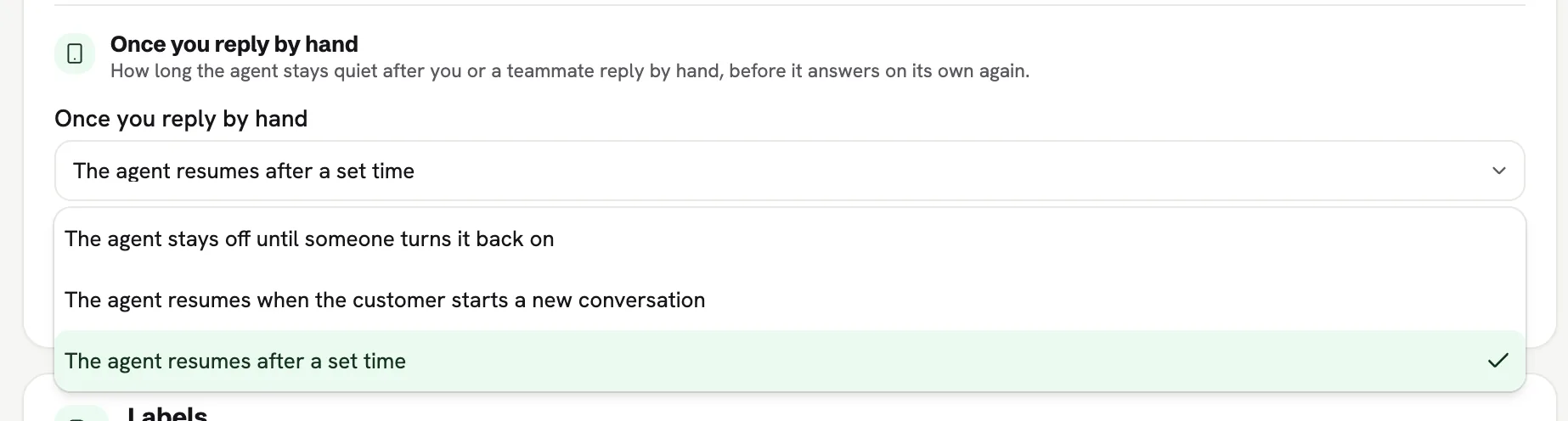
When the agent may reply again
Each agent has a setting, Once you reply by hand, in its Response settings. It decides how long the agent stays quiet after you or a teammate reply by hand:
- The agent stays off until someone turns it back on
- The agent resumes when the customer starts a new conversation
- The agent resumes after a set time
See AI agents for the agent itself, and Create an agent to set one up.
Coexistence: phone and inbox together
When your number uses Meta WhatsApp Coexistence, someone can reply from the WhatsApp Business app on the phone while your team works in the web inbox:
- It is the same customer thread in the web inbox, and it updates in real time.
- The reply shows as sent from WhatsApp App, not from a named teammate. On the legacy message webhook payload it carries
send_by: "WhatsApp App",was_message_by_human: trueandincoming_message: false. - That phone reply pauses the AI agent on that chat, the same as a reply typed in the inbox.
- Your Make, Zapier or n8n automations pause only for an endpoint that has Pause when your team replies turned on in Outgoing webhooks. A phone reply counts as a team reply there. Otherwise the scenario keeps running unless you filter on the phone reply, as shown in filtering for phone-app replies.
- Groups, Status and Calls do not sync into the web inbox. Only 1:1 conversations do.
You do not need to refresh the page to see a phone reply. If it does not show, report it as a bug.
More than one number
With more than one WhatsApp number connected, the inbox has a number filter. Choose All numbers to work every number in one list, or pick one number. The Labels filter narrows the list further. Each conversation shows the number it came in on, and you reply from that number.
Pro includes 3 numbers and can add more at $13 a month each. Agency includes up to 100 numbers and sells no extra numbers. A number over your plan still receives messages but cannot send until the owner adds it to the plan. See Plans: Bulk Message, Pro, Agency.
If you manage numbers for clients, limit each client's people to that client's numbers with Edit access, so they never see your other clients' conversations.
Next steps
Work a conversation
Replies, attachments, saved replies, scheduling, notes and the contact panel.
Labels
Create labels, apply them by keyword, and let an AI agent use them.
Route chats to a teammate
Send each conversation to the right person with labels and member access.
Connect a WhatsApp number
Complete Embedded Signup, with Coexistence support, so the inbox has conversations to show.