Connect WhatsApp Business to your monday boards—from install and Meta setup to templates, workflows, and Live Chat. Includes video walkthrough and free setup offer.
Install Whatsable from the monday marketplace, then build workflows and use Live Chat on your boards. Follow the Step-by-step walkthrough from the beginning.
Full video walkthrough:Watch on YouTube (same embedded video above).
In the monday marketplace, click Install Whatsable. This opens monday and asks for permission to install.
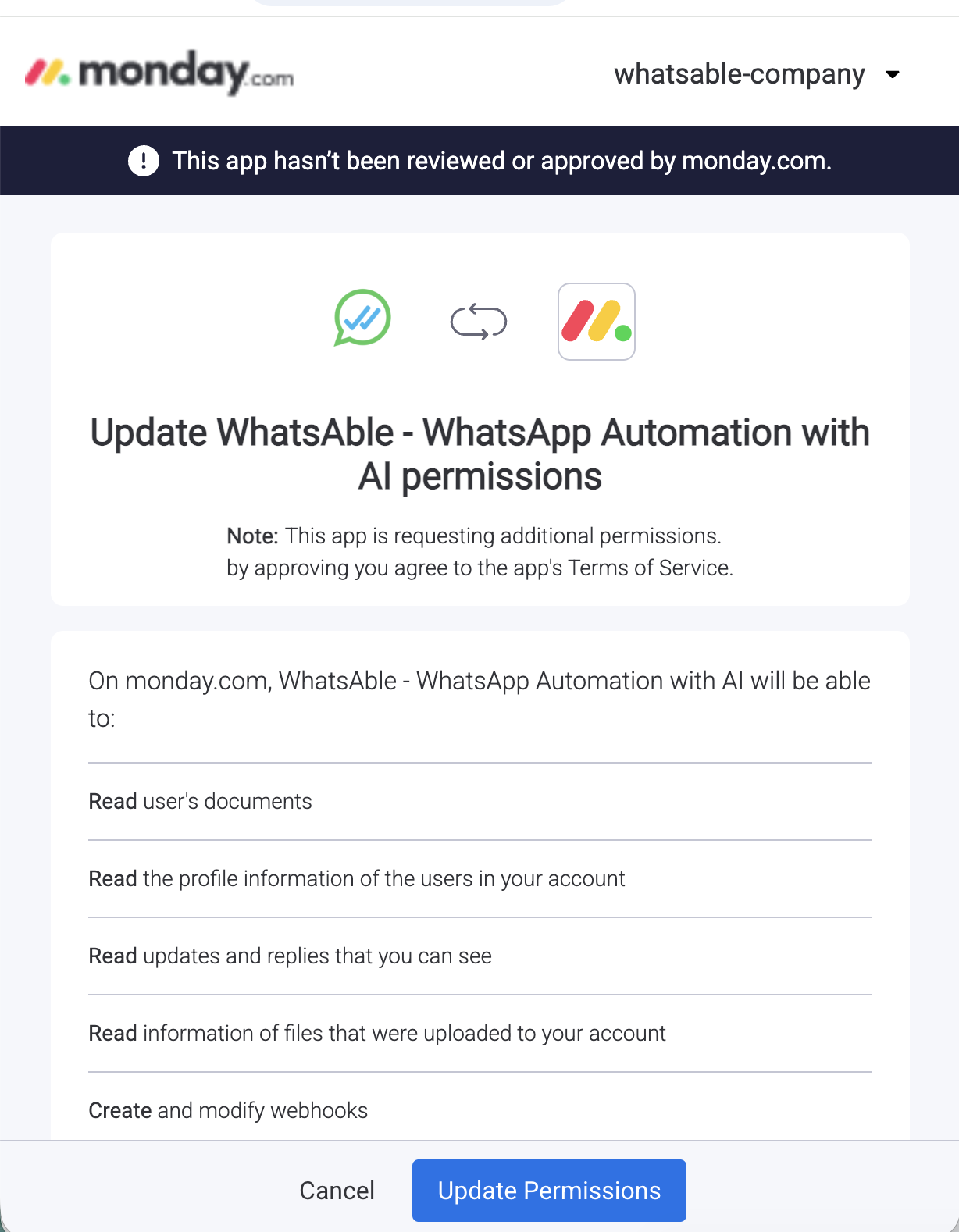
Step 1 — Give permission to install
Give permission to install Whatsable
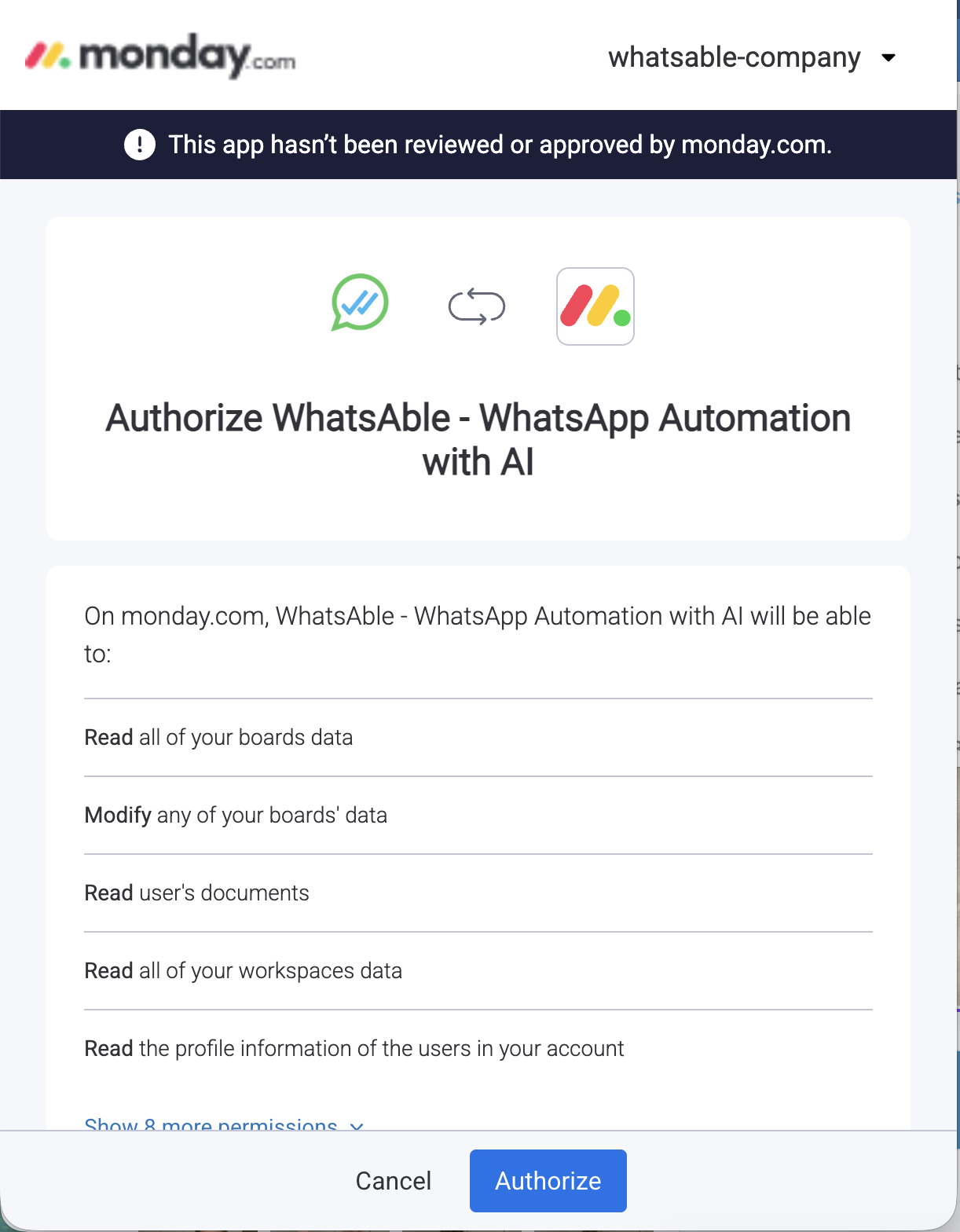
There is a second step right after: click Authorize. Both steps are needed—if you skip authorization, the integration will not work.
Step 2 — Authorize
Continue through the authorize flow until it completes.
Authorize Whatsable to connect with monday
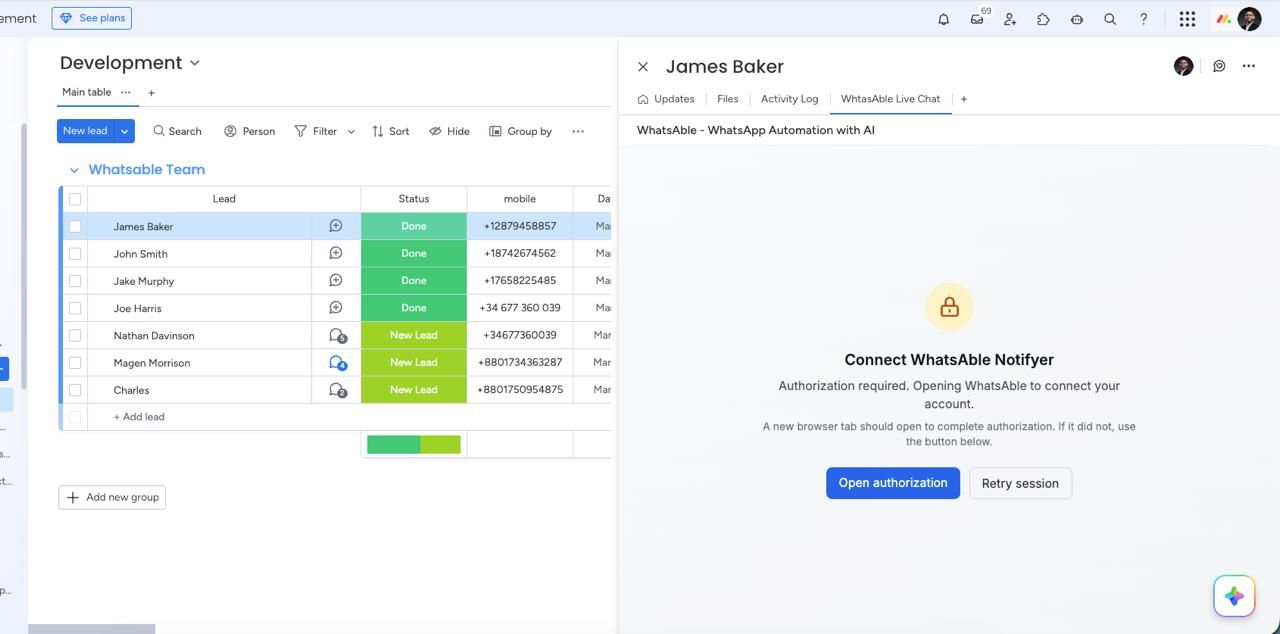
What you’ll see if authorization is still pending: When you open the Whatsable Live Chat tab on any board item, you may see a screen asking you to Connect Whatsable Notifyer. Click Open authorization to finish. If a new tab does not open, click Retry session.
Connected successfully to monday
Once authorized, you’ll see a confirmation such as “Connected successfully to monday.”
2. Connect your WhatsApp Business number with Meta (through Whatsable)
Inside Whatsable, click Connect WhatsApp and follow the flow through Step 2.
You can skip or ignore prompts to subscribe at first—keep going until Step 2, where you’ll see the green Connect your WhatsApp numberbutton.
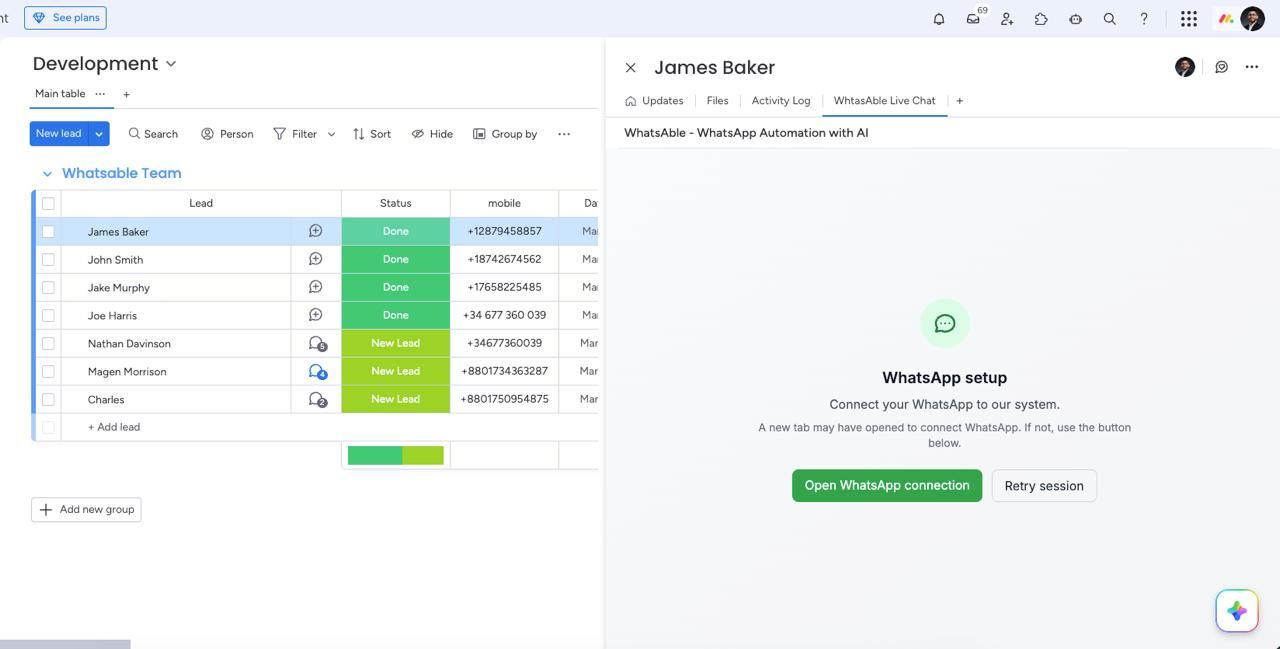
If your number is not connected yet: The Whatsable Live Chat tab can show a WhatsApp setup screen with a green Open WhatsApp connection button. Click it to start the Meta connection flow; if nothing opens in a new tab, use Retry session.
Connect WhatsApp before Meta onboarding
When you click it, you’ll be sent to Meta to log into your Facebook Business portfolio. From there:
Select your business portfolio.
Choose your existing WhatsApp Business Account, or create a new one.
Select (or create) a Facebook page—you don’t need to actively use it, it just needs to exist
Select an ad account.
Choose how to attach a number:
Option A: Use a number WhatsApp provides for you (no number of your own needed)
Option B:Connect your existing WhatsApp Business number—either select it if it’s already linked, or enter it manually and scan the QR code.
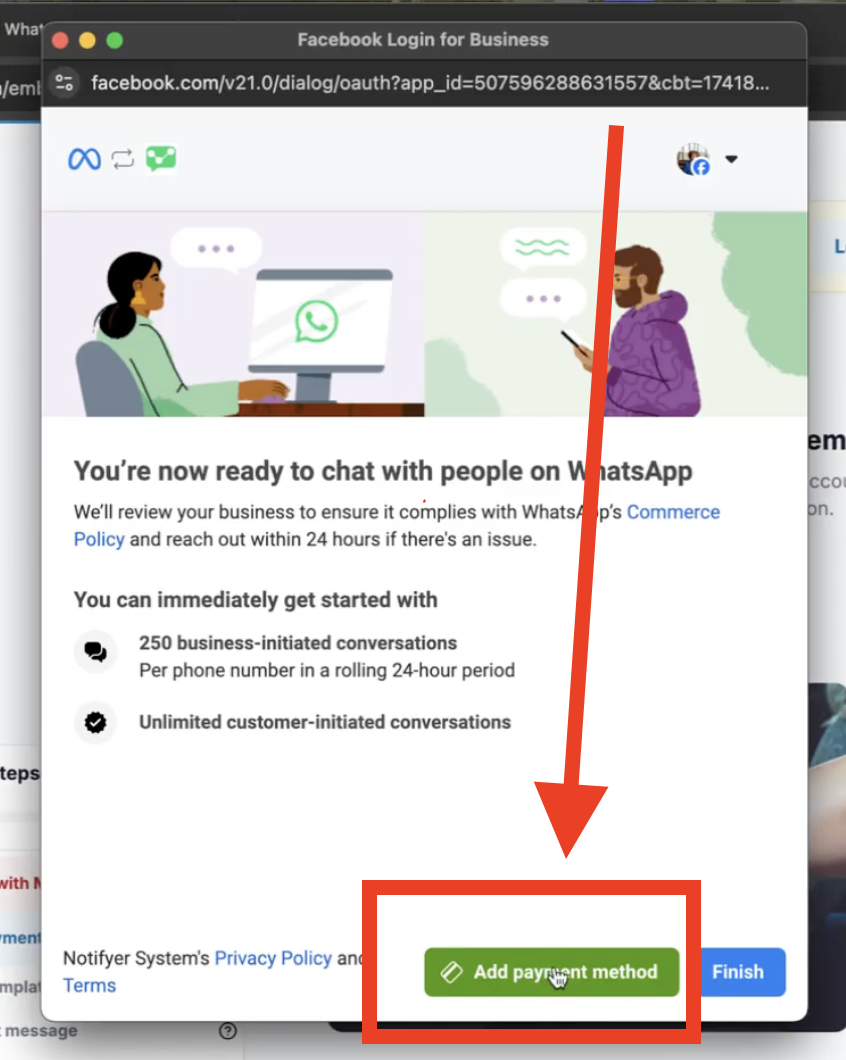
WhatsApp messaging from the Cloud API normally requires a billing method on the WhatsApp side. Many people skip this—and then sends fail.
Add a payment method for WhatsApp in Meta
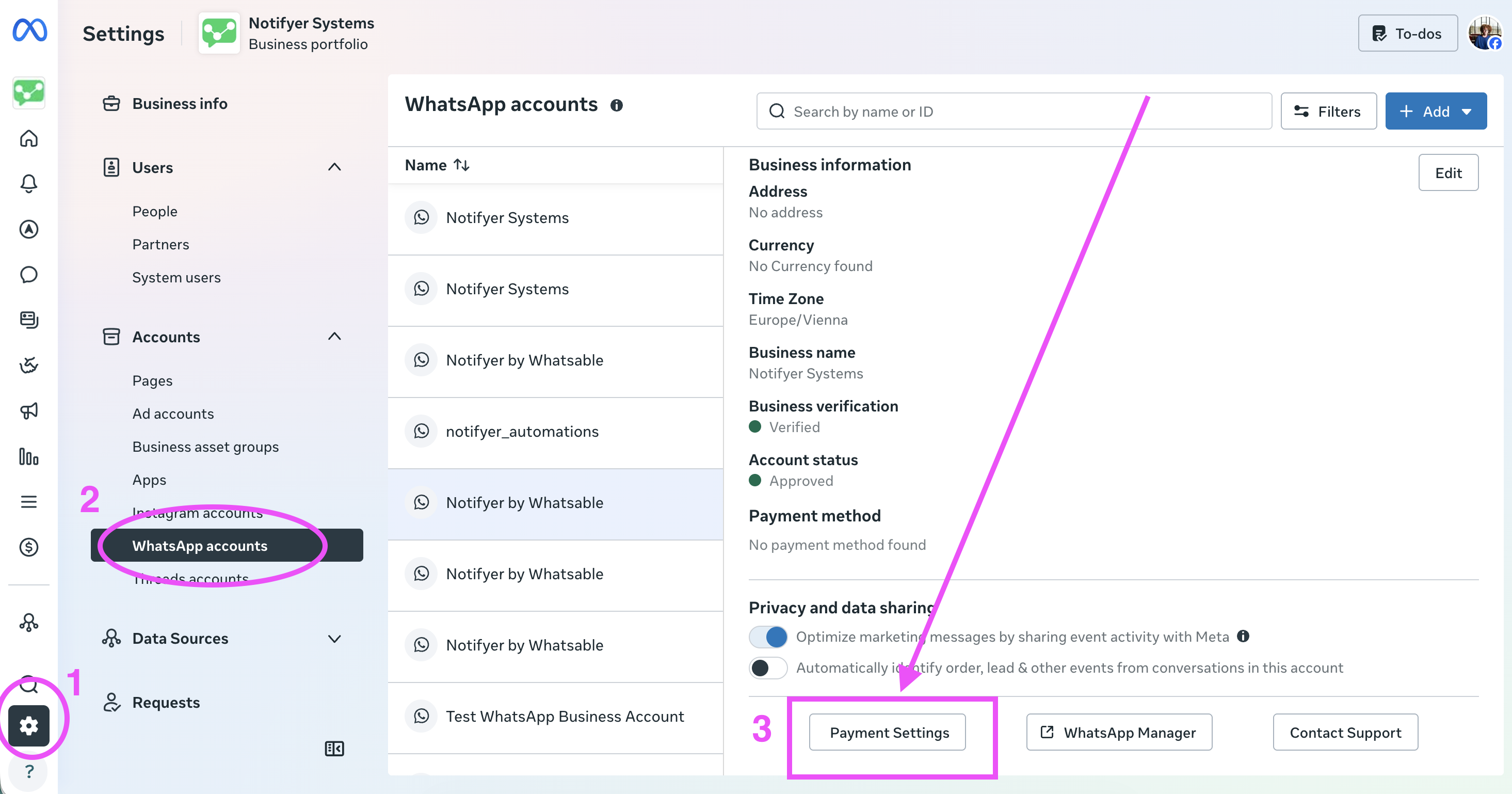
Typical places to add payment in Meta:
Open business.facebook.com, go to Settings (often bottom-left) → Accounts → WhatsApp accounts → select your Phone number → open Summary and scroll to Payment settings → Add payment method.
Alternatively, explore Billing / Payments sections in Meta Business Suite or Business Settings until you locate payment method for WhatsApp (UI labels change over time).
If Meta rejects your card, contact team@whatsable.app—we’ll help troubleshoot.
Even if you already have a payment method for Ads, you may still need one explicitly tied to WhatsApp / conversation-based billing depending on how your Meta account was set up.
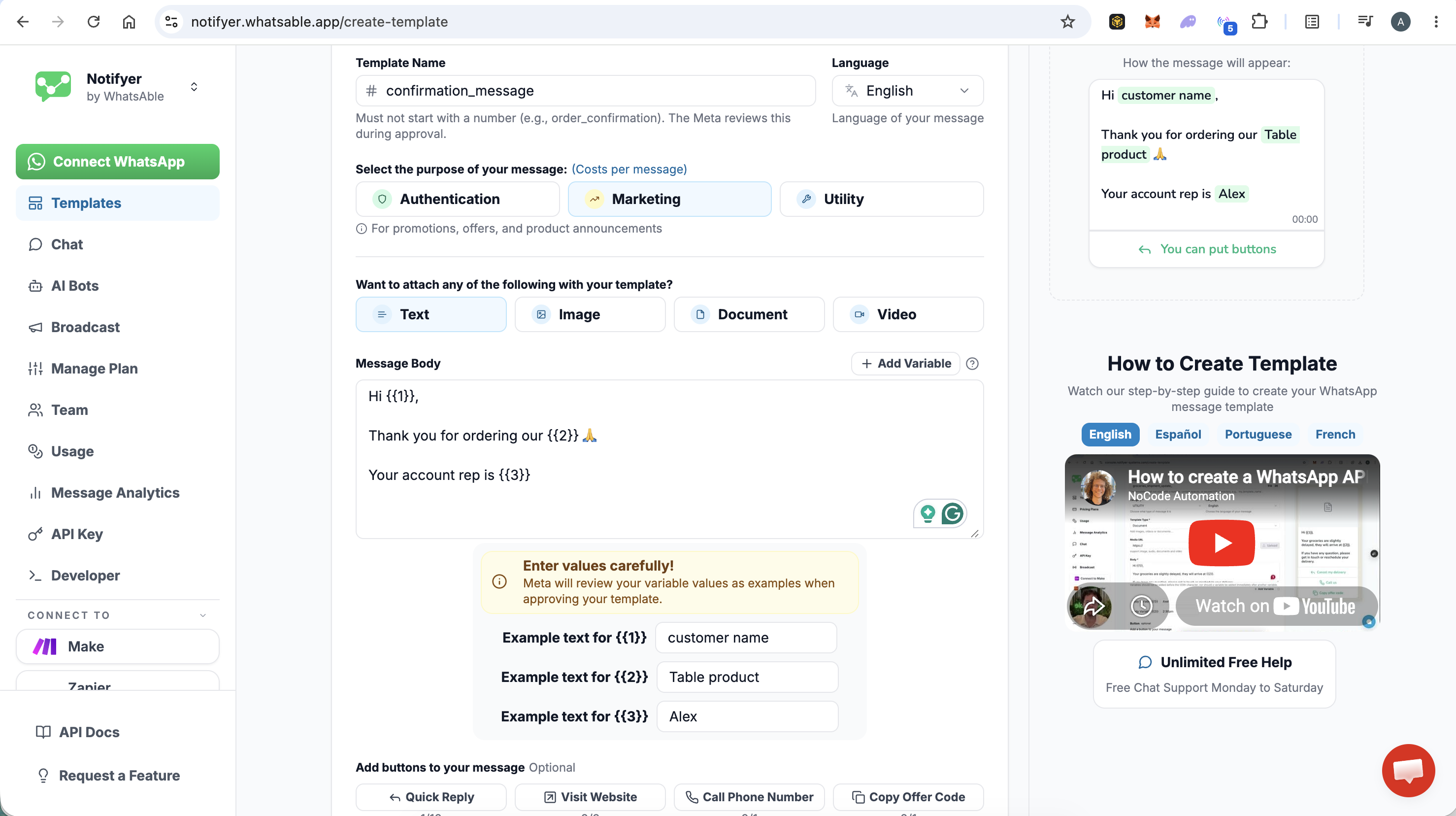
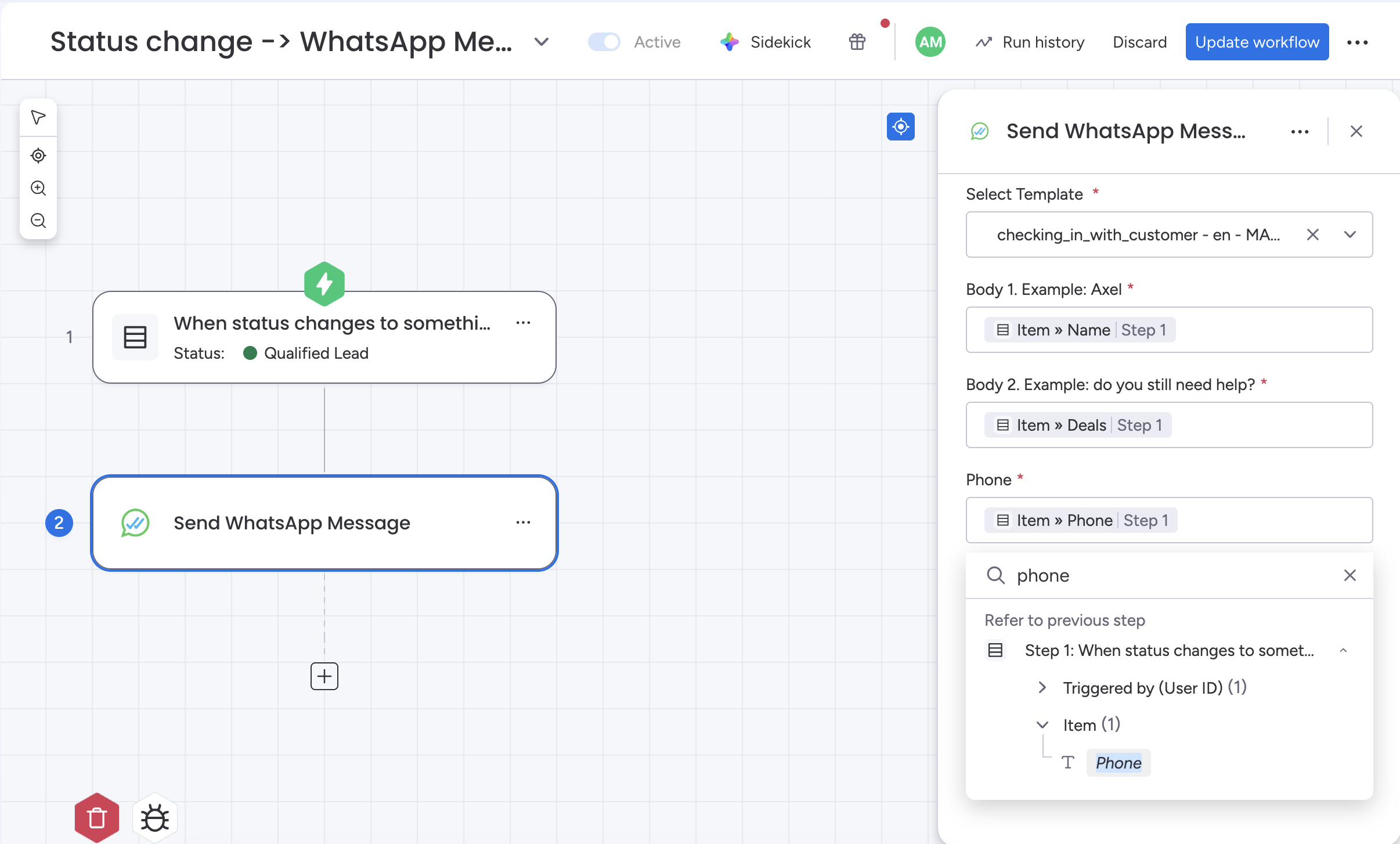
A template is the message format WhatsApp uses when you send something from monday. For example: a welcome message when a lead’s status changes to “Qualified.”To create one:
Whatsable can run an AI agent beside human replies:
Give it a name (for example “Lead qualifier”).
Describe your business mission and paste product / FAQ knowledge.
Define human handoff rules—for example “If a customer mentions a deal over $5 000, notify a human.”
When handoff fires, Notifyer/Whatsable can notify you (Notifyer by Whatsable mobile apps on iOS and Android).The agent can also follow up proactively when a conversation goes quiet—within the rules you set.
Only conversations with certain labels—useful when routing by region, product line, or role. Conversations can be auto-assigned by label rules according to how you configure the product.
Inbound: Update monday when WhatsApp activity happens
Whatsable gives you three inbound triggers:
Trigger
Use case
When you send a message to a new WhatsApp contact
You messaged someone new (e.g. a Facebook Lead Ads contact). Use this to create a new monday item.
When you send or receive any WhatsApp message
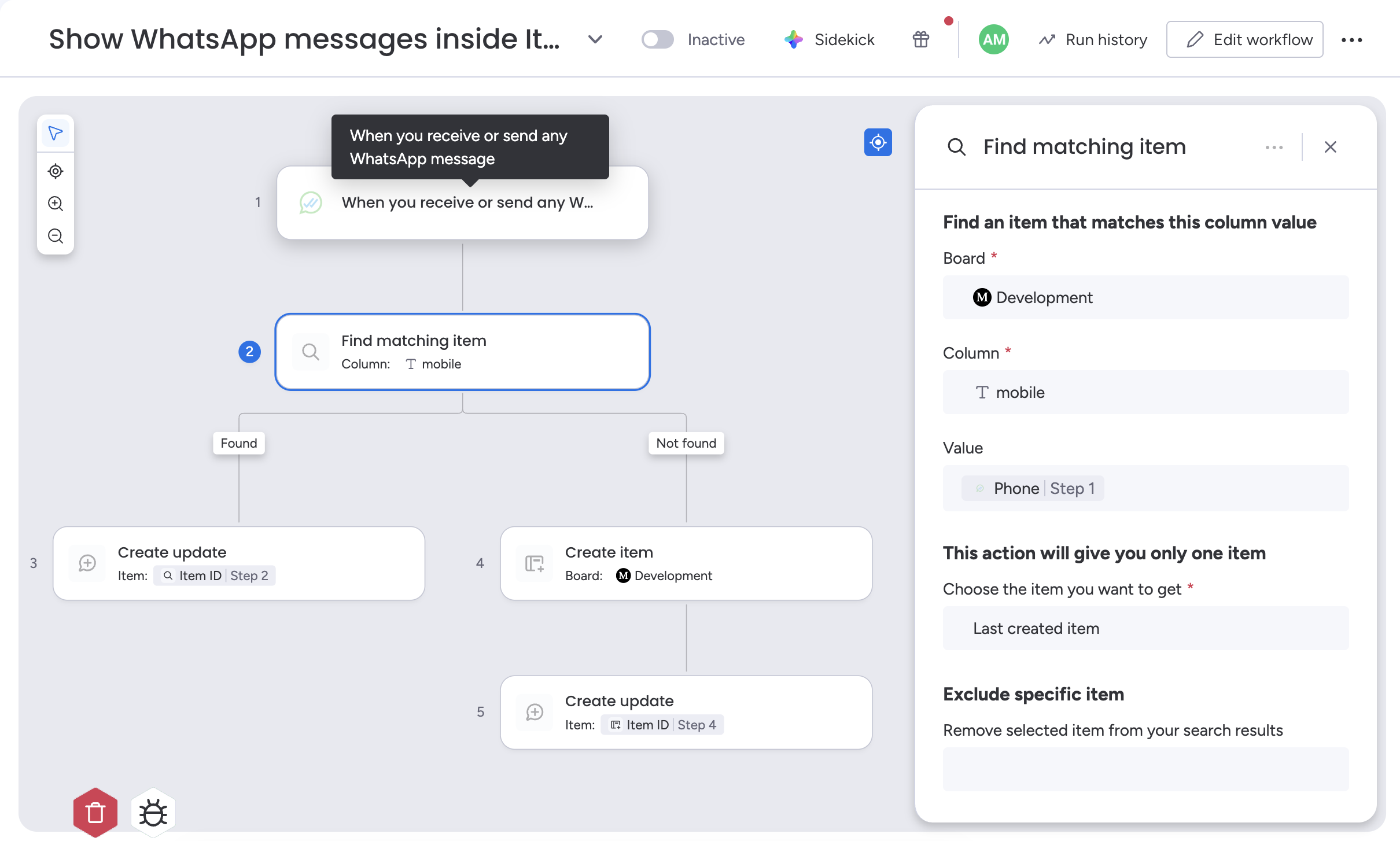
Use this to log every message into the activity tab of the matching monday item. Pair it with Find matching item (by phone number) to update the right record.
When you receive a WhatsApp message from a new number
An inbound lead messages you and isn’t in monday yet. Use this to auto-create a new item.
For “find matching item,” select your board and use the phone field to match. Then choose what happens if the item is found or not found.
Inbound trigger — find matching monday item by phone
8. See WhatsApp messages directly inside any monday item
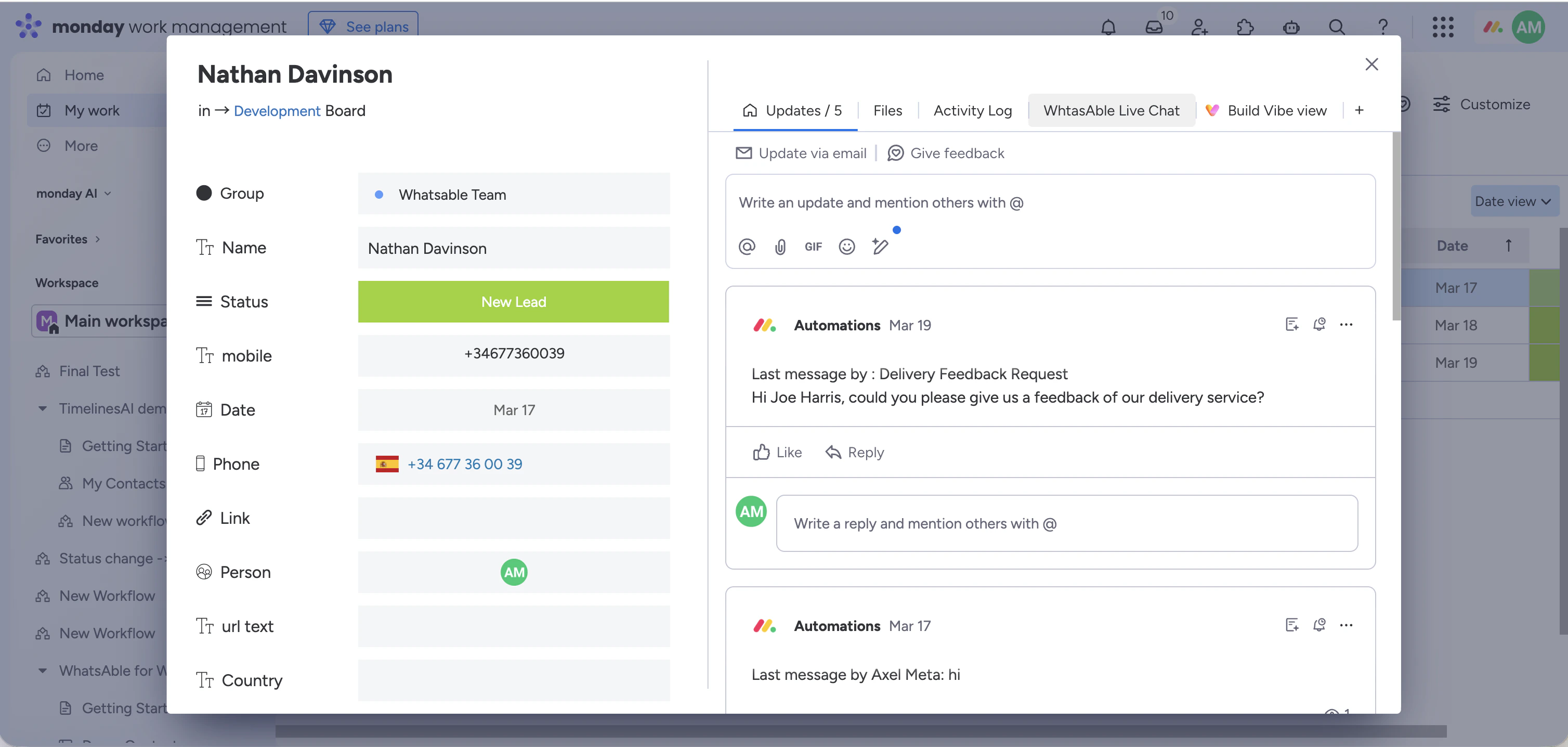
This is one of the most useful parts of Whatsable. Every WhatsApp message your team sends or receives gets logged into the Updates section of the matching monday item — so you have full conversation history right next to the lead’s details.When you open any item, you’ll see entries like “Last message by Axel Meta: hi” or “Last message by: Delivery Feedback Request — Hi Joe Harris, could you please give us a feedback…” — with the exact date, time, and the team member or template that sent it. You can like, reply, and mention teammates on each message just like any other monday update.
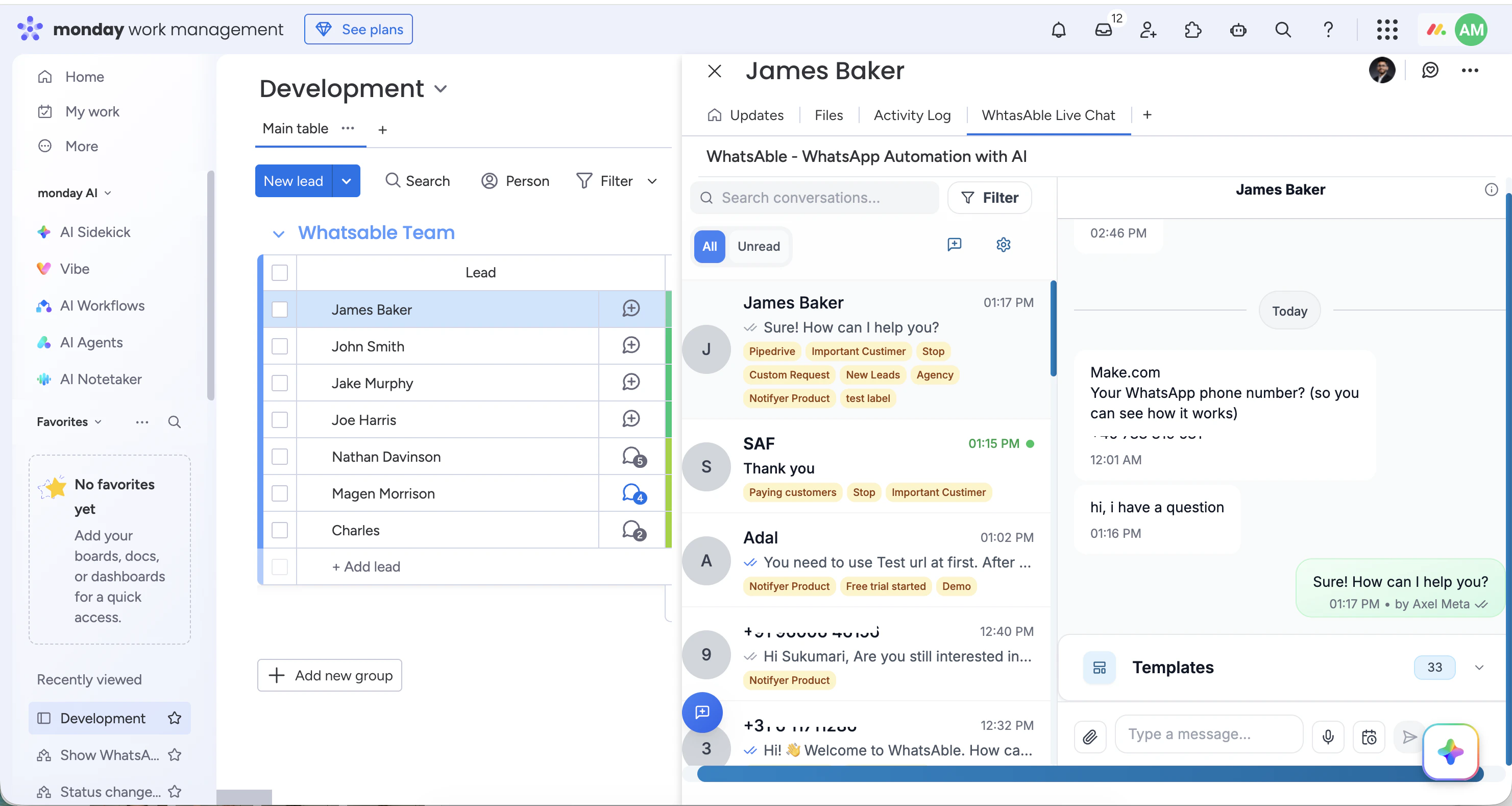
For active, two-way conversations, go to My Work in monday and expand the sidebar. You’ll see Whatsable Live Chat as a tab.Click it — no extra login needed — and you can read and reply to every WhatsApp conversation right inside monday. AI replies are labeled as AI; human replies show which team member sent them.You can also open the Live Chat as a tab on any individual item (next to Updates, Files, and Activity Log) to see only that contact’s conversation.
Chat with us directly on whatsable.app — click the green button in the bottom right corner.Setup help is completely free for all customers, including during your free trial. If you’d rather have us configure your templates and workflows for you, just book a call.