

n8n
Connect WhatsAble with n8n. Run workflows on WhatsApp messages, send templates and media, schedule messages and update contacts with the verified Whatsable node. Coexistence is supported; you keep the WhatsApp Business app on your phone.
WhatsAble integration with n8n
n8n is a workflow automation platform that you use in n8n Cloud or on your own server. The verified Whatsable node connects your n8n workflows to your WhatsApp number in WhatsAble.
Use it to:
- Start a workflow when a contact writes to your WhatsApp number.
- Send an approved template, with variables, a media header and a URL button.
- Send text, image, video or document messages inside the 24-hour window.
- Schedule a message for a later date and time.
- Add labels and an AI note to a contact, so that your team and your AI agent see the same context.
- Read Click-to-WhatsApp ad data (
source_id,source_url,ctwa_clid) on new leads.
Meta WhatsApp Coexistence is supported on Whatsable. You do not need to delete the WhatsApp Business app or stop using the number on your phone. After Embedded Signup, the same number works in the WhatsApp Business app, the Whatsable inbox, and automations (Make, Zapier, n8n, API, and webhooks) at the same time.
Available operations at a glance
Trigger
- On new Incoming message event
Actions
- Send template via Whatsable
- Send non-template via Whatsable
- Update recipient (note and labels)
For every field of the node, see What can the Whatsable n8n node send and receive?.
How the n8n node works with WhatsAble
The Whatsable node calls the WhatsAble integration API with your API key. The Make, Zapier and n8n apps all use this API. It is not API v1, which is for your own code. One API key works for both.
The What this key can do setting of an API key limits API v1 only. It does not limit the n8n node.
API keys and WhatsApp numbers
An API key belongs to one default WhatsApp number in your organization. This decides how the node behaves:
- Every message that the node sends with the key goes out from the key's default number.
- A trigger that you register with the key receives the messages of that number only.
- The template list in the node shows the approved templates of the WhatsApp Business account that holds that number.
To work with two numbers, create one API key for each number. Then create one n8n credential for each key.
To move a key to another number, open API keys and use Change number on the key. The triggers that the key registered move with it. Messages that are already scheduled keep their number.
Prerequisites
Before you start, make sure that you have:
WhatsAble account
A WhatsAble plan that includes integrations (Pro or Agency) and a connected WhatsApp number. The Basic plan does not include integrations.
n8n account
Access to n8n, in n8n Cloud or on your own server.
New to WhatsAble? Sign up here.
Set up your WhatsAble account
Connect your WhatsApp number
Connect your WhatsApp Business number to WhatsAble with the embedding process. You do not need to delete the WhatsApp Business app. Coexistence is supported.
Your connected numbers are in Settings → Business Numbers.
Meta requires this process to verify your business and to apply the WhatsApp Business Platform policies.
Set up message templates
WhatsAble sends two kinds of WhatsApp messages:
A WhatsApp template is a message format that Meta approves. You need a template to start a new conversation. A template can contain variables for personalization.
Open Templates
In the WhatsAble sidebar, click Templates.
Start a new template
Click New template.
Fill out the form
Complete the template form with these details:
A name for internal reference. WhatsAble changes it to lowercase with underscores, as Meta requires.
The language of the template.
Marketing, Utility or Authentication.
A text, image, document or video header.
The message text. Use {{1}}, {{2}} for variables, numbered in sequence from 1.
A short line under the body.
Optional quick reply, website, phone or copy code buttons.
Submit for review
Click Submit for review.
Meta usually reviews a template within 24 hours. A template with no promotional language has a better chance of approval.
Create the template on the WhatsApp Business account of the number that your API key uses. For the full procedure, see Message templates.
Inside the 24-hour window, you can send messages with no template:
Text
Plain text messages
Images
Photos and graphics in supported formats
Documents
PDF, Word and other file types
Videos
MP4 and other supported video formats
You can send a non-template message only in the 24-hour customer service window. The window opens when the customer writes to your business.
Create your WhatsAble API key
Only owners and admins can create API keys.
- In the WhatsAble sidebar, click API keys.
- Click Create API key.
- In Key name, type a name that tells you where the key is used, for example
n8n production. - In Number, choose the WhatsApp number that the key sends from.
- Click Create key.
- Click Copy key, then click I have saved it.
You can reveal and copy the key again later from the same page. For more about keys, see API keys.
Treat the key like a password. Anyone with the key can send messages to your contacts. Never share it publicly or commit it to version control.
Open the n8n page in WhatsAble (optional)
In the WhatsAble sidebar, under Integrations, click n8n. This page lists the operations, the fields a trigger sends, the npm install command and video walkthroughs. Click View on n8n.io to open the Whatsable node on n8n.io.
Integrate with n8n
On self-hosted n8n, you can also install the node from npm: npm install n8n-nodes-whatsable.
Set up your n8n workflow
- Log in to your n8n account.
- Click Create Workflow.
- Add a trigger node:
- Popular triggers are Google Forms, Jotform, ClickUp or a Schedule trigger.
- Connect and configure the trigger for your use case.
Use the Whatsable trigger to run n8n when WhatsApp messages are received or sent, including replies typed in the WhatsApp Business app on your phone. Select the incoming and outgoing credential type so that those events reach n8n, not only the WhatsAble inbox.
Add the Whatsable trigger node
Add the Whatsable trigger node to your workflow:
- Click the + button on your workflow canvas to add a new node.
- Search for "Whatsable" in the node library.
- Select the node with the official Whatsable logo.
- In the trigger options, choose On new Incoming message event. That is the label of the node. With the credential Whatsable incoming and outgoing messages, the same trigger also runs for outgoing messages, including replies typed in the WhatsApp Business app. Filter on
incoming_message.
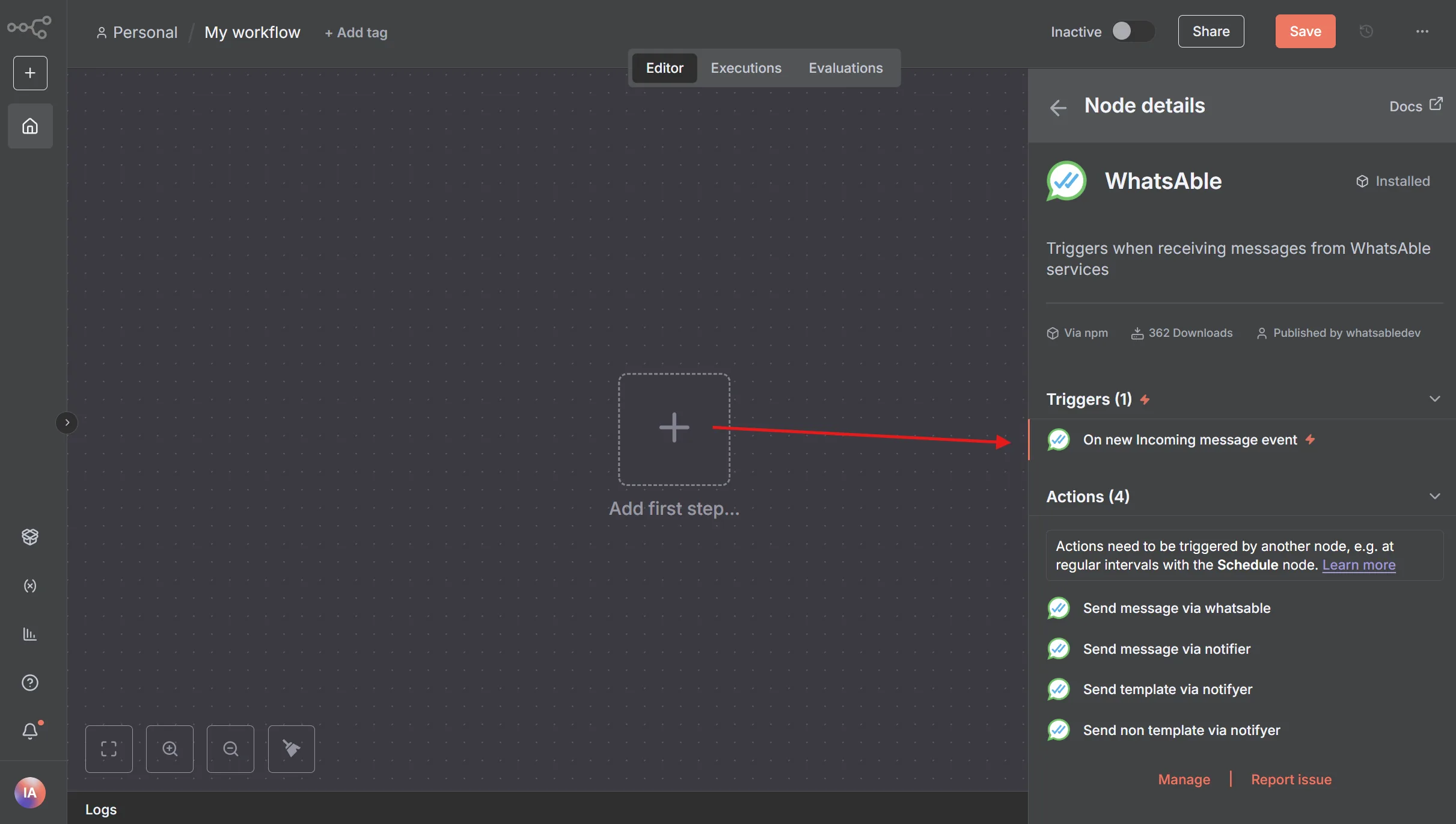
The trigger listens for WhatsApp activity and starts your workflow. Outgoing events include messages typed in the WhatsApp Business app (send_by: WhatsApp App).
Configure the credential
Set up your Whatsable API credential:
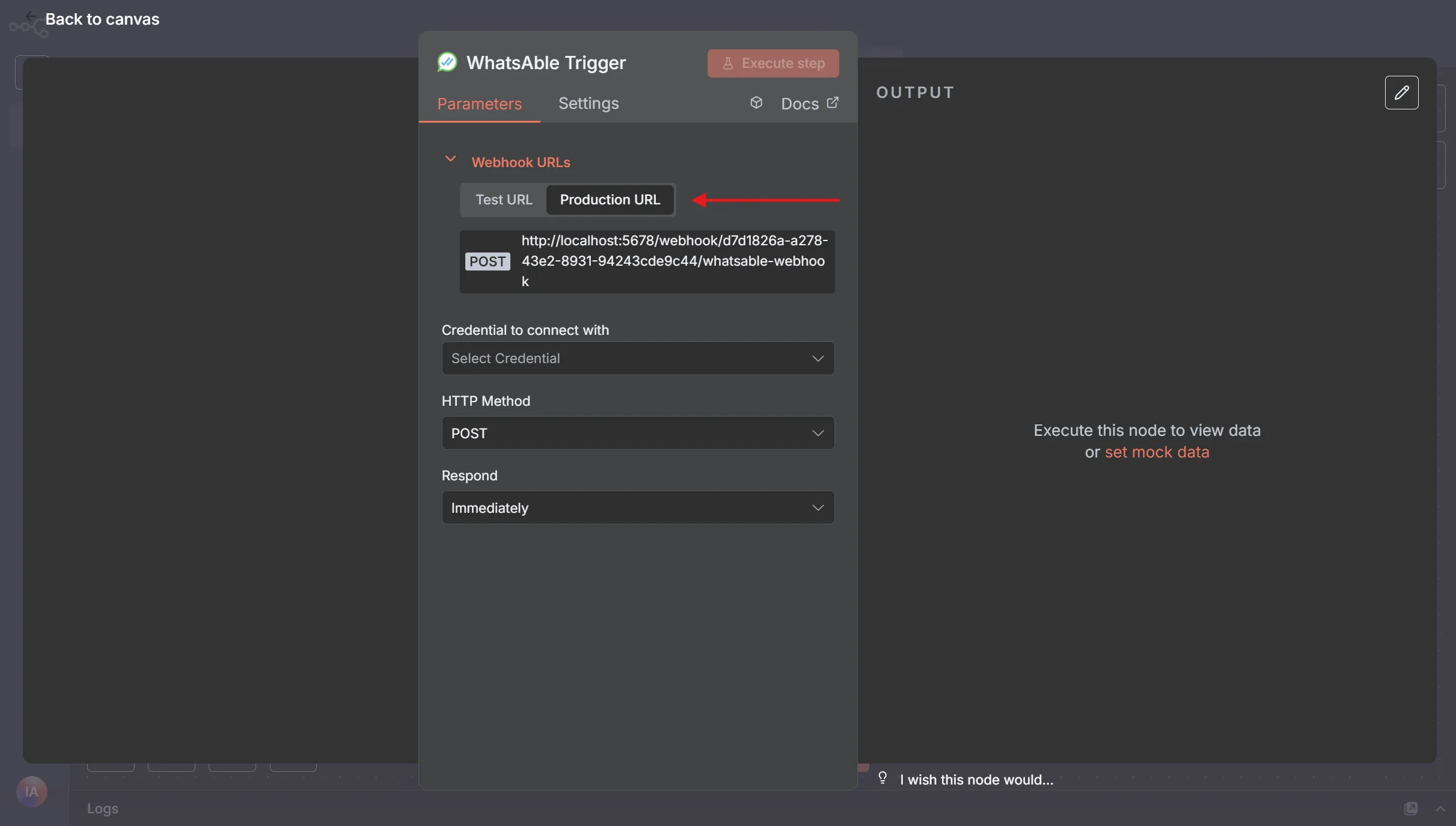
Copy the webhook URL:
- In the Whatsable Trigger node parameters, find the Webhook URLs section at the top.
- Select Production URL and click the URL to copy it.
- Keep this URL. You need it for the credential.
Create the credential:
- In the Credential to connect with dropdown, click + Create new credential.
- Select Whatsable API. For phone-app and inbox replies, choose the credential for Whatsable incoming and outgoing messages.
- Paste your WhatsAble API key in the API Key field.
- Paste the Production URL in the Production URL field.
- Give the credential a name, for example "WhatsAble Production".
- Click Save.
When you click Save, n8n checks your API key and registers the Production URL with WhatsAble. The trigger then appears in Settings → Webhooks in WhatsAble.
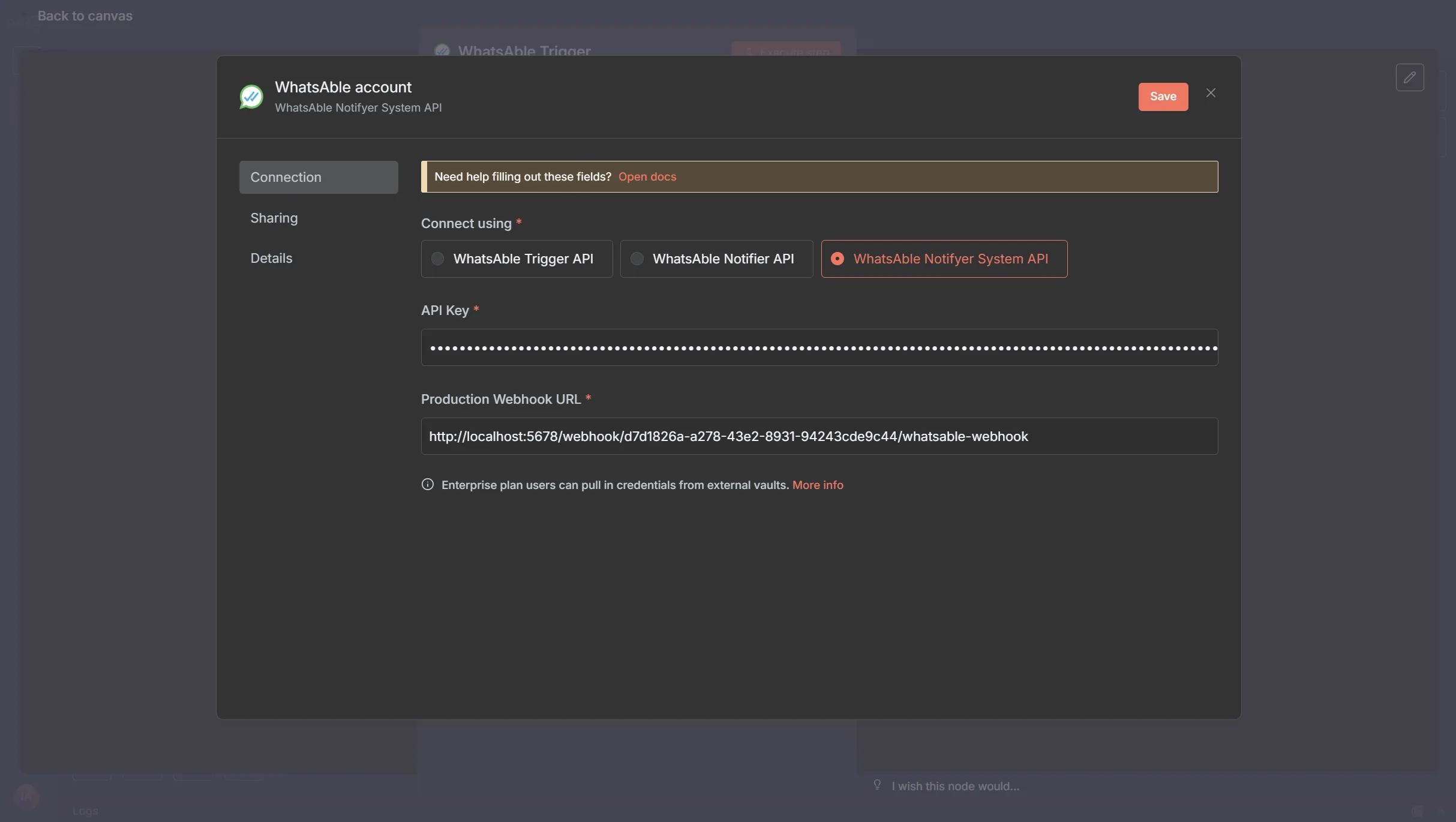
n8n encrypts and stores your credentials. Never share your API key publicly or commit it to version control.
Test and activate the workflow
Finish the setup, then test and activate your trigger:
Response configuration:
- In the Respond dropdown, select when n8n responds:
- Immediately: n8n responds as soon as the trigger runs.
- When Last Node Finishes: n8n waits until the whole workflow finishes.
Testing:
- Click Execute step on the Whatsable node to run a test.
- Make sure that n8n shows a success message.
- If the test fails, read the error message and correct your configuration.
When the workflow is active, it processes incoming and outgoing messages with your logic. Use incoming_message, send_by and was_message_by_human in later nodes to branch on the direction and the sender.
Test your workflow fully before you activate it in production.
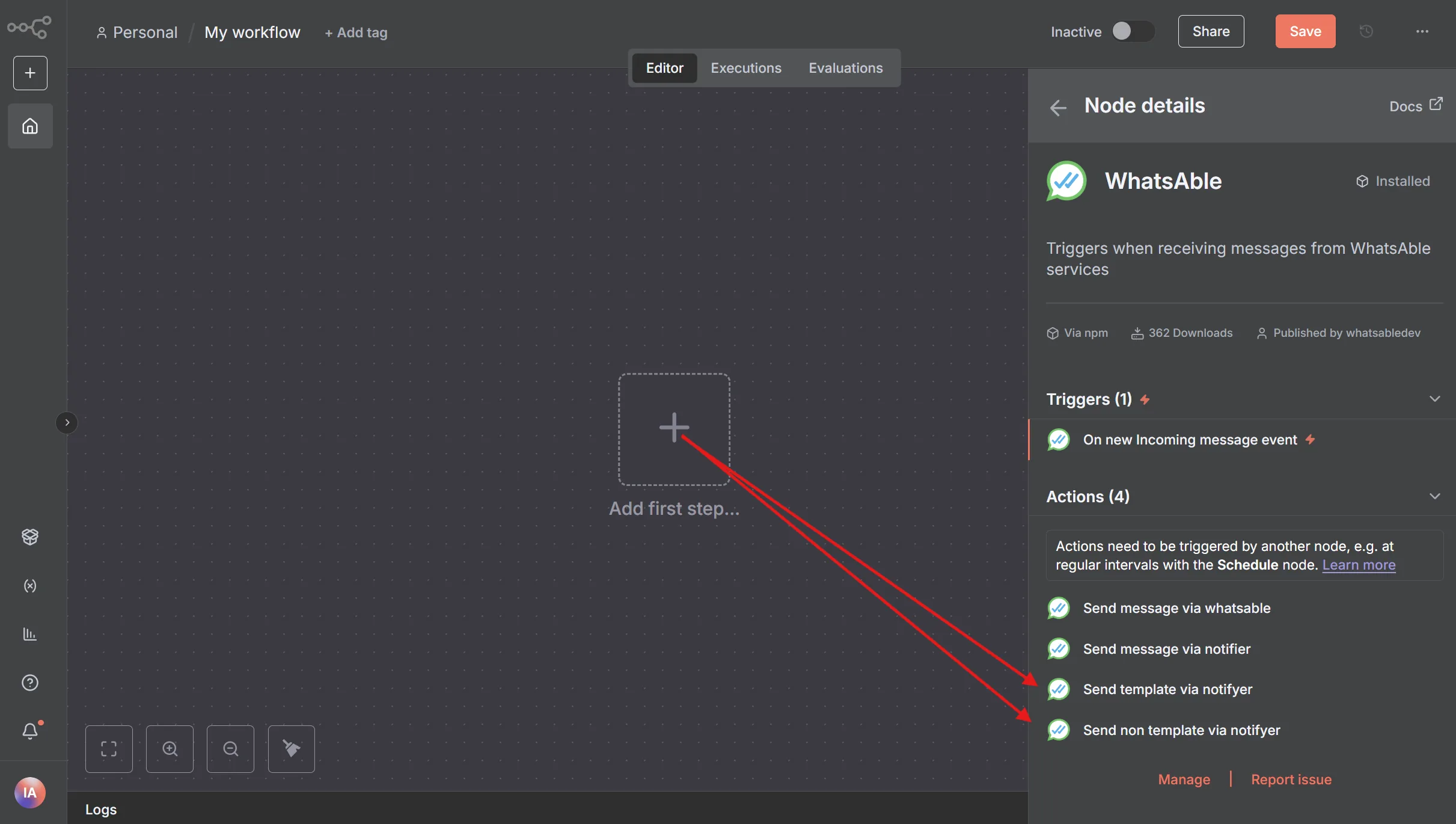
Add the Whatsable node
- Click the + button after your trigger node.
- Search for "Whatsable" in the nodes panel.
- Select the node with the official Whatsable logo.
- Choose Send template via Whatsable or Send non-template via Whatsable.
Configure the WhatsAble credential
- In the Whatsable node Parameters, find the Credential to connect with dropdown.
- Select + Create new credential.
- Paste your WhatsAble API key.
- Give the credential a name, for example "WhatsAble Production".
- Click Save.
Configure your message
- In the Resource dropdown, select Send Message.
- In the Operation dropdown, choose Send template via Whatsable for template messages. Choose Send non-template via Whatsable for other messages, which you can send only in the 24‑hour window.
- Complete the required fields:
Configure the message
Complete the required fields:
The recipient's number with the country code (for example +14155552671), or data from an earlier node
Select one of your approved templates. The list shows the approved templates of the WhatsApp Business account that holds your key's number
Fill in the fields that your template needs:
- For text: type your message content.
- For media: give a public URL of your file.
- A caption, if you want one (for media files).
For all media types, make sure that your file URLs are public and that the file format is supported.
(Optional) A note that WhatsAble saves on the contact, for internal tracking and for the AI agent
(Optional) The labels from your WhatsAble labels to add to the conversation
(Optional) The date and time to send your message
Test and activate your workflow
- Click Test Step on the Whatsable node.
- If the test passes, n8n shows a success message.
- Go back to your workflow.
- Click Save to save the workflow.
- Set the Active switch in the top-right corner to on.
Your workflow now runs. Each time your trigger conditions occur, n8n sends WhatsApp messages through WhatsAble.
Incoming and outgoing WhatsApp messages
Whatsable can deliver both incoming and outgoing messages to your webhook — including messages typed by hand in the WhatsApp Business app on your phone. Outgoing messages reach only an endpoint you add under Settings → Webhooks, with Send to set to Make, Zapier or n8n and Outgoing messages ticked. The Whatsable triggers in the n8n, Make and Zapier apps receive incoming messages only.
This is possible because Whatsable supports Meta WhatsApp Coexistence. You keep using WhatsApp Business on your phone; those hand-typed replies still reach an external webhook and can start an automation. They are not limited to the Whatsable inbox.
The payload is the same whether you use n8n, Make, Zapier, or a custom webhook. For outgoing messages, paste your workflow's webhook URL into such an endpoint rather than using the app trigger. Watch the walkthrough on YouTube.
Direction, sending system, and team member
Use these three fields to tell what happened and who sent it:
true when a contact sent a message to your business. false when your business sent a message to the contact (outgoing). Filter on this field to run logic only for one direction.
Which system or person sent an outgoing message:
send_by value | Meaning |
|---|---|
WhatsApp App | Typed by hand in the WhatsApp Business app on a phone |
AI | Sent by your AI agent, including its follow-ups, or by an automatic reply: the away message or the keep-the-window-open follow-up |
Notifyer | Anything else: a teammate in the inbox, a broadcast, the API or an automation |
Notifyer is the old name of Whatsable. The value stays the same so existing automations keep working. Incoming messages carry no send_by.
false when your AI agent or an automatic reply (the away message or the keep-the-window-open follow-up) sent the message, true for every other outgoing message. Combine it with send_by to tell a reply typed on the phone from one sent through Whatsable.
Example payload: message typed on the phone
This is the JSON Whatsable POSTs when someone types a reply in the WhatsApp Business app. incoming_message is false, send_by is "WhatsApp App", and was_message_by_human is true.
{
  "last_messages": "[{\"type\":\"bot\",\"content\":\"Hello n8n\",\"timestamp\":\"2026-08-15T12:24:47.000Z\",\"content_type\":\"text\"},{\"type\":\"user\",\"content\":\"hi\",\"timestamp\":\"2026-08-12T12:27:42.746Z\",\"content_type\":\"text\"}]",
  "conversation_paragraph": "Bot (12:24:47 PM): Hello n8n ; User (12:27:42 PM): hi",
  "phone_number": 14155552671,
  "recipient_name": "Alex Martinez",
  "user_id": "158c59e1-ea85-4d0b-b70c-65328ba67a8e",
  "last_message_of_user": "hi",
  "last_message_of_bot": "Hello n8n",
  "message_type": "text",
  "user_last_message_time": 1786722580,
  "bot_last_message_time": 1786797014,
  "attachment_url": "",
  "note": "email: alex\nName: Alex",
  "note_automation": "email: alex\nName: Alex",
  "labels": "n8n, webhook-test",
  "incoming_message": false,
  "send_by": "WhatsApp App",
  "was_message_by_human": true
}
last_message_of_bot is the last message your business sent — whether a human typed it in the WhatsApp Business app or the Whatsable inbox, or your AI agent or an automation sent it. last_messages is a JSON string of the last 15 messages (parse it before iterating). phone_number may arrive as a number rather than a string.
When a teammate sends the same reply from the Whatsable inbox instead of the phone app, the payload is identical except:
{
  "incoming_message": false,
  "send_by": "Notifyer",
  "was_message_by_human": true
}
Click-to-WhatsApp ad attribution
When a contact messages you after tapping a Click-to-WhatsApp ad (Facebook, Instagram, or WhatsApp Status), Meta includes a referral object on that inbound event. Whatsable forwards it in webhook and trigger data (n8n, Make, Zapier).
Use it to see which ad, creative, and platform produced the lead — then label the chat, route it, or send ctwa_clid back to Meta for campaign optimization.
referral is typically present on the first inbound message after the ad click. Later messages in the same conversation usually omit it. Persist ctwa_clid and source_id as soon as you see them.
| Field | What it tells you |
|---|---|
source_type | "ad" for an ad, "post" for an organic post |
source_id | Ad or post ID — use this to group leads by creative |
source_url | Where they tapped (Instagram permalink, Facebook/ad URL) |
headline / body | Ad copy the lead saw |
media_type | "image" or "video" |
image_url / video_url | Creative asset URL |
ctwa_clid | Click ID for Meta Conversions API attribution |
{
  "incoming_message": true,
  "last_message_of_user": "Quiero información",
  "referral": {
    "source_type": "ad",
    "source_id": "52540693396957",
    "source_url": "https://www.instagram.com/p/DZiVBz7gAF9/",
    "headline": "Expo Nissan",
    "body": "Aprovechá la EXPONISSAN y llevate tu nuevo Nissan Kicks Play Sense MT.",
    "media_type": "image",
    "image_url": "https://scontent.xx.fbcdn.net/v/t45.1600-4/example.jpg",
    "ctwa_clid": "AfhN-JKvx8HeFTmfB-Tu11zktQRJ-MNdMV1mwvDNxHnpYrGl-jVf3OEFhLva_MP41zYRe5ErUteWFn3v4gkkjzfIEVr9J_u8GAo3-o6DqShykM4Zsl14FcU5MyThsCoQ"
  }
}
Whatsable never sends Meta's Cloud API envelope. On an endpoint that uses the Native payload format, the same object is at message.referral. Full field reference and a complete example: Message webhooks — Click-to-WhatsApp ads.
Example use cases
Order confirmations
Send an order confirmation each time a customer places an order
Appointment reminders
Schedule a reminder before each appointment
Click-to-WhatsApp ads
Read referral.source_id, source_url and headline to label leads by ad and by platform
Customer support
Send each support request to the correct team member
Delivery updates
Tell customers the status of their delivery
Payment reminders
Send payment reminders for overdue accounts
Best practices
Test your workflows with your own phone numbers before you activate them for production.
When possible, use approved templates. They give better delivery and keep you inside the WhatsApp rules.
Put customer names and specific details in your messages. This gets more replies.
Make sure that all message content follows the WhatsApp Business policies, so that Meta does not restrict your account.
Check your message delivery regularly on the WhatsAble Analytics page.
Troubleshooting
Check the API key
Make sure that the n8n credential has the correct WhatsAble API key, and that the key is active on the API keys page.
Check the number of the key
If WhatsAble answers that the number of the API key is not connected, use Change number on the key to move it to a connected number.
Check the phone numbers
Make sure that phone numbers are in international format with the country code (for example +14155552671).
Check your plan
Make sure that your subscription is active and that your plan includes integrations (Pro or Agency). See Settings → Billing.
Outgoing events from the WhatsApp Business app
Use the trigger On new Incoming message event with the credential Whatsable incoming and outgoing messages. With that credential, the same trigger also runs for outgoing messages. Type a test reply on your phone, and make sure that incoming_message is false and send_by is WhatsApp App. You do not need to delete the WhatsApp Business app.
Check the variables
Make sure that you fill in all the variables of your template.
Check the formats
Make sure that each variable has the expected format (text, number, date).
Check the template
Make sure that the template has the Approved status on the Templates page. The list in the node shows only the templates of the WhatsApp Business account that holds your key's number.
Check URL access
Make sure that your media URLs are public. Open them in a private browser window to test them.
Check the file format
Make sure that WhatsApp supports the file format.
Check the file size
Make sure that the files are within the WhatsApp limits:
- Images: up to 5 MB
- Videos: up to 16 MB
- Documents: up to 100 MB
Need help?
Our support team can help you:
Email support
Contact team@whatsable.app
Schedule a demo
Book a personal walkthrough
Live chat
Click the chat button in the bottom right corner of the WhatsAble app. The inbox hides it, so open another page first