

Notifyer System Integration with Monday.com

Prerequisites
Before getting started, make sure you have:Notifyer System Account
Monday.com Account
Setting up your Notifyer System account
Complete the Embedding Process
Set up message templates
Option A: Template messages
Option A: Template messages
WhatsApp templates are pre-approved message formats that allow for personalization while maintaining compliance with WhatsApp policies.
Fill out the form
{{1}}, {{2}} format for personalization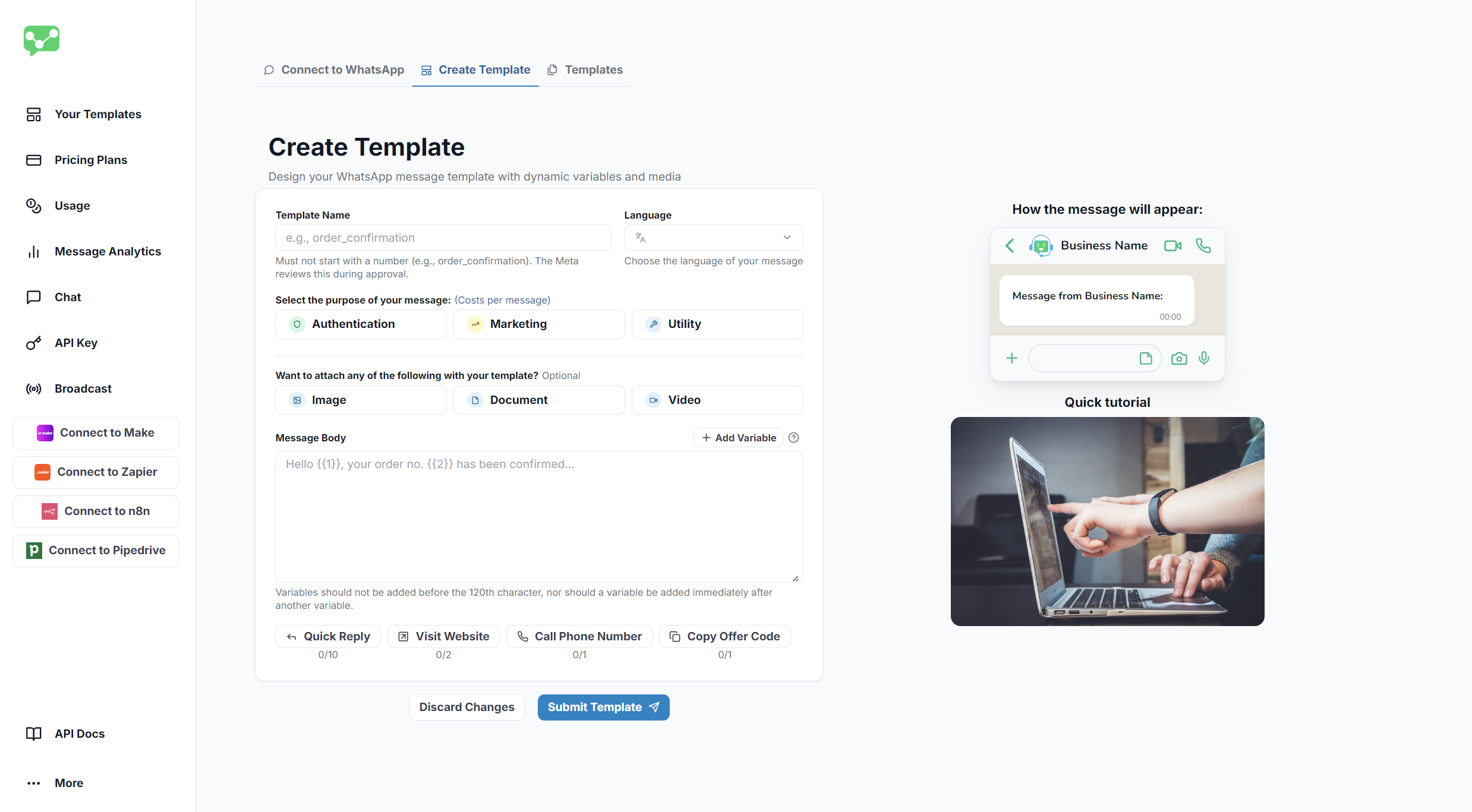
Option B: Non-template messages
Option B: Non-template messages
For simpler communications within the 24-hour window, you can send non-template messages that include:
Text
Images
Documents
Videos
Connect Notifyer System to Monday.com
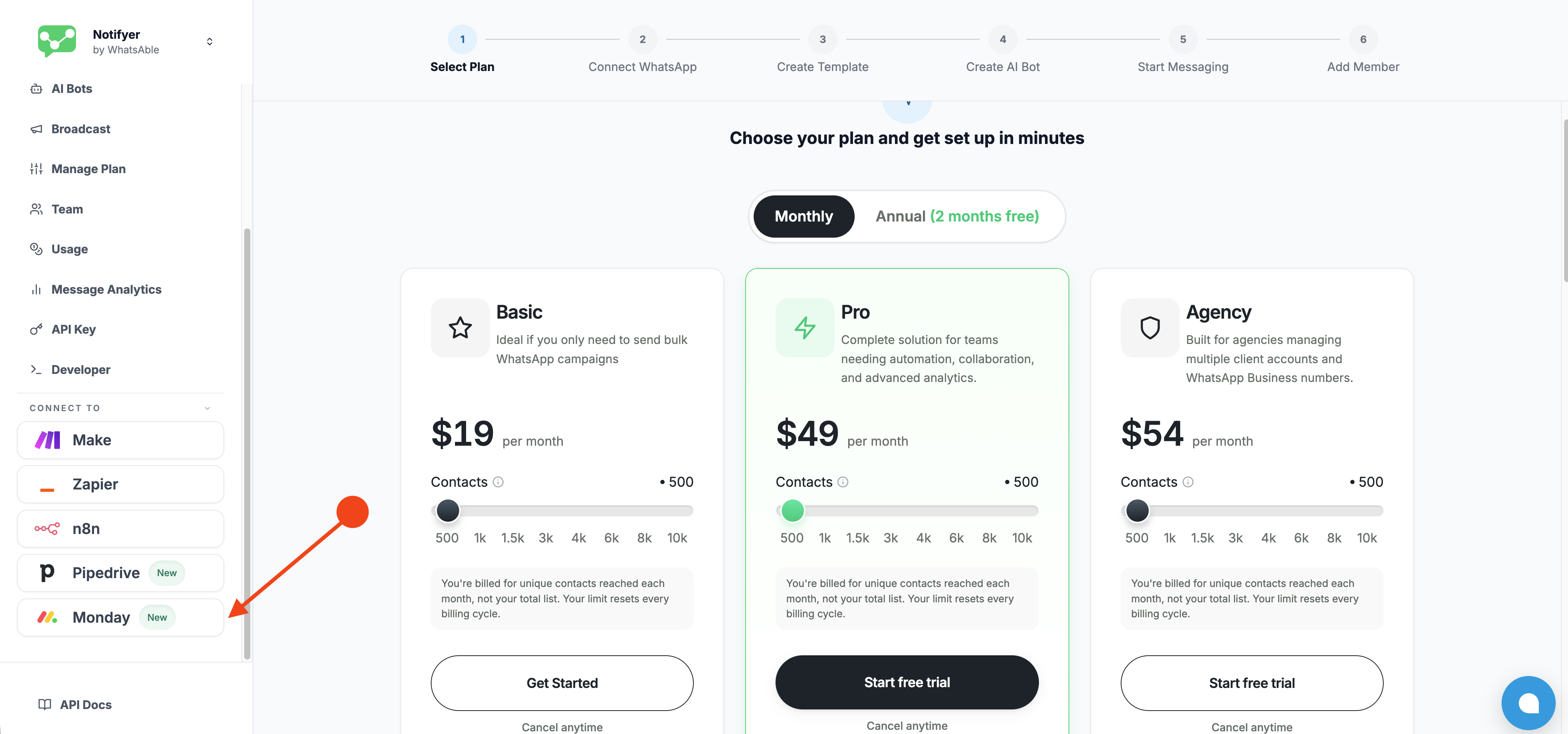
Now that your Notifyer System account is configured, follow these steps to connect Monday.com and start building workflows.Open the Monday integration page
- Log in to your Notifyer Console
- In the left sidebar, scroll to the Connect To section
- Click Monday from the list of available integrations (Make, Zapier, n8n, Pipedrive, Monday)
Install WhatsAble on Monday
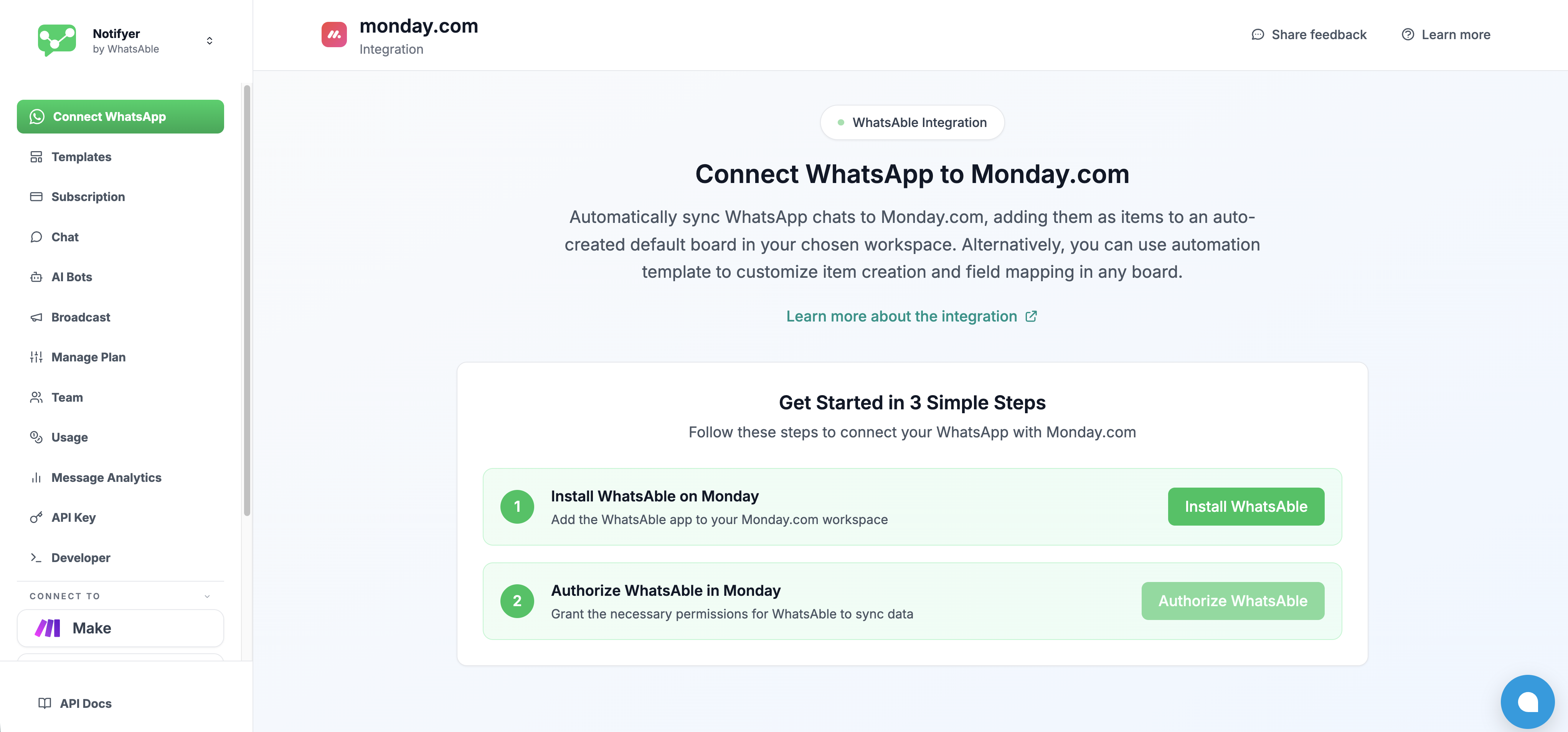
- On the integration page, click the green Install WhatsAble button next to Step 1
- You will be redirected to the Monday.com marketplace listing
- Follow Monday’s standard installation flow to add WhatsAble to your workspace
Log in and authorize WhatsAble
- Sign in to Monday.com using Email and password, Google, or Microsoft
- Review the permission consent screen titled Authorize WhatsAble — WhatsApp Automation with AI
- Click Authorize to grant the required permissions
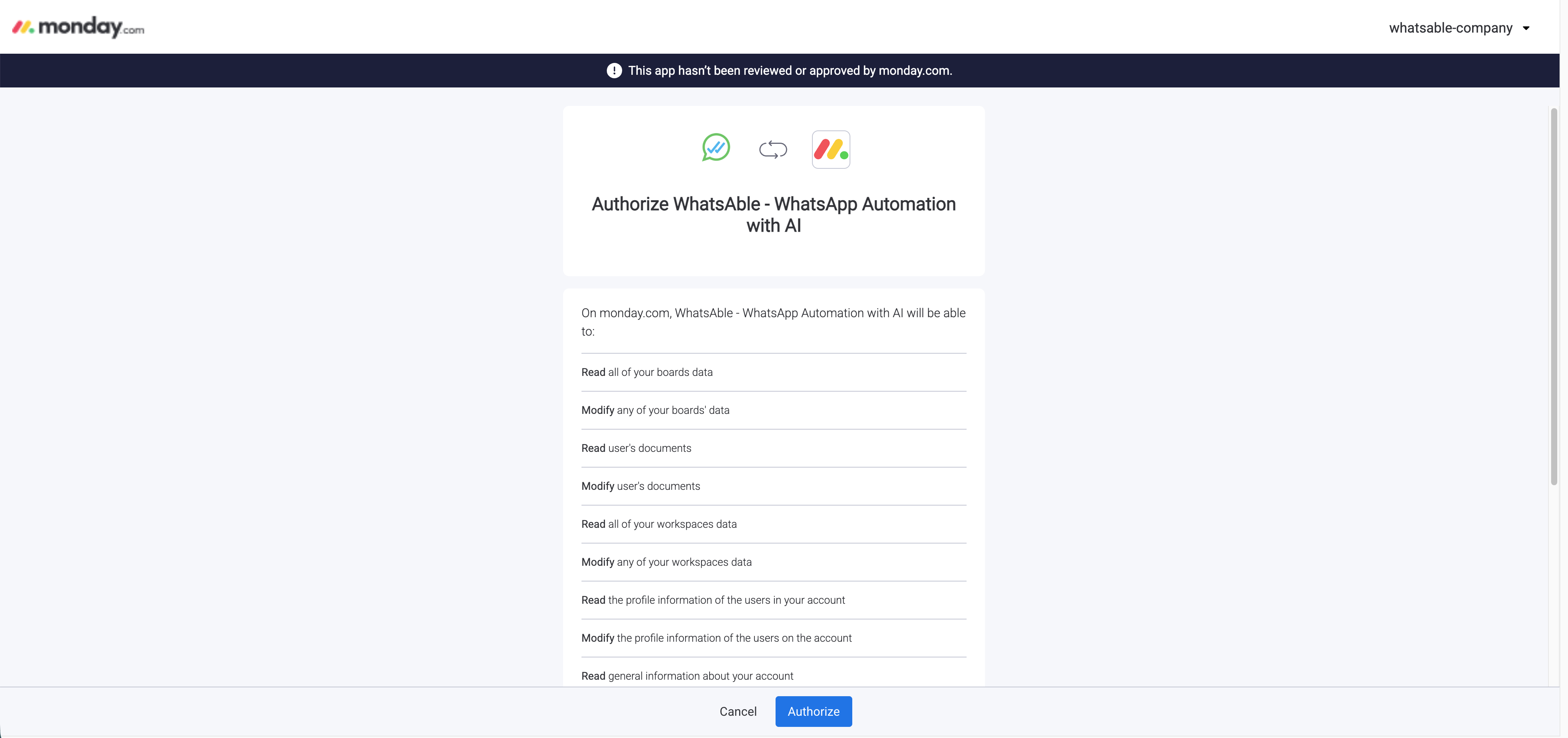
| Permission | Purpose |
|---|---|
| Modify any of your boards’ data | Create and update items on your boards |
| Read user’s documents | Access documents for workflow actions |
| Modify user’s documents | Attach files and notes to board items |
| Read all of your workspaces data | Access the correct workspace for automation |
| Modify any of your workspaces data | Configure automation within your workspace |
| Read the profile information of the users in your account | Identify users in workflow context |
| Modify the profile information of the users on the account | Update user-related workflow data |
| Read general information about your account | Link your Monday account to WhatsAble |
| Send notifications on your behalf | Deliver workflow-triggered notifications |
| Post or edit updates on your behalf | Add message activity to board items |
| Read updates and replies that you can see | Sync conversation context to workflows |
| Read information of files that were uploaded to your account | Access attachments for board sync |
| Read your account’s tags | Map labels and tags in workflow logic |
| Read information about teams in your account | Route workflows by team context |
| Create and modify teams in your account | Configure team-based automation |
| Create and modify webhooks | Enable real-time workflow triggers |
| Read existing webhooks configuration | Verify and manage webhook setup |
| Read your profile information | Identify the connected user |
Confirm the connection
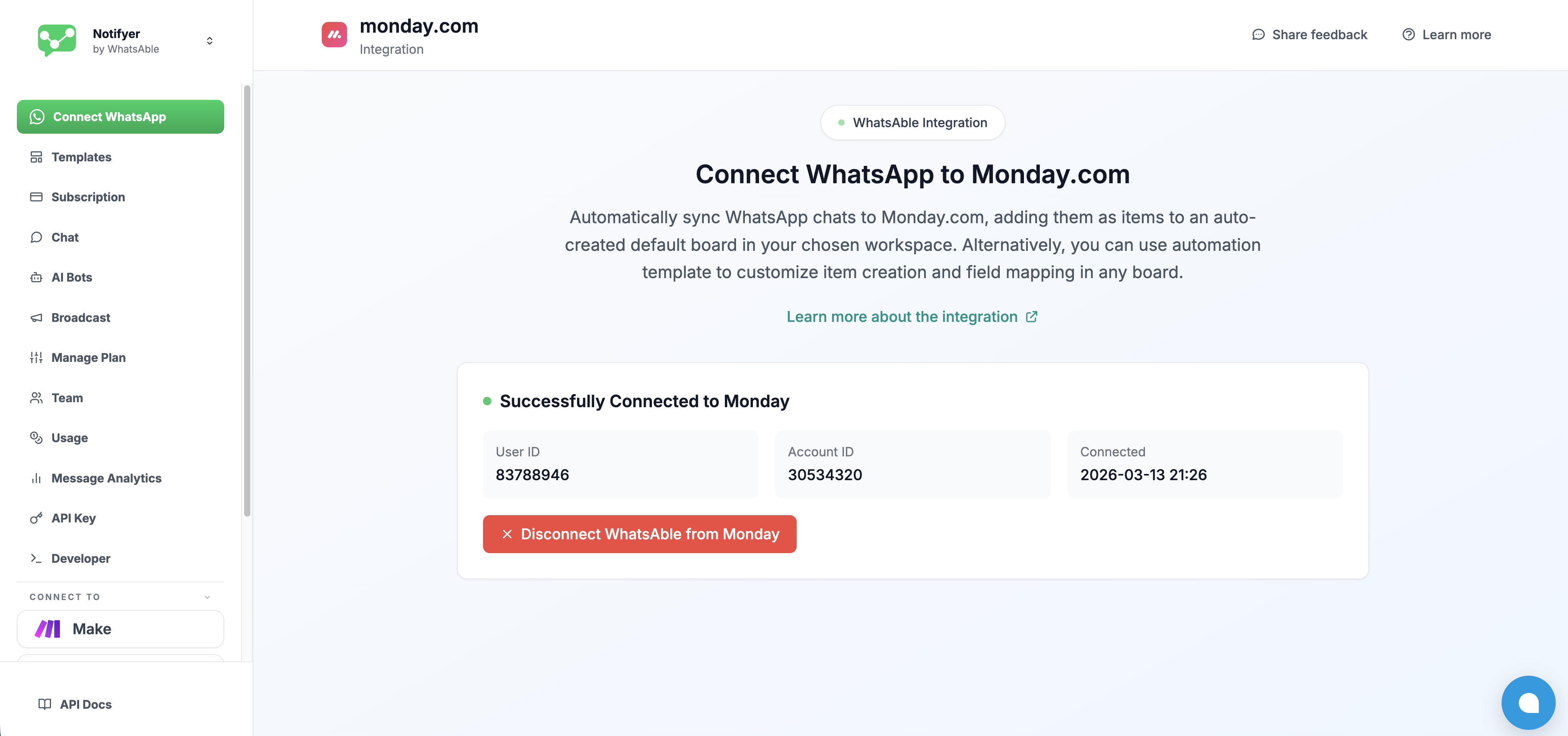
Workflow automation
With the integration connected, WhatsAble exposes 3 triggers and 2 actions directly inside Monday’s Workflow Builder.What you can do
Sync leads to boards
Keep items in sync
Trigger from status
Map WhatsApp data
Triggers
Triggers define when a workflow fires.Trigger 1 — When New Incoming Chat Received
Fires: Once, the first time an unknown contact sends your business a WhatsApp message. This trigger activates when a message arrives from a phone number that does not yet exist as a recipient in your WhatsAble system. If the contact already exists, this trigger will not fire again.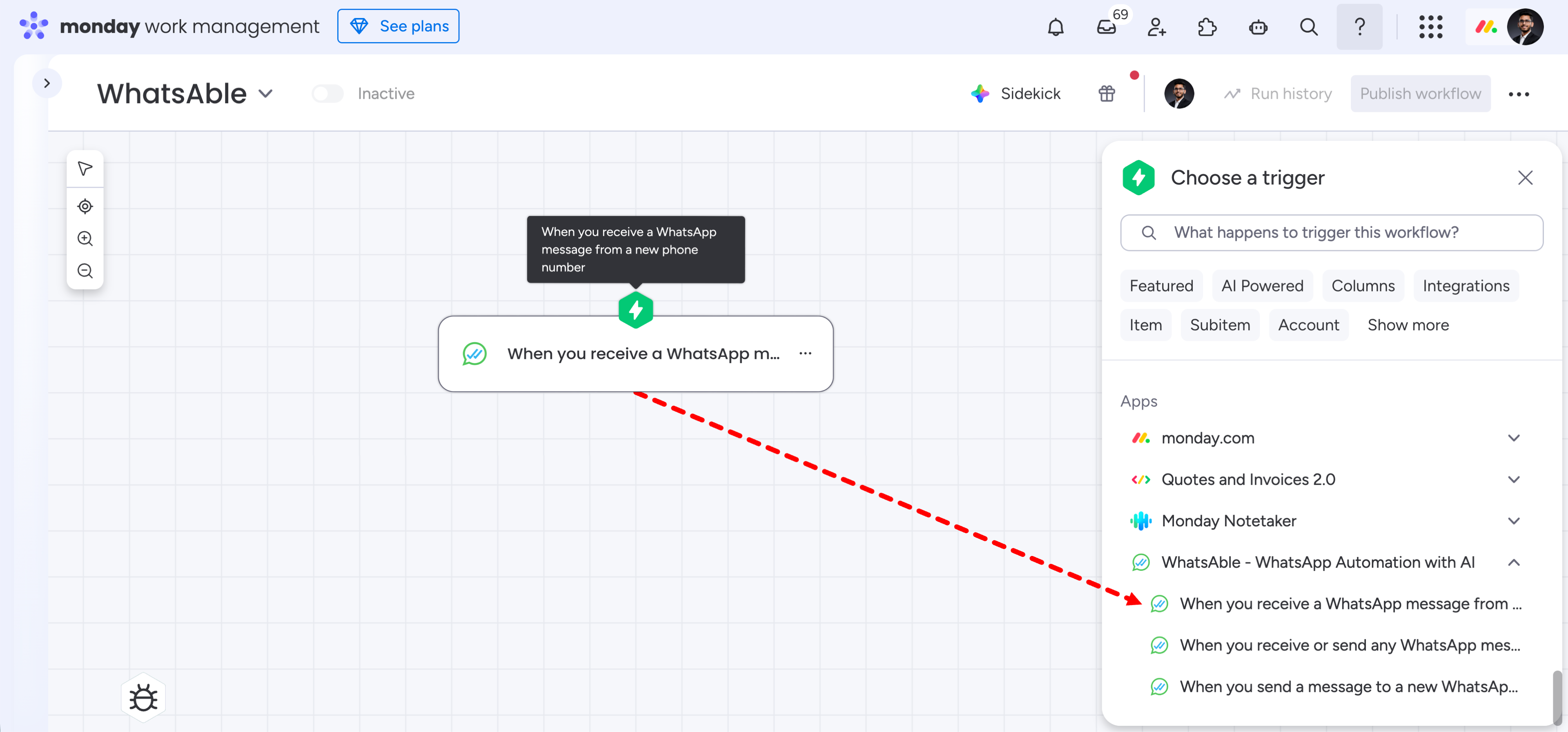
| Field | Type | Description |
|---|---|---|
name | Text | Contact’s display name |
phone | Phone | Number in international format |
country | Text | Country detected from the phone number |
label | Text | Label auto-assigned by WhatsAble rules |
message | Text | Body of the incoming message |
attachment_url | URL | Direct link to any media attachment |
last_message_time | Date/Time | Timestamp of the incoming message |
ai_enabled | Boolean | Whether the AI agent is active for this chat |
automation_note | Text | Note injected by an upstream automation rule |
sent_by and is_incoming are not available on this trigger — the message is always incoming by definition.Trigger 2 — When New Outgoing Chat Created
Fires: Once, the first time you send a WhatsApp message to a contact that does not yet exist in your WhatsAble system. This trigger activates when your team initiates a conversation with a brand-new contact, whether via WhatsAble’s chat interface, Make, Zapier, n8n, or any connected platform.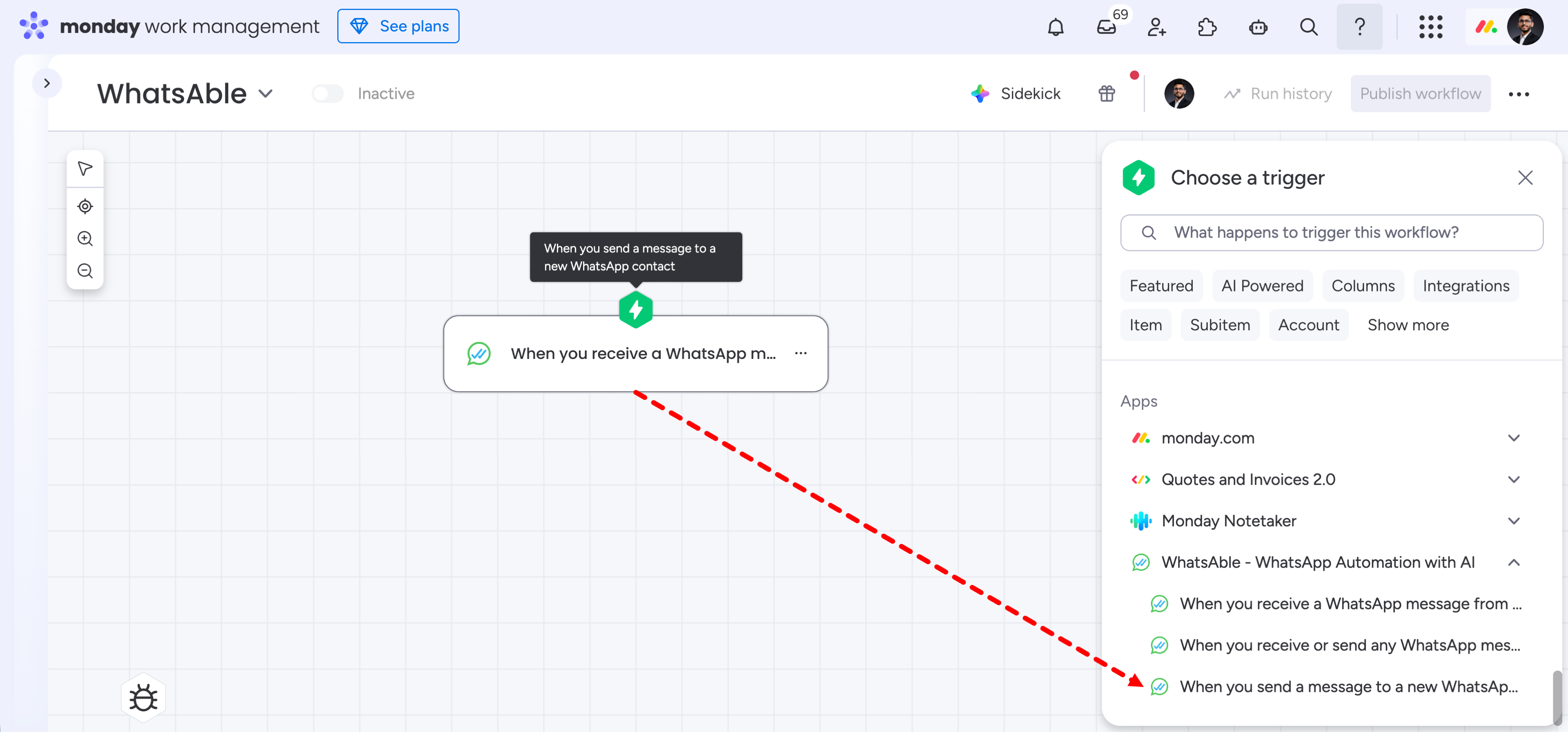
| Field | Type | Description |
|---|---|---|
name | Text | Contact’s display name (may be blank if not yet resolved) |
phone | Phone | Contact’s phone number |
country | Text | Detected country |
label | Text | Label assigned to the contact |
message | Text | Body of the outgoing message |
attachment_url | URL | Link to any attached media |
last_message_time | Date/Time | Timestamp of the outgoing message |
sent_by | Text | Sender name — team member or automation/app name |
ai_enabled | Boolean | Whether the AI agent is active |
automation_note | Text | Note from an automation rule, if applicable |
is_incoming is not available on this trigger — the message is always outgoing by definition.Trigger 3 — When New Message Received or Sent in WhatsApp
Fires: Every time, for every message — both incoming and outgoing — for any contact, new or existing. Unlike Triggers 1 and 2, this trigger is not limited to first-time contacts. It fires on every message event, making it ideal for keeping Monday items continuously in sync with live conversations.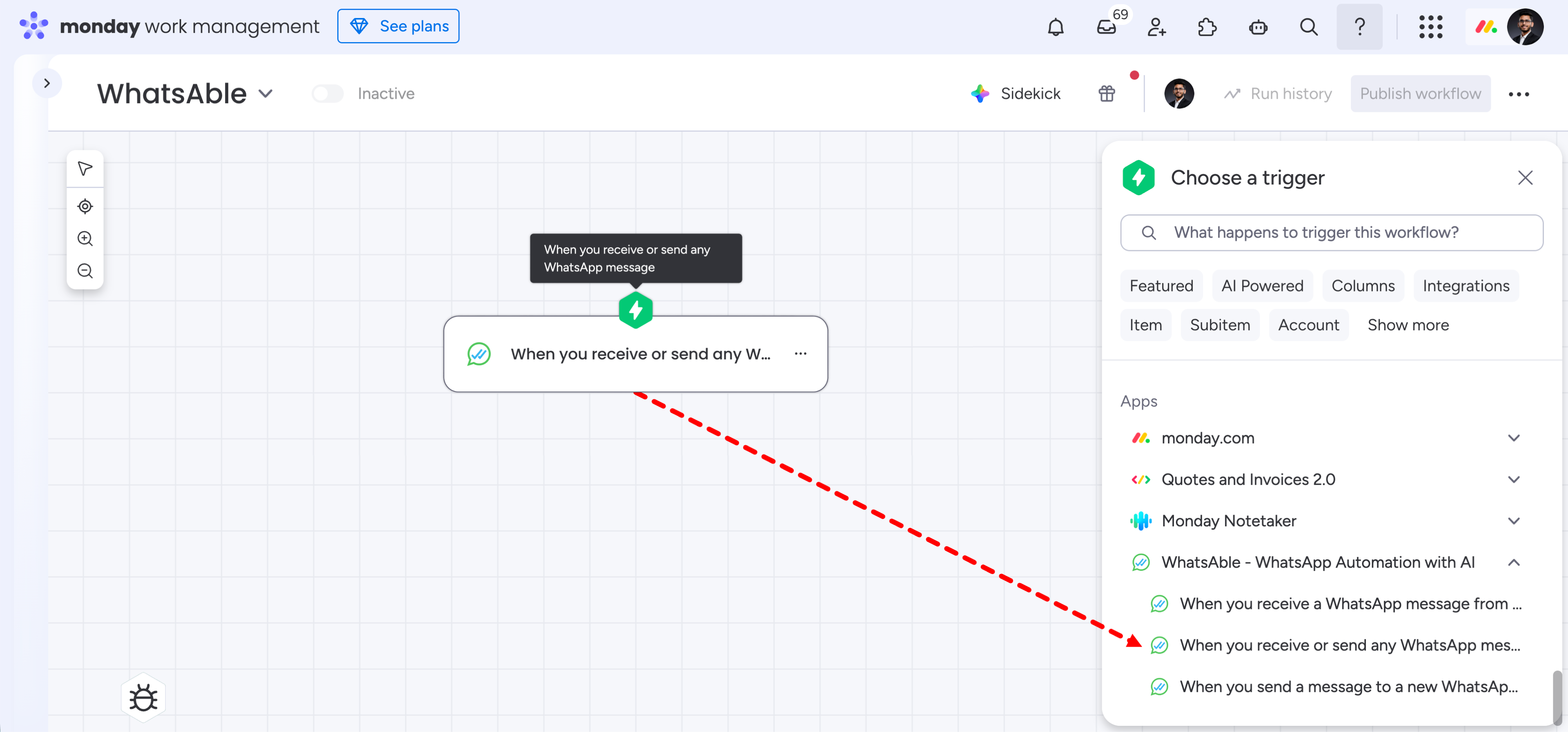
| Field | Type | Description |
|---|---|---|
name | Text | Contact’s display name |
phone | Phone | Contact’s phone number |
country | Text | Detected country |
label | Text | Assigned label |
message | Text | Message body |
attachment_url | URL | URL of any media attachment |
last_message_time | Date/Time | Message timestamp |
sent_by | Text | Sender identifier (outgoing messages only) |
is_incoming | Boolean | true if received, false if sent |
ai_enabled | Boolean | AI agent state |
automation_note | Text | Automation-injected note, if any |
Trigger quick reference
| Trigger | Fires for existing contacts? | Fires multiple times? | Direction |
|---|---|---|---|
| New Incoming Chat Received | No | First time only | Inbound |
| New Outgoing Chat Created | No | First time only | Outbound |
| New Message Received or Sent | Yes | Every message | Both |
Actions
Actions define what happens when a trigger fires. WhatsAble provides two actions.Action 1 — Send Template Message
Sends an approved WhatsApp Business template message to a contact.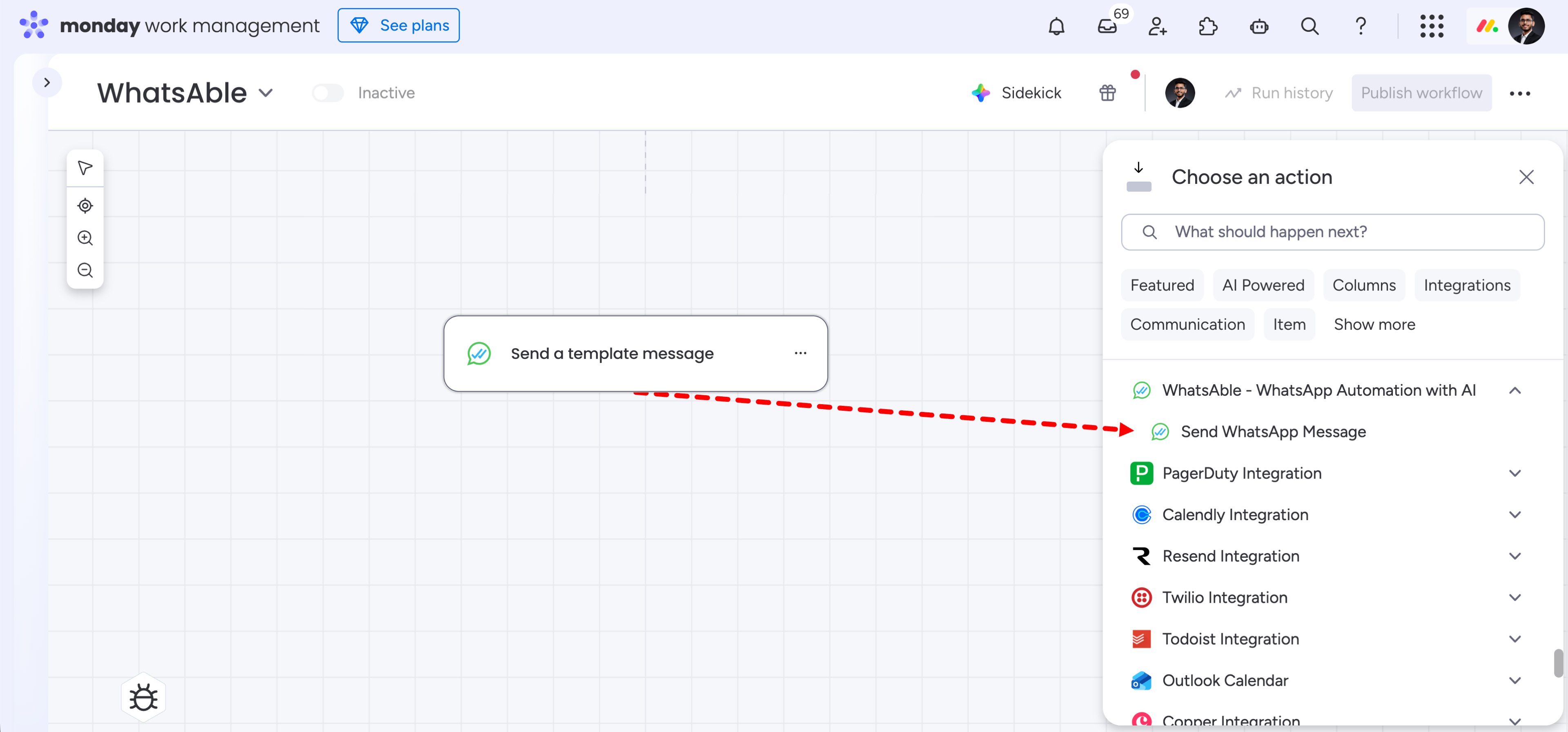
- Select Send Template Message from the WhatsAble action list in Workflow Builder
- Choose the template from the dropdown — all Meta-approved templates in your WABA account are listed
- Map each template variable (e.g.
{{1}},{{2}}) to a column value from your Monday board - Map the phone number field to your board’s phone/mobile column
Action 2 — Send Follow-Up Message
Data field reference
Accessing trigger data: All trigger fields are accessible inside Monday’s action configuration via the dynamic data picker. When mapping a field, click the dropdown and look for Step 1 — [Trigger Name] to find WhatsAble’s data outputs. Boolean fields:ai_enabled and is_incoming return true or false. Map these to Checkbox columns in Monday. They cannot be mapped to text or status columns directly.
Attachment handling: attachment_url returns a direct URL to any media file sent in the message — image, video, PDF, or audio. Map it to a Link column to make files accessible from the board. When mapped inside a Create Update action, the media appears inline in the board item’s activity feed.
sent_by field: Identifies the sender of an outgoing message — returns the logged-in user’s name from WhatsAble chat UI, or the automation/app name for Make, Zapier, n8n, or API. Not available on Trigger 1 (Incoming Chat).
automation_note field: Populated only when a WhatsAble automation rule explicitly injects a note. Blank for manually sent messages or automations without a configured note.
Workflow examples
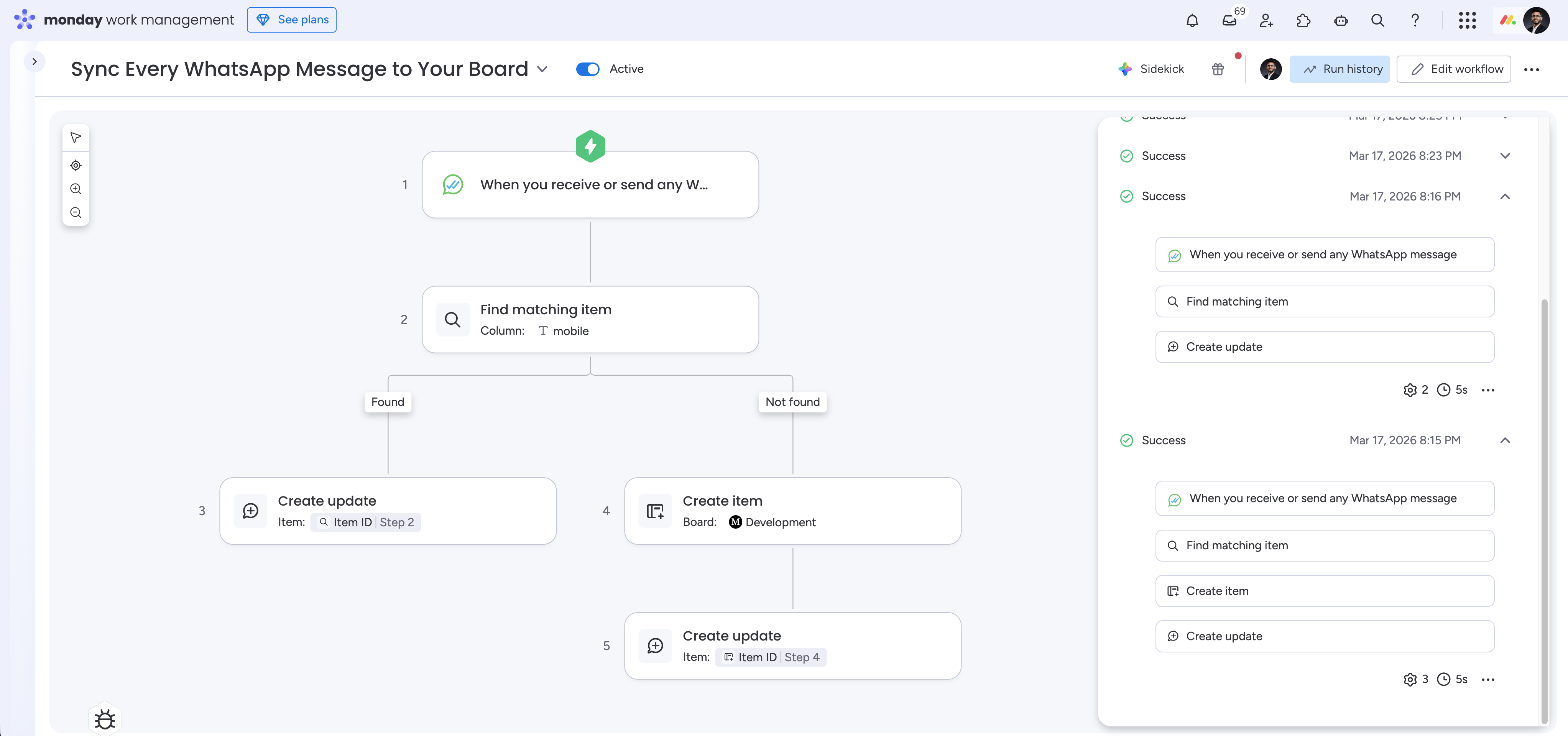
The following examples are real working workflows you can replicate inside Monday’s Workflow Builder using WhatsAble triggers and actions.Example 1 — Sync Every WhatsApp Message to Your Board
What it does: Every time a WhatsApp message is sent or received — from any contact, new or existing — this workflow either updates the matching Monday item or creates a new one if it doesn’t exist yet. This is the recommended workflow for teams who want a live, always-current view of their WhatsApp conversations inside Monday. Trigger: When New Message Received or Sent in WhatsApp Workflow structure:- Step 1 — Trigger: When you receive or send any WhatsApp message
- Step 2 — Find matching item (Column: mobile)
- Found → Step 3: Create update on the matched item
- Not found → Step 4: Create item on the Development board
- Step 5: Create update on the new item
Add trigger and Find Matching Item
- Open Workflow Builder on your Monday board → Create Workflow
- Add trigger → search WhatsAble → select When New Message Received or Sent in WhatsApp
- Add Find Matching Item (Monday native):
- Board: your target board
- Column: your phone/mobile column
- Value:
{phone}from Step 1 - If multiple matches: Last Created Item
Configure Found branch
- Found branch → Add Create Update:
- Item: Item ID from Step 2
- Update body:
{message}from Step 1
Configure Not Found branch
- Not Found branch → Add Create Item:
- Board: your target board
- Map Name →
{name}, Phone →{phone}, Country →{country}, Label →{label}, Last Message Time →{last_message_time}, AI Active →{ai_enabled}
- Below Create Item → Add Create Update:
- Item: Item ID from Step 4
- Update body:
{message}from Step 1
- Click Publish
+34612345678) — make sure your mobile column stores numbers in the same format.Example 2 — Log New Outbound Contacts as Monday Items
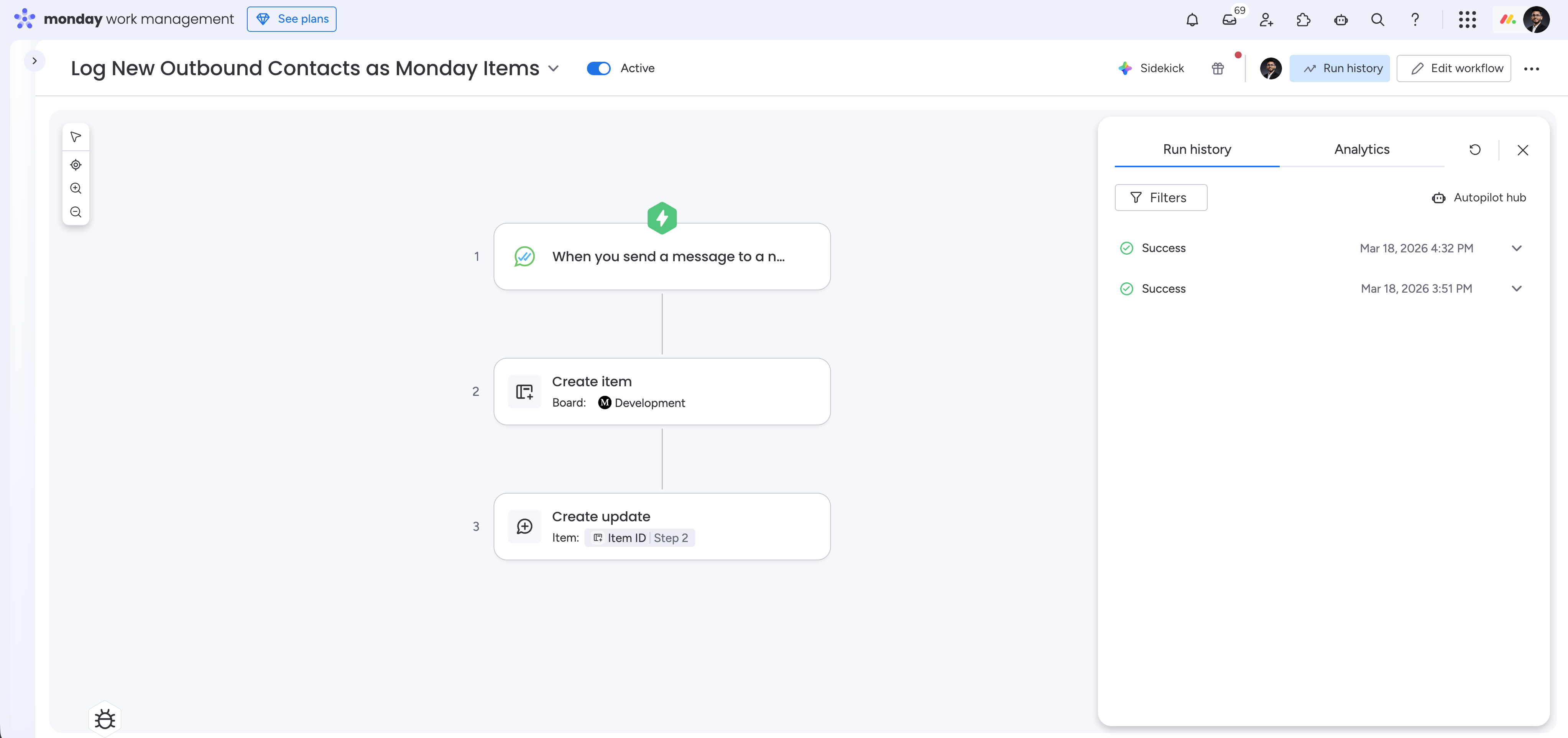
What it does: The moment your team sends a WhatsApp message to a contact that doesn’t yet exist in WhatsAble, this workflow automatically creates a Monday item on your board and logs the opening message as a board activity update. Trigger: When New Outgoing Chat Created Workflow structure:- Step 1 — Trigger: When you send a message to a new WhatsApp contact
- Step 2 — Create item on the Development board
- Step 3 — Create update on the new item (Item ID from Step 2)
Add trigger and Create Item
- Open Workflow Builder → Create Workflow
- Add trigger → search WhatsAble → select When New Outgoing Chat Created
- Add Create Item (Monday native):
- Board: your target board
- Group: your preferred group (e.g. Leads, Prospects)
- Map Name →
{name}, Phone →{phone}, Country →{country}, Label →{label}, Sent By →{sent_by}, Last Message Time →{last_message_time}, AI Active →{ai_enabled}
sent_by field tells you which team member or automation initiated the conversation.
Example 3 — Notify Customer via WhatsApp on Status Change
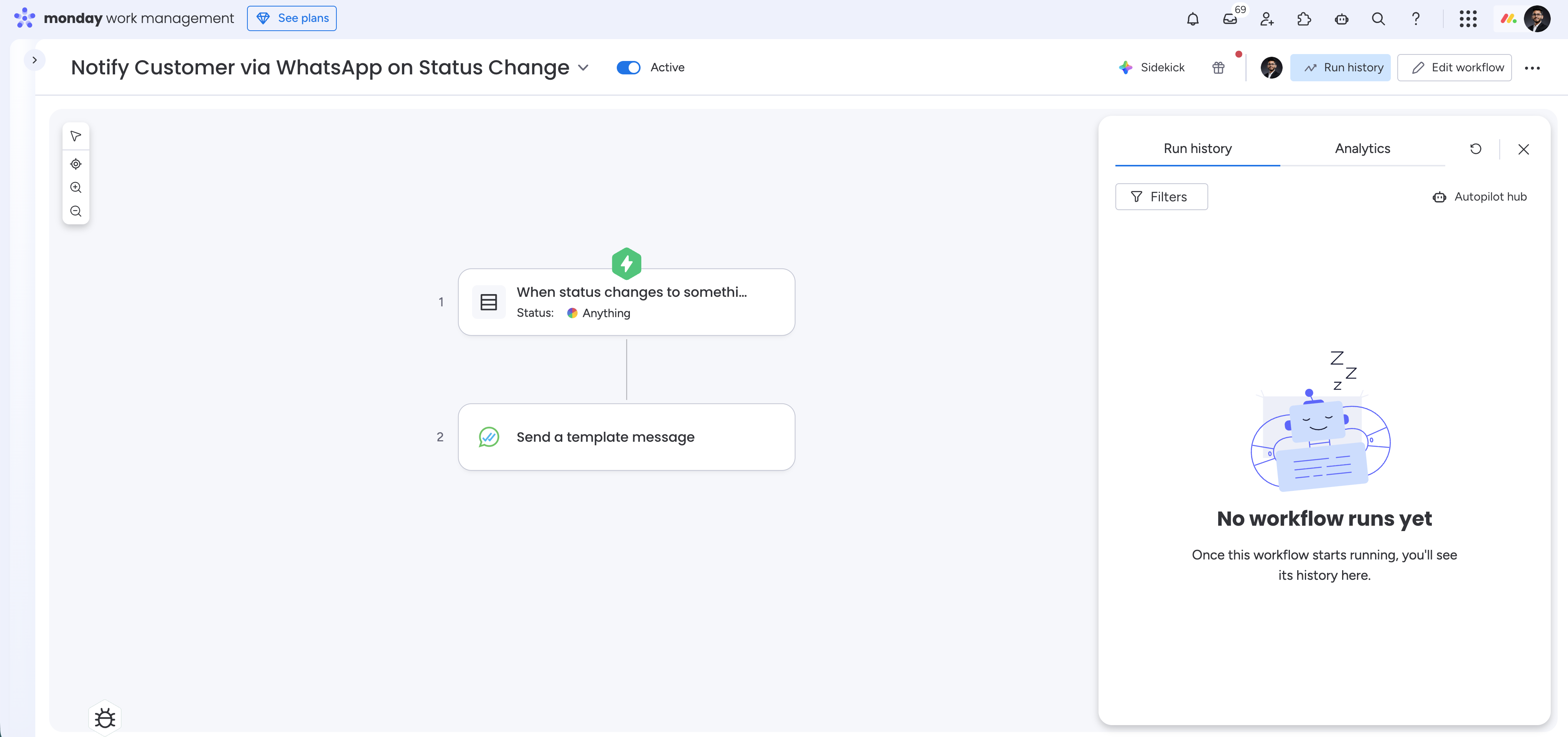
What it does: When a Monday item’s status column changes, this workflow automatically sends the contact an approved WhatsApp template message. Use it to notify customers when their order is shipped, their ticket is resolved, their proposal is ready, or any other status-driven event. Trigger: Monday native — When status changes to something Workflow structure:- Step 1 — Trigger: When status changes to [value] (Monday native)
- Step 2 — Send a template message (WhatsAble action)
Add trigger
- Open Workflow Builder → Create Workflow
- Add trigger → use Monday’s default When status changes to something:
- Select your Status column
- Set the value to the status that should fire the workflow (e.g. Done, Shipped, Resolved)
Example use cases
Lead capture
Support tickets
Order confirmations
Sales follow-up
Activity updates
Appointment reminders
Disconnecting
To remove the connection, go to Notifyer Console → Connect To → Monday and click the red Disconnect WhatsAble from Monday button. To reconnect, repeat the connection steps above. Your existing Monday workflow configurations remain intact — only the authorization needs to be re-established.Best practices
Use Find Matching Item for deduplication
Use Find Matching Item for deduplication
equals | Result: last_created_item | Branch: found / not_foundStore phone numbers in E.164 format
Store phone numbers in E.164 format
+34612345678). Ensure your Monday phone column stores numbers in the same format for reliable matching.Use templates for compliance
Use templates for compliance
Test workflows before production
Test workflows before production
Monitor Run History
Monitor Run History
Troubleshooting
Install WhatsAble button opens Monday but nothing happens
Install WhatsAble button opens Monday but nothing happens
Step 1 still shows incomplete after installation
Step 1 still shows incomplete after installation
Authorization screen shows an error
Authorization screen shows an error
Workflow triggered but no item was created
Workflow triggered but no item was created
Phone number not matching in Find Matching Item
Phone number not matching in Find Matching Item
Template not appearing in Send Template dropdown
Template not appearing in Send Template dropdown
sent_by field is blank
sent_by field is blank
Workflow shows Failed in Run History
Workflow shows Failed in Run History