
Update a contact in Zapier
Set the name and the note, and add or remove labels on a WhatsApp contact from a Zap, without sending a message.
The Update a Contact action of the WhatsAble app changes a contact in WhatsAble: its display name, its note, and its labels. It does not send any message.
Use it to keep the inbox organized by itself: label a lead, store what you learned about them, or clear a label that no longer applies. This page is the how-to guide. For the account connection, see the Zapier overview.
The note and the labels are internal. Your team and your AI agent see them in WhatsAble. The contact never does.
When to use it
Add the label qualified when a form score is high, and remove new in the same step.
Store the name, email and language from a form in the note, so the agent answers with that context.
Add payment-overdue when an invoice is late, and remove it when it is paid.
Label contacts by the campaign or the ad that brought them in.
Set up the action
Add the WhatsAble action
In the Zap editor, click +, search for WhatsAble, and choose Update a Contact as the Action event. Under Account, choose your WhatsAble connection.
Choose the contact and the change
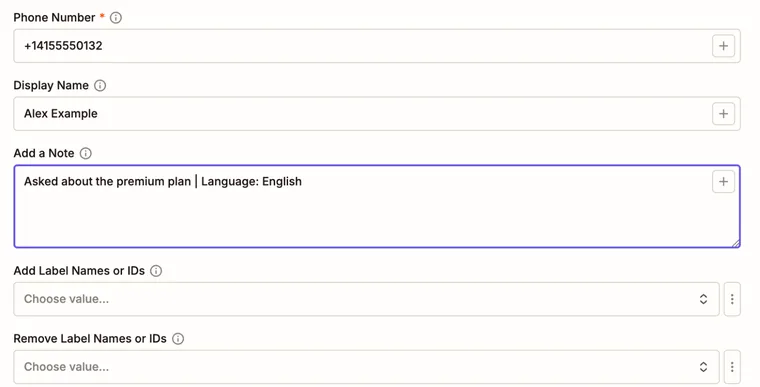
The contact's number with the country code, for example +14155550132. WhatsAble creates the contact when the number is new.
The contact's name in the WhatsAble inbox. A name set here counts as a name your team chose.
The contact's note, for example name, email, preferences or language. It replaces the current note; it does not add to it. Leave the field empty to keep the current note.
Labels to add to the contact. WhatsAble creates a label that does not exist yet.
Labels to remove. Choose Remove All to clear every label on the contact. With Remove All, WhatsAble clears the labels first and then adds the ones in Add Label Names or IDs.
Test the step
Click Test step, then open the contact in the WhatsAble inbox and check the name, the note and the labels.
The action's description in Zapier mentions assigning a conversation to a teammate. The action has no field for that, so it cannot assign a chat. To assign chats, see Chat assignment.
To keep earlier notes, map the current note from the trigger and write the new text after it in Add a Note.
Example: promote a lead
Start the Zap
Use a new form submission, or a stage change in your CRM.
Update the contact
Add WhatsAble: Update a Contact. Map the phone number, write a note such as Asked about the premium plan | Language: English, add the label qualified, and remove the label new.
Follow up
Continue with Send WhatsApp Message, or with Schedule a Follow-Up Message and a label condition, so that only the labeled contacts get a message.
Troubleshooting
The lists show the labels that exist in your account. Create the labels in WhatsAble first. See Labels.
Add a Note replaces the note. Map the old note into the field as well, as the tip above shows.
Schedule a message
Send a WhatsApp message later from a Zap, after a delay or at a set time in a chosen timezone, and skip it when the contact already replied or has the wrong label.
Delivery status
Look up whether a WhatsApp message you sent from a Zap was delivered, read or failed, and send a fallback when it did not arrive.