
Send a WhatsApp message in Zapier
Send an approved template, or a text, image, video, document or audio message, from any Zap with the WhatsAble app.
The Send WhatsApp Message action of the WhatsAble app sends a message right away from your WhatsApp number. Choose the kind of message in the Configuration field: a template, or a non-template message.
This page is the how-to guide. For the account connection, see the Zapier overview. To send later instead, use Schedule a Follow-Up Message.
When to use it
Send a template with the order number and the customer's name when an order is placed.
Greet a lead from a form or an ad within seconds, even when they never wrote to you.
Answer a contact who just wrote to you with text, an image, or a PDF.
Send an invoice, a brochure, or a tracking document as part of a Zap.
Choose the right configuration
| Send WhatsApp Template (to start conversation) | Send a non-template message (person must write to you first) | |
|---|---|---|
| Use it when | You start the conversation, or the contact has not written in the last 24 hours | The contact wrote to you in the last 24 hours |
| Content | A template approved by Meta, with variables | Text, image, video, document or audio |
| Needs approval | Yes | No |
A non-template message only works inside Meta's customer service window, which opens when the contact writes to you and lasts 24 hours. Outside that window, use an approved template.
Set up the action
Add the WhatsAble action
In the Zap editor, click +, search for WhatsAble, and choose Send WhatsApp Message as the Action event. Under Account, choose your WhatsAble connection.
Choose the configuration
In the Configure tab, choose Send WhatsApp Template (to start conversation) or Send a non-template message (person must write to you first) in Configuration.
Fill in the message
Follow the tab for the configuration you chose.
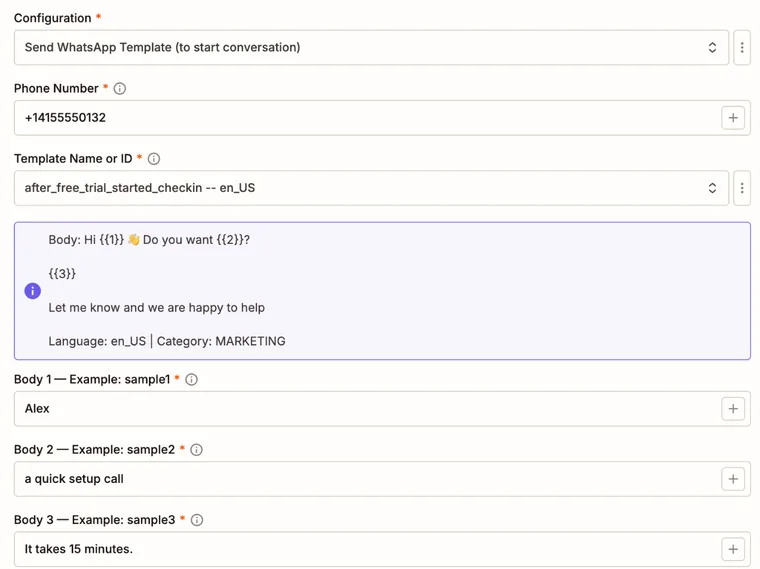
The recipient with the country code, for example +14155550132. Spaces, dashes and the + are allowed. Map it from an earlier step.
One of your approved templates, shown as its name and language, for example order_update -- en_US. When you choose one, a preview of its body, language and category appears below.
One field per template variable, labeled with the example value from the template. A media URL field appears when the template has an image, video or document header, and a website URL field when it has a dynamic URL button.
Context about this contact, for example answers from a form. WhatsAble saves it as the contact's note, which your team and your AI agent read. The recipient never sees it.
Labels to add to the contact.
What the step returns
When WhatsApp accepts the message, the step returns success set to true, message_id, and whatsapp_response_info, the answer from WhatsApp. message_id is the WhatsApp message ID, which starts with wamid.. Map it into Get Delivery Status of a Message to check later whether the message arrived.
When WhatsApp refuses the message, the step fails and Zapier shows WhatsApp's reason.
Example: order confirmation
Start the Zap
Use the event that creates an order, for example a Shopify, WooCommerce or Stripe trigger.
Send the template
Add WhatsAble: Send WhatsApp Message with Send WhatsApp Template (to start conversation). Map Phone Number from the order, choose your order confirmation template, and map the order number and the customer's name into the body fields.
Label the contact
Add a label such as customer under Label Names or IDs, so you can find the contact in the inbox later.
Test it safely
Test with your own phone number first. Test step sends a real WhatsApp message.
- Put your own number in the phone number field.
- Click Test step and check that the result shows
successand amessage_id. - Check the conversation with your number in the WhatsAble inbox.
Troubleshooting
The list shows the approved templates of the WhatsApp Business account that holds the number of your API key. Check that the key belongs to the right number and that you have an approved template.
The contact is probably outside the 24-hour customer service window. Send a template instead.
Open the file URL in a private browser window. If it asks you to sign in, WhatsApp cannot fetch it either. For a document, also check that Filename is filled in.
Sending from Zapier needs a WhatsAble plan that includes integrations. See the prerequisites in the Zapier overview.