
Start an n8n workflow from a WhatsApp message
Use the Whatsable trigger to start an n8n workflow when a contact writes to your WhatsApp number.
The Whatsable trigger starts an n8n workflow when a contact sends a message to your WhatsApp number. In the n8n node list it appears as On new Incoming message event. Its node name is Incoming/outgoing WhatsApp message Trigger.
This page is the how-to guide. For every field the trigger sends, see n8n node fields. For the whole setup, from the API key to the first workflow, see the n8n overview.
When to use it
Answer a first message with a template, an AI reply, or a routing step.
Write each new contact and message into a sheet, a CRM, or a database.
Post to Slack or send an email when a message contains a word such as "refund".
Read the Click-to-WhatsApp data (referral) of a new lead and label it by ad.
Set up the trigger
Add the trigger node
Click + in an empty workflow, search for Whatsable, open the Triggers list, and choose On new Incoming message event. A workflow starts from its trigger, so you do not need another one.
Copy the Production URL
Open Webhook URLs at the top of the node, select Production URL, and copy it. You paste it into the credential in the next step.
Create the credential
- In Credential to connect with, click + Create new credential.
- Choose the Whatsable credential for the trigger.
- Paste your WhatsAble API key into API Key.
- Paste the Production URL into Production URL.
- Give the credential a clear name, for example "WhatsAble Production", and click Save.
When you save, n8n checks your API key and registers the Production URL with WhatsAble. The trigger then appears under Settings → Webhooks in WhatsAble.
Treat the API key like a password. Never share it publicly or commit it to version control.
Choose when n8n answers
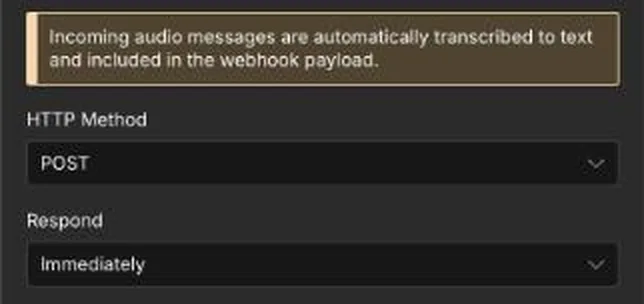
Leave HTTP Method on POST, the only option. For Respond, choose:
| Option | Behavior |
|---|---|
| Immediately | n8n answers as soon as the message arrives. Best for most workflows. |
| When Last Node Finishes | n8n answers after the whole workflow has run. |
Test, then activate
Click Execute step and send a WhatsApp message to your number from your own phone. n8n shows the message in the node output. Then save the workflow and turn Active on, so the Production URL receives live messages.
WhatsAble transcribes an incoming audio message to text automatically and puts the text in the payload. You can treat a voice note like a text message.
What the trigger gives you
Each run receives one JSON payload for one message. These are the fields you map most often. The other fields are in n8n node fields.
| Field | Meaning |
|---|---|
phone_number | The contact's number. It can arrive as a number rather than a string. |
recipient_name | The contact's name in WhatsAble. |
last_message_of_user | The text of the message that started the run. |
message_type | The kind of message: text, audio, image, or document. |
attachment_url | A public URL of the attached file, or empty. |
labels | The labels on the conversation, separated by commas. |
referral | Click-to-WhatsApp ad data. Present only on a lead that came from an ad. |
Example: save a lead and reply
Trigger
Add the Whatsable trigger.
Save the lead
Add a Google Sheets, Airtable or CRM node. Map phone_number, recipient_name and last_message_of_user to its columns.
Reply
Add a Whatsable node with Send WhatsApp Message. Map Recipient Phone Number from phone_number. Use Send Message Template, because a template also works when the contact wrote more than 24 hours ago.
When your workflow also sends messages, add an If node on incoming_message or send_by so that a message you send never starts the same workflow again.
Troubleshooting
Check that the Production URL in the credential is the one from this workflow's trigger, and that the workflow is active. The test URL works only while you run a test in the editor.
n8n checks the API key when you save. An invalid key shows an error. Create a new key in WhatsAble and paste it again.
An API key belongs to one WhatsApp number, and its trigger receives the messages of that number only. To work with two numbers, create one API key and one n8n credential for each number.
Overview
Connect WhatsAble with n8n. Run workflows on WhatsApp messages, send templates and media, schedule messages and update contacts with the verified Whatsable node. Coexistence is supported; you keep the WhatsApp Business app on your phone.
Send a WhatsApp message in n8n
Send an approved template, or a text, image, video, document or audio message, from any n8n workflow with the Whatsable node.