
Schedule a WhatsApp message in n8n
Send a WhatsApp message later from n8n, at a fixed time or after a delay, and skip it when the contact already replied or has the wrong label.
The Schedule WhatsApp Message operation of the Whatsable node queues a message in WhatsAble and sends it later. Pick an exact date and time, or a delay such as "2 hours from now". Add a condition, and WhatsAble checks it when the send time arrives: for example, send only if the contact has not replied yet.
This page is the how-to guide. For every field of the node, see n8n node fields. For the credential and the first workflow, see the n8n overview.
When to use it
Send a nudge 2 hours after your first message, only if the lead has not answered.
Schedule a reminder for the evening before an appointment, in the customer's own timezone.
Ask "How was your delivery?" a day after an order ships.
Send only to contacts that have, or do not have, a given label at send time.
Set up the node
Add the Whatsable node
Click + after your trigger, search for Whatsable, and choose the node with the Whatsable logo.
Choose the operation
| Field | Value |
|---|---|
| Credential | Your Whatsable credential |
| Resource | Send Message |
| Operation | Schedule WhatsApp Message |
| Product Operation | Send Message Template or Send Non Template Message |
A non-template message only works inside WhatsApp's 24-hour window. A message scheduled for later usually falls outside it, so use Send Message Template unless the send time is within 24 hours of the contact's last message.
Fill in the recipient and the message
The message fields are the same as in Send WhatsApp Message: the phone number in international format, for example +14155550132, the template and its variables (or the message type and content), an optional Note, and optional Label Names or IDs.
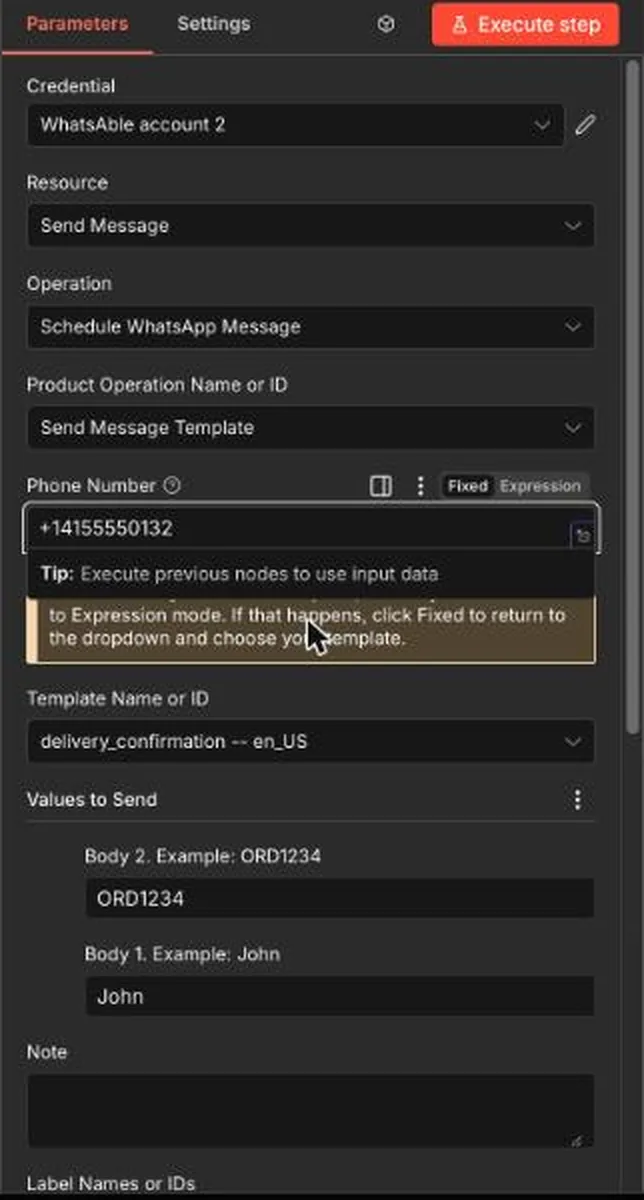
The first time you select a template, n8n may switch the field to Expression mode. Click Fixed to return to the dropdown and choose your template.
Choose when to send
Use the Schedule Type : Relative or Specific switch, as described next.
Choose when the message is sent
Turn Schedule Type : Relative or Specific off.
| Field | What to enter |
|---|---|
| Unit of Time | Minutes, Hours, or Days |
| Number | 1, 2, 3, 4, 5, 10, 15, 20, 30, 60, 90, or 120 |
The delay counts from the moment the node runs. Hours and 2 sends the message two hours later.
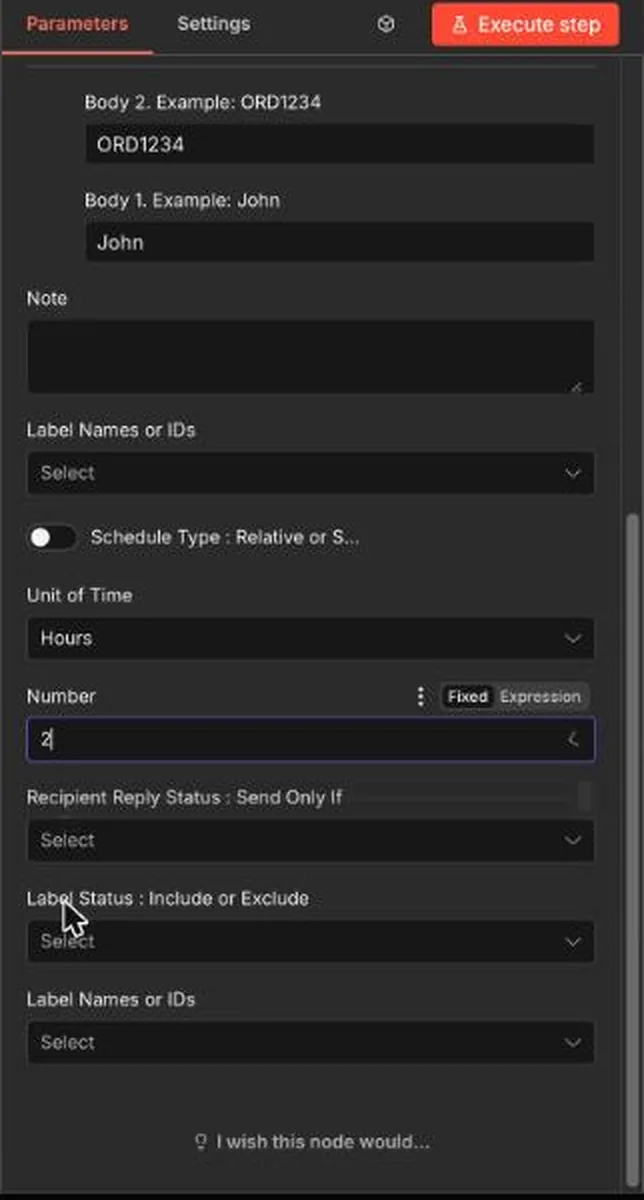
Both fields are required in this mode. n8n shows a red warning on them until you choose a value.
Only send when it still makes sense
Both modes accept two optional conditions. WhatsAble checks them when the send time arrives, not when the node runs. When a condition is not met, the message is not sent.
Recipient reply status
Recipient Reply Status : Send Only If compares the send time with the contact's replies.
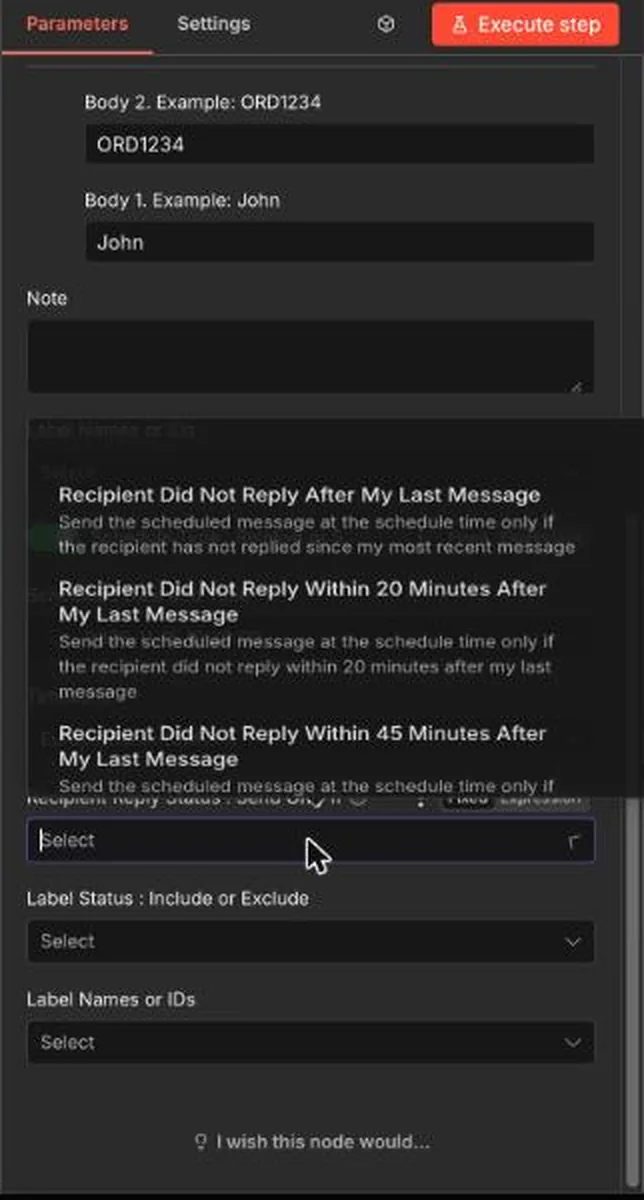
| Option | Sends the message only if |
|---|---|
| Recipient Did Not Reply After My Last Message | The contact has not replied since your most recent message |
| Recipient Did Not Reply Within 20 Minutes, 45 Minutes, 3, 6, 12, 24, 48 or 72 Hours After My Last Message | The contact did not reply within that time after your most recent message |
| Recipient Never Replied to Any of My Messages | The contact has never replied to any of your messages |
Leave the field empty to send whatever the contact did.
Label status
Label Status : Include or Exclude works together with Label Names or IDs in the schedule section.
| Label Status | Sends the message only if the contact |
|---|---|
| Include | Has the selected labels at send time |
| Does Not Include | Does not have the selected labels at send time |
Example: a follow-up that skips people who replied
Start the workflow
Use the event that begins the conversation, for example a new form submission. While you test, use Execute workflow.
Send the first message
Add a Whatsable node with Send WhatsApp Message and your template.
Schedule the follow-up
Add a second Whatsable node with Schedule WhatsApp Message. Turn the schedule switch off, set Hours and 2, and choose Recipient Did Not Reply After My Last Message.
A lead who answers within two hours gets no nudge. A lead who stays silent gets exactly one.
Whatsable is not a drip builder. A day-0, day-3, day-6 sequence is several Schedule WhatsApp Message steps in n8n, each scheduling one message. The sequence logic lives in n8n.
Test it safely
Test with your own phone number first. A scheduled message is a real message, and WhatsAble sends it when its time comes.
- Use your own number and a delay of a few minutes.
- Click Execute step and confirm that n8n shows a success result.
- Wait for the send time and check the conversation with your number.
Troubleshooting
These fields are required when the schedule switch is off. Choose a unit and a number, or turn the switch on to use a specific date and time.
Check the Timezone field. In specific mode, WhatsAble reads the date and time in that timezone.
A reply or label condition may not have been met when the time arrived. Also check that the template is approved, and that a non-template message is still inside the 24-hour window.