
Send a WhatsApp message in Make
Send an approved template, or a text, image, video, document or audio message, from any Make scenario with the Whatsable app.
The Send a WhatsApp Message (New version - Official API) module of the Whatsable app sends a message right away from your WhatsApp number. Choose the kind of message in the Configuration field: a template, or a non-template message.
This page is the how-to guide. For the API key and the other modules, see the Make overview. To send later instead, use Schedule a follow-up WhatsApp Message.
When to use it
Send a template with the order number and the customer's name when an order is placed.
Greet a lead from a form or an ad within seconds, even when they never wrote to you.
Answer a contact who just wrote to you with text, an image, or a PDF.
Send an invoice, a brochure, or a tracking document as part of a scenario.
Choose the right configuration
| Send WhatsApp Template (to start conversation) | Send a non-template message (person must write to you first) | |
|---|---|---|
| Use it when | You start the conversation, or the contact has not written in the last 24 hours | The contact wrote to you in the last 24 hours |
| Content | A template approved by Meta, with variables | Text, image, video, document or audio |
| Needs approval | Yes | No |
A non-template message only works inside Meta's customer service window, which opens when the contact writes to you and lasts 24 hours. Outside that window, use an approved template.
Set up the module
Add the module
Click +, search for Whatsable, open the Whatsable app with the Verified badge, and under Actions choose Send a WhatsApp Message (New version - Official API).
Choose the connection
Under Connection, choose your Whatsable connection.
This module keeps its own list of connections, separate from the trigger and the other actions. The first time you use it, click Add and paste the same Whatsable API key.
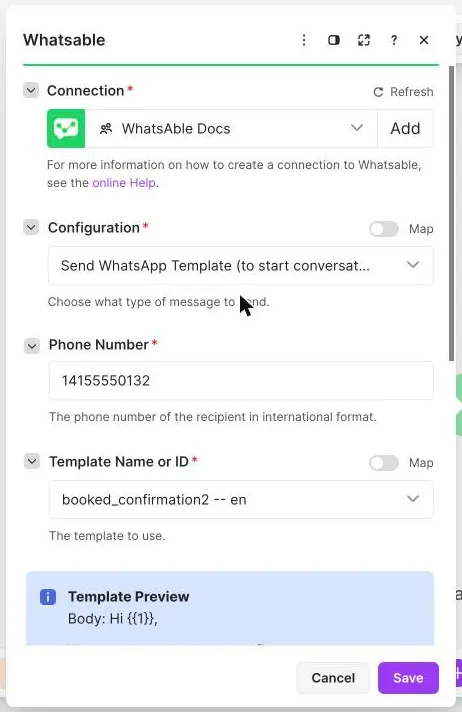
Choose the configuration
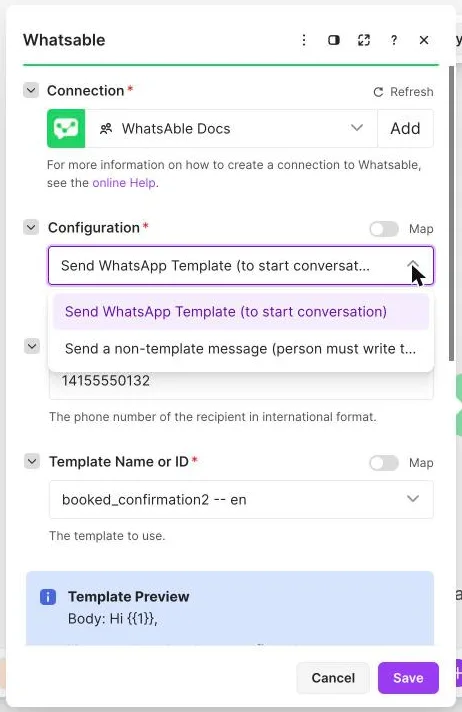
In Configuration, choose Send WhatsApp Template (to start conversation) or Send a non-template message (person must write to you first).
Fill in the message
Follow the tab for the configuration you chose.
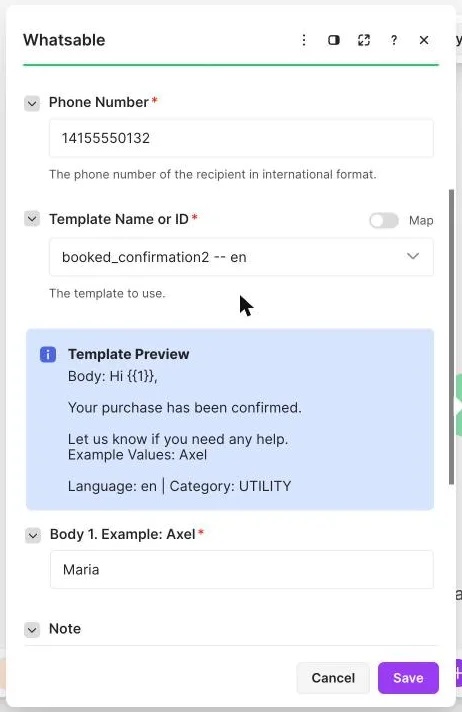
The recipient in international format, for example 14155550132. Map it from an earlier module.
One of your approved templates, shown as its name and language, for example booked_confirmation2 -- en. When you choose one, a preview of its body, language and category appears below.
One field per template variable, labeled with the example value from the template. A media URL field appears when the template has an image, video or document header, and a website URL field when it has a dynamic URL button.
Context about this contact, for example answers from a form. Whatsable saves it as the contact's note, which your team and your AI agent read. The recipient never sees it.
Labels to add to the contact.
What the module returns
When WhatsApp accepts the message, the module returns success set to true, message_id, and whatsapp_response_info, the answer from WhatsApp. message_id is the WhatsApp message ID, which starts with wamid.. Map it into Get delivery status of a message to check later whether the message arrived.
When WhatsApp refuses the message, the module fails and Make shows WhatsApp's reason.
Example: order confirmation
Start the scenario
Use the module that creates an order, for example a Shopify, WooCommerce or Stripe trigger.
Send the template
Add Whatsable: Send a WhatsApp Message with Send WhatsApp Template (to start conversation). Map the phone number from the order, choose your order confirmation template, and map the order number and the customer's name into the body fields.
Label the contact
Add a label such as customer under Label Names or IDs, so you can find the contact in the inbox later.
Test it safely
Test with your own phone number first. Run once sends a real WhatsApp message.
- Put your own number in the phone number field.
- Right-click the module and choose Run this module only, or click Run once for the whole scenario.
- Check that the output shows
successand amessage_id, then check the conversation with your number in the Whatsable inbox.
Troubleshooting
The list shows the approved templates of the WhatsApp Business account that holds the number of your API key. Check that the key belongs to the right number and that you have an approved template.
The connection's API key is no longer valid, or it was revoked. Click Add and create a new connection with a current key from API keys.
The contact is probably outside the 24-hour customer service window. Send a template instead.
Open the file URL in a private browser window. If it asks you to sign in, WhatsApp cannot fetch it either. For a document, also check that Filename is filled in.
Trigger
Use the Whatsable trigger in Make to run a scenario when a contact writes to your WhatsApp number: create the webhook, connect your API key, and map the message fields.
Schedule a message
Send a WhatsApp message later from a Make scenario, after a delay or at a set time in a chosen time zone, and skip it when the contact already replied or has the wrong label.