
Schedule a WhatsApp message in Make
Send a WhatsApp message later from a Make scenario, after a delay or at a set time in a chosen time zone, and skip it when the contact already replied or has the wrong label.
The Schedule a follow-up WhatsApp Message module of the Whatsable app queues a WhatsApp message in Whatsable and sends it later. Choose a delay, such as "2 hours after the scenario runs", or an exact date and time in a time zone you pick. Add a condition, and Whatsable checks it when the send time arrives: for example, send only if the contact has not replied yet.
This page is the how-to guide. For the API key and the other modules, see the Make overview.
When to use it
Send a nudge 2 hours after your first message, only if the lead has not answered.
Send a reminder at 09:00 on the day of a booking, in the customer's own time zone.
Ask "How was your delivery?" a day after an order ships.
Send only to contacts that have, or do not have, a given label at send time.
Set up the module
Add the module
Click +, search for Whatsable, open the Whatsable app with the Verified badge, and under Actions choose Schedule a follow-up WhatsApp Message. Under Connection, choose your Whatsable connection.
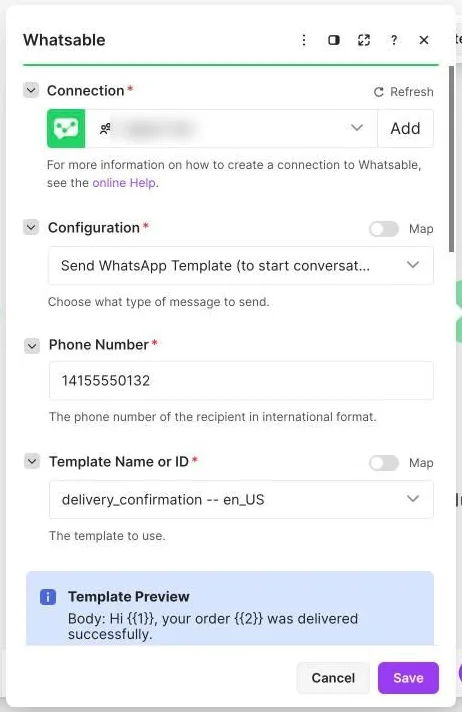
Choose the kind of message
In Configuration, choose one option:
| Configuration | Use it when |
|---|---|
| Send WhatsApp Template (to start conversation) | The send time can be more than 24 hours after the contact's last message. Needs a template approved by Meta. |
| Send a non-template message (person must write to you first) | The contact will still be inside the 24-hour customer service window at the send time. |
A non-template message only works inside WhatsApp's 24-hour window, counted at the send time, not when the scenario runs. A follow-up scheduled for later usually falls outside it, so use a template unless you are sure.
Fill in the recipient and the message
The message fields are the same as in Send a WhatsApp Message: the phone number in international format, then the template and one field per template variable, or the message type and its content.
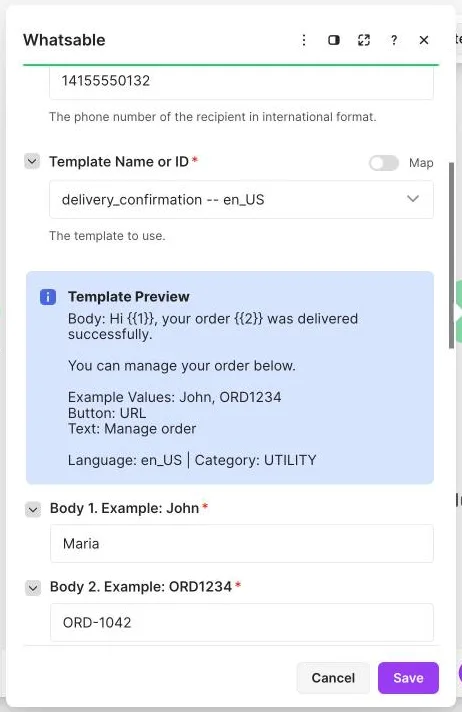
Label Names or IDs adds labels to the contact. For a scheduled message, Whatsable adds them after it sends the message, and creates a label that does not exist yet.
The Note field has no effect on a scheduled message: Whatsable does not save it. To set the note, add an Update a Contact module before this one.
Choose when to send
Use the Schedule field, as described next.
Choose when the message is sent
Set Schedule to After a delay.
| Field | What to choose |
|---|---|
| Unit | Minutes, Hours, or Days |
| Value | How many units to wait, for example 2 |
The delay counts from the moment Whatsable receives the module's request, which is when the scenario runs. Hours and 2 sends the message two hours later.
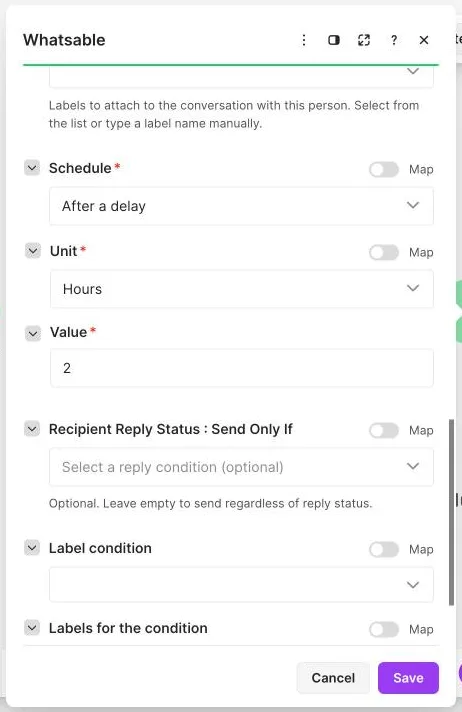
Only send when it still makes sense
Both modes accept two optional conditions. Whatsable checks them when the send time arrives, not when the scenario runs. When a condition is not met, Whatsable skips the message and marks it as suppressed in the conversation. A reply does not cancel the message earlier: the check happens at the send time.
Recipient reply status
Recipient Reply Status : Send Only If compares the contact's replies with your messages to them.
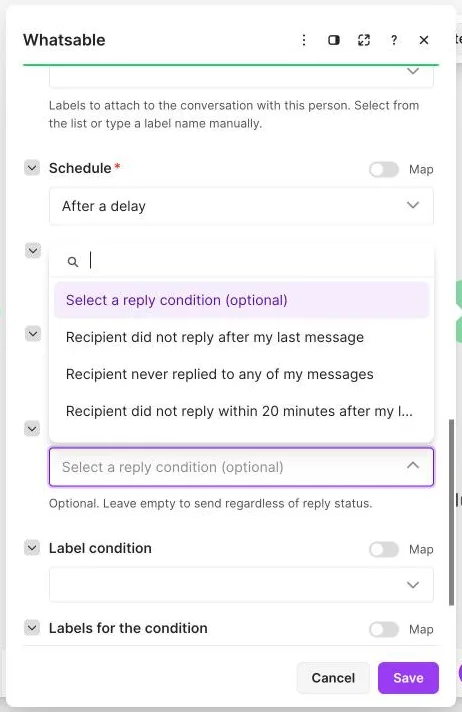
| Option | Whatsable sends the message only if |
|---|---|
| Recipient did not reply after my last message | The contact has not replied since your most recent message to them |
| Recipient never replied to any of my messages | The contact has not replied since your first message to them |
| Recipient did not reply within 20 minutes, 45 minutes, 3, 6, 12, 24, 48 or 72 hours after my last message | The contact did not reply within that time after your most recent message. A reply that came later does not stop the message. |
When you choose an option, Make shows a short explanation of it under the field.
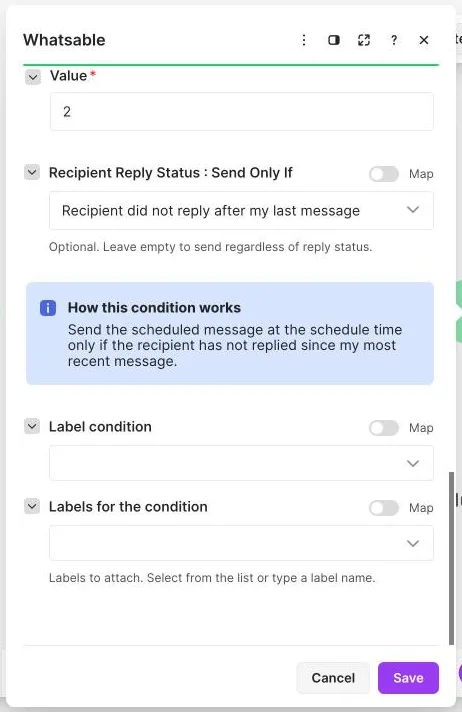
"Your messages" are the messages your WhatsApp number sent to the contact and that did not fail, from any source: the inbox, an automation, or a scenario. When you have never sent the contact a message, every option lets the message go out. Leave the field empty to send whatever the contact did.
Label condition
Label condition works together with Labels for the condition below it. Set both, or the condition is ignored.
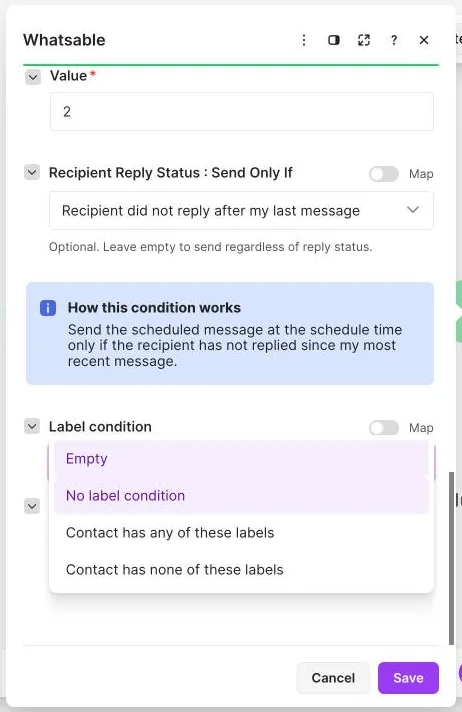
| Label condition | Whatsable sends the message only if the contact, at the send time |
|---|---|
| No label condition | Always: labels are not checked |
| Contact has any of these labels | Has at least one of the selected labels |
| Contact has none of these labels | Has none of the selected labels |
Labels are matched by name. A label that does not exist when the scenario runs makes the module fail. When a selected label is deleted before the send time, Whatsable skips the message.
What the module returns
A successful run returns success, the message Message scheduled successfully, and the schedule_datetime_date and time_zone that were sent. It returns no message ID, because the message is not sent yet. So you cannot follow this module with Get delivery status of a message.
Example: a follow-up that skips people who replied
Start the scenario
Use the module that begins the conversation, for example a new form submission.
Send the first message
Add Whatsable: Send a WhatsApp Message with your welcome template.
Schedule the follow-up
Add Whatsable: Schedule a follow-up WhatsApp Message with a follow-up template. Set Schedule to After a delay, choose Hours and 24, and choose Recipient did not reply after my last message.
A lead who answers within 24 hours gets no nudge. A lead who stays silent gets exactly one.
Whatsable is not a drip builder. A day-0, day-3, day-6 sequence is several Schedule a follow-up modules in the scenario, each scheduling one message. The sequence logic lives in Make.
Test it safely
Test with your own phone number first. Run once schedules a real message, and Whatsable sends it when its time comes.
- Put your own number in Phone Number and choose a delay of a few minutes.
- Click Run once and check that the output shows
successandMessage scheduled successfully. - Open the conversation with your number in the Whatsable inbox. The scheduled message appears there, and you can cancel it before it is sent.
Troubleshooting
Date and time accepts YYYY-MM-DD HH:mm, YYYY-MM-DDTHH:mm:ss, or a date alone. A mapped value in another format fails. Format it first, for example with formatDate(yourDate; "YYYY-MM-DD HH:mm").
Check the Time zone field. Whatsable reads the date and time in that time zone and ignores any Z or offset in the mapped value.
Open the conversation in the inbox. A message marked as suppressed did not meet its reply or label condition at the send time. Also check that the template is approved, and that a non-template message was still inside the 24-hour window.
The label condition names a label that does not exist in Whatsable. Create it in Whatsable first, or choose another one. See Labels.