# Update a contact in Zapier
> Set the name and the note, and add or remove labels on a WhatsApp contact from a Zap, without sending a message.
The **Update a Contact** action of the WhatsAble app changes a contact in WhatsAble: its display name, its note, and its labels. It does not send any message.
Use it to keep the inbox organized by itself: label a lead, store what you learned about them, or clear a label that no longer applies. This page is the how-to guide. For the account connection, see the [Zapier overview](/integration/zapier).
> [!NOTE]
>
> The note and the labels are internal. Your team and your AI agent see them in WhatsAble. The contact never does.
## When to use it
- **Qualify a lead**:
Add the label `qualified` when a form score is high, and remove `new` in the same step.
- **Give your AI agent context**:
Store the name, email and language from a form in the note, so the agent answers with that context.
- **Payment follow-up**:
Add `payment-overdue` when an invoice is late, and remove it when it is paid.
- **Campaign tracking**:
Label contacts by the campaign or the ad that brought them in.
## Set up the action
**Add the WhatsAble action**
In the Zap editor, click **+**, search for **WhatsAble**, and choose **Update a Contact** as the **Action event**. Under **Account**, choose your WhatsAble connection.
**Choose the contact and the change**
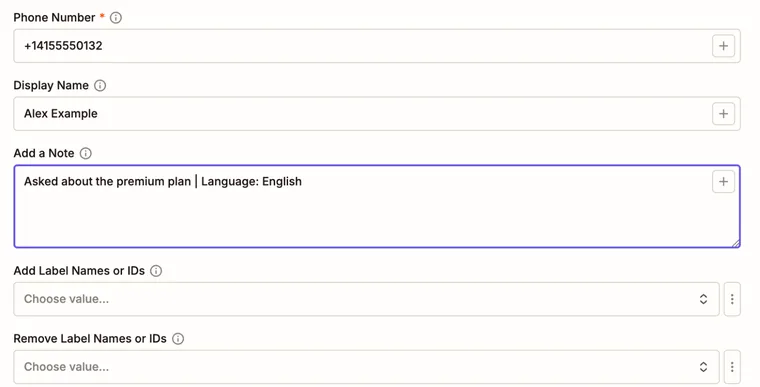 *The Update a Contact fields*
**Phone Number** `text` (required)
The contact's number with the country code, for example `+14155550132`. WhatsAble creates the contact when the number is new.
**Display Name** `text`
The contact's name in the WhatsAble inbox. A name set here counts as a name your team chose.
**Add a Note** `text`
The contact's note, for example name, email, preferences or language. It **replaces** the current note; it does not add to it. Leave the field empty to keep the current note.
**Add Label Names or IDs** `multiselect`
Labels to add to the contact. WhatsAble creates a label that does not exist yet.
**Remove Label Names or IDs** `multiselect`
Labels to remove. Choose **Remove All** to clear every label on the contact. With **Remove All**, WhatsAble clears the labels first and then adds the ones in **Add Label Names or IDs**.
**Test the step**
Click **Test step**, then open the contact in the WhatsAble [inbox](https://console.whatsable.app/inbox) and check the name, the note and the labels.
> [!NOTE]
>
> The action's description in Zapier mentions assigning a conversation to a teammate. The action has no field for that, so it cannot assign a chat. To assign chats, see [Chat assignment](/features/chat-assignment).
> [!TIP]
>
> To keep earlier notes, map the current `note` from the [trigger](/integration/zapier/trigger) and write the new text after it in **Add a Note**.
## Example: promote a lead
**Start the Zap**
Use a new form submission, or a stage change in your CRM.
**Update the contact**
Add **WhatsAble: Update a Contact**. Map the phone number, write a note such as `Asked about the premium plan | Language: English`, add the label `qualified`, and remove the label `new`.
**Follow up**
Continue with [Send WhatsApp Message](/integration/zapier/send-message), or with [Schedule a Follow-Up Message](/integration/zapier/schedule-message) and a label condition, so that only the labeled contacts get a message.
## Troubleshooting
The label list is empty
The lists show the labels that exist in your account. Create the labels in WhatsAble first. See [Labels](/features/labels).
The old note is gone
**Add a Note** replaces the note. Map the old note into the field as well, as the tip above shows.