# Schedule a WhatsApp message in Zapier
> Send a WhatsApp message later from a Zap, after a delay or at a set time in a chosen timezone, and skip it when the contact already replied or has the wrong label.
The **Schedule a Follow-Up Message** action of the WhatsAble app queues a WhatsApp message in WhatsAble and sends it later. Choose a delay, such as "2 hours after the Zap runs", or an exact date and time in a timezone you pick. Add a condition, and WhatsAble checks it when the send time arrives: for example, send only if the contact has not replied yet.
This page is the how-to guide. For the account connection and the other actions, see the [Zapier overview](/integration/zapier). For the trigger fields, see [Zapier triggers and actions](/integration/zapier/fields).
## When to use it
- **Follow up on silent leads**:
Send a nudge 2 hours after your first message, only if the lead has not answered.
- **Appointment reminders**:
Send a reminder at 09:00 on the day of a booking, in the customer's own timezone.
- **After-purchase check-in**:
Ask "How was your delivery?" a day after an order ships.
- **Targeted messages**:
Send only to contacts that have, or do not have, a given label at send time.
## Set up the action
**Add the WhatsAble action**
In the Zap editor, click **+** after your trigger, search for **WhatsAble**, and choose **Schedule a Follow-Up Message** as the **Action event**. Under **Account**, choose your WhatsAble connection, or connect one with your WhatsAble API key.
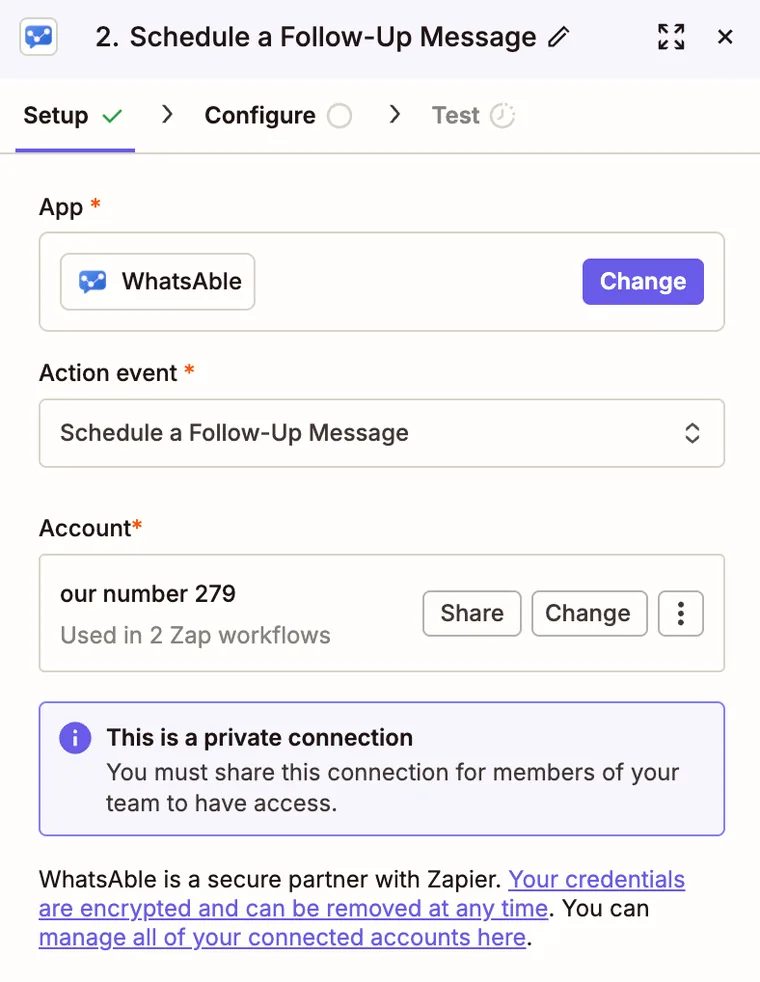 *The Setup tab with the Schedule a Follow-Up Message event*
**Choose the kind of message**
In the **Configure** tab, choose one **Configuration**:
| Configuration | Use it when |
| --- | --- |
| **Schedule WhatsApp Template (to start conversation)** | The send time can be more than 24 hours after the contact's last message. Needs a template approved by Meta. |
| **Schedule a non-template message (person must write to you first)** | The contact will still be inside the 24-hour customer service window at the send time. |
> [!WARNING]
>
> A non-template message only works inside WhatsApp's 24-hour window, counted at the send time, not when the Zap runs. A follow-up scheduled for later usually falls outside it, so use a template unless you are sure.
**Fill in the recipient and the message**
The message fields are the same as in **Send WhatsApp Message**: the phone number in international format, for example `+14155550132`, then the template and one field per template variable, or the message type and its content.
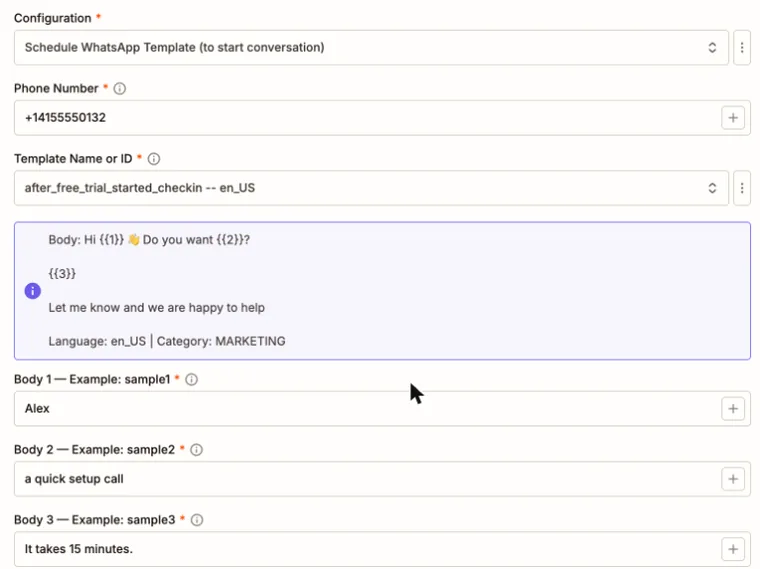 *A template with its variables filled in*
**Label Names or IDs** adds labels to the contact. For a scheduled message, WhatsAble adds them after it sends the message, and creates a label that does not exist yet.
> [!NOTE]
>
> The **Note** field has no effect on a scheduled message: WhatsAble does not save it. To set the note, add an [Update a Contact](/integration/zapier#update-a-contact) step before this one.
**Choose when to send**
Use the **Schedule Type : Relative or Specific** switch, as described next.
## Choose when the message is sent
**After a delay**
Set **Schedule Type : Relative or Specific** to **False**.
| Field | What to choose |
| --- | --- |
| **Unit of Time** | Days, Hours, or Minutes |
| **Number** | 1, 2, 3, 4, 5, 10, 15, 20, 30, 60, 90, or 120 |
The delay counts from the moment WhatsAble receives the step, which is when the Zap runs. **Hours** and **2** sends the message two hours later.
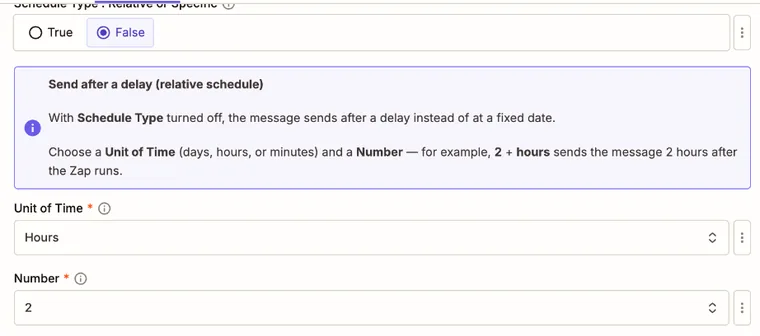 *Relative mode: send 2 hours after the Zap runs*
**At a specific time**
Set **Schedule Type : Relative or Specific** to **True**.
| Field | What to enter |
| --- | --- |
| **Scheduled Date and Time** | The clock time to send, for example `2026-11-20 09:00` or `2026-11-20T09:00:00` |
| **Timezone** | The timezone that clock time belongs to, for example `America/New_York` |
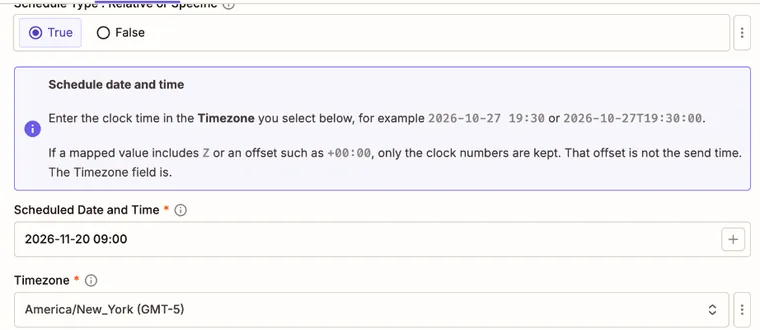 *Specific mode: a clock time, and the timezone it belongs to*
WhatsAble sends the message when that clock time arrives in the **Timezone** you chose. The example above sends at 09:00 in New York, whatever the timezone of your Zapier account.
> [!WARNING]
>
> The **Timezone** field decides the time, not the value you map. When a mapped value carries `Z` or an offset such as `-05:00`, only the date and the clock numbers are used: `2026-11-20T09:00:00Z` with **America/New_York** sends at 09:00 New York time, not at 09:00 UTC. If your source gives UTC times, choose a UTC timezone, or convert the value first with a **Formatter by Zapier** step.
Some details of this mode:
- A date with no time, such as `2026-11-20`, sends at 00:00 in that timezone.
- The offset in a timezone's name, such as `(GMT-5)`, is only a label. WhatsAble applies daylight saving time for the date you chose.
- A time that has already passed is not refused. WhatsAble sends the message right away.
## Only send when it still makes sense
Both modes accept two optional conditions. WhatsAble checks them when the send time arrives, not when the Zap runs. When a condition is not met, WhatsAble skips the message and marks it as suppressed in the conversation. A reply does not cancel the message earlier: the check happens at the send time.
### Recipient reply status
**Recipient Reply Status : Send Only If** compares the contact's replies with your messages to them.
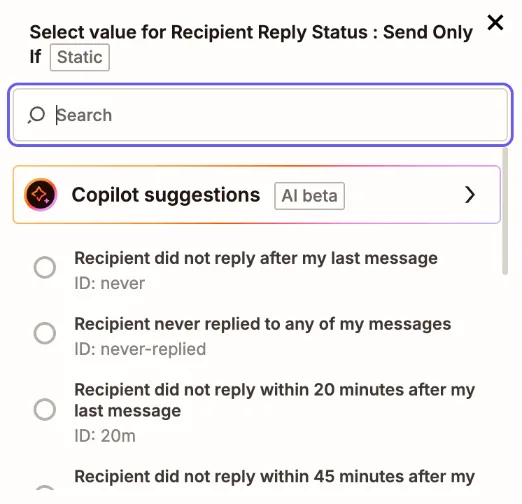 *The reply conditions in the Recipient Reply Status dropdown*
| Option | WhatsAble sends the message only if |
| --- | --- |
| Recipient did not reply after my last message | The contact has not replied since your most recent message to them |
| Recipient never replied to any of my messages | The contact has not replied since your first message to them |
| Recipient did not reply within 20 minutes, 45 minutes, 3, 6, 12, 24, 48 or 72 hours after my last message | The contact did not reply within that time after your most recent message. A reply that came later does not stop the message. |
"Your messages" are the messages your WhatsApp number sent to the contact and that did not fail, from any source: the inbox, an automation, or a Zap. When you have never sent the contact a message, every option lets the message go out. Leave the field empty to send whatever the contact did.
### Label status
**Label Status : Include or Exclude** works together with the **Label Names or IDs** field below it. Set both, or the condition is ignored.
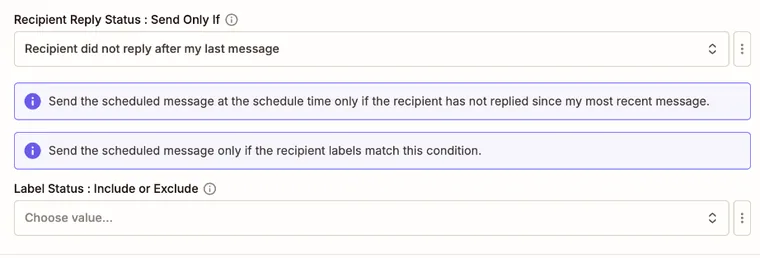 *The reply condition with its explanation, and the label condition below it*
| Label Status | WhatsAble sends the message only if the contact, at the send time |
| --- | --- |
| Include | Has at least one of the selected labels |
| Does Not Include | Has none of the selected labels |
Labels are matched by name. A label that does not exist when the Zap runs makes the step fail. When a selected label is deleted before the send time, WhatsAble skips the message.
## What the step returns
A successful step returns `success`, the message `Message scheduled successfully`, and the `schedule_datetime_date` and `time_zone` that were sent. It returns no message ID, because the message is not sent yet. So you cannot follow this step with **Get Delivery Status of a Message**.
## Example: a follow-up that skips people who replied
**Start the Zap**
Use the event that begins the conversation, for example a new form submission.
**Send the first message**
Add **WhatsAble: Send WhatsApp Message** with your welcome template.
**Schedule the follow-up**
Add **WhatsAble: Schedule a Follow-Up Message** with a follow-up template. Set **Schedule Type** to **False**, choose **Hours** and **24**, and choose **Recipient did not reply after my last message**.
A lead who answers within 24 hours gets no nudge. A lead who stays silent gets exactly one.
> [!WARNING]
>
> WhatsAble is not a drip builder. A day-0, day-3, day-6 sequence is several Schedule a Follow-Up Message steps in the Zap, each scheduling one message. The sequence logic lives in Zapier.
## Test it safely
> [!TIP]
>
> Test with your own phone number first. **Test step** schedules a real message, and WhatsAble sends it when its time comes.
1. Put your own number in **Phone Number** and choose a delay of a few minutes.
2. Click **Test step** and check that the result shows `success` and `Message scheduled successfully`.
3. Open the conversation with your number in the WhatsAble [inbox](https://console.whatsable.app/inbox). The scheduled message appears there, and you can cancel it before it is sent.
## Troubleshooting
Scheduled Date and Time must use format 2026-06-08 17:20
The field accepts `YYYY-MM-DD HH:mm`, `YYYY-MM-DDTHH:mm:ss`, or a date alone. A mapped value in another format, such as `Nov 20, 2026 9:00 AM`, fails. Add a **Formatter by Zapier** step that formats the date as `YYYY-MM-DD HH:mm`, and map its output.
The message went out at the wrong hour
Check the **Timezone** field. WhatsAble reads the date and time in that timezone and ignores any `Z` or offset in the mapped value.
The message was not sent
Open the conversation in the inbox. A message marked as suppressed did not meet its reply or label condition at the send time. Also check that the template is approved, and that a non-template message was still inside the 24-hour window.
The step fails with an unknown label
The label condition names a label that does not exist in WhatsAble. Create it in WhatsAble first, or choose another one. See [Labels](/features/labels).