# Schedule a WhatsApp message in n8n
> Send a WhatsApp message later from n8n, at a fixed time or after a delay, and skip it when the contact already replied or has the wrong label.
The **Schedule WhatsApp Message** operation of the Whatsable node queues a message in WhatsAble and sends it later. Pick an exact date and time, or a delay such as "2 hours from now". Add a condition, and WhatsAble checks it when the send time arrives: for example, send only if the contact has not replied yet.
This page is the how-to guide. For every field of the node, see [n8n node fields](/integration/n8n/fields). For the credential and the first workflow, see the [n8n overview](/integration/n8n).
## When to use it
- **Follow up on silent leads**:
Send a nudge 2 hours after your first message, only if the lead has not answered.
- **Appointment reminders**:
Schedule a reminder for the evening before an appointment, in the customer's own timezone.
- **After-purchase check-in**:
Ask "How was your delivery?" a day after an order ships.
- **Targeted messages**:
Send only to contacts that have, or do not have, a given label at send time.
## Set up the node
**Add the Whatsable node**
Click **+** after your trigger, search for **Whatsable**, and choose the node with the Whatsable logo.
**Choose the operation**
| Field | Value |
| --- | --- |
| **Credential** | Your Whatsable credential |
| **Resource** | Send Message |
| **Operation** | Schedule WhatsApp Message |
| **Product Operation** | **Send Message Template** or **Send Non Template Message** |
> [!WARNING]
>
> A non-template message only works inside WhatsApp's 24-hour window. A message scheduled for later usually falls outside it, so use **Send Message Template** unless the send time is within 24 hours of the contact's last message.
**Fill in the recipient and the message**
The message fields are the same as in **Send WhatsApp Message**: the phone number in international format, for example `+14155550132`, the template and its variables (or the message type and content), an optional **Note**, and optional **Label Names or IDs**.
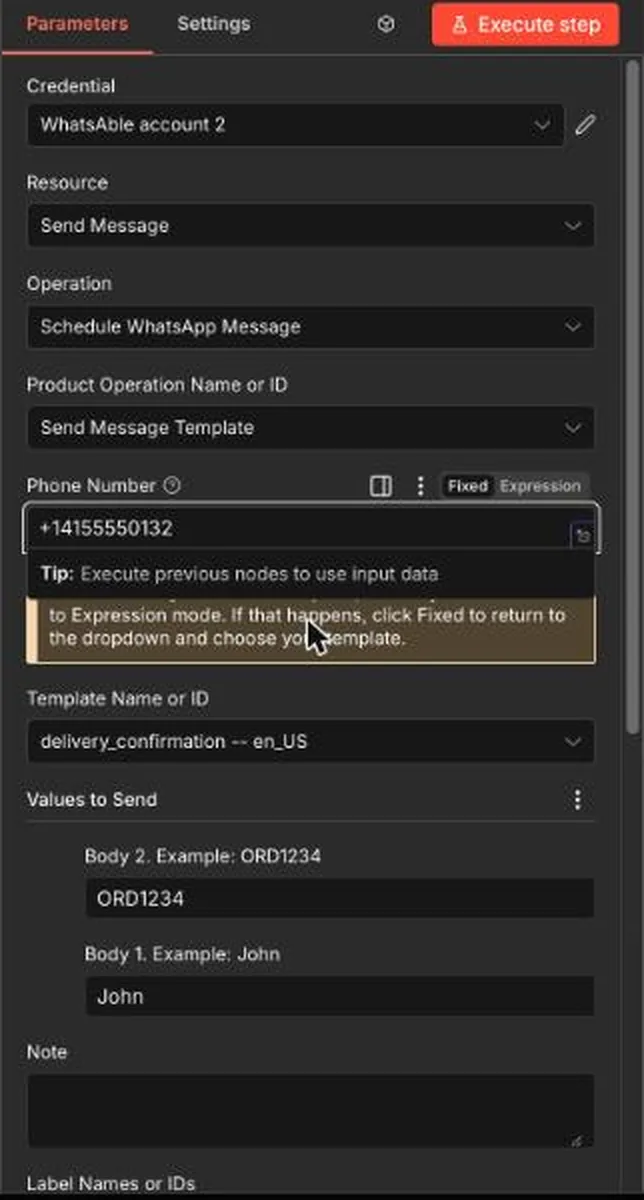 *Schedule WhatsApp Message with the Send Message Template product operation*
> [!TIP]
>
> The first time you select a template, n8n may switch the field to **Expression** mode. Click **Fixed** to return to the dropdown and choose your template.
**Choose when to send**
Use the **Schedule Type : Relative or Specific** switch, as described next.
## Choose when the message is sent
**After a delay**
Turn **Schedule Type : Relative or Specific** off.
| Field | What to enter |
| --- | --- |
| **Unit of Time** | Minutes, Hours, or Days |
| **Number** | 1, 2, 3, 4, 5, 10, 15, 20, 30, 60, 90, or 120 |
The delay counts from the moment the node runs. **Hours** and **2** sends the message two hours later.
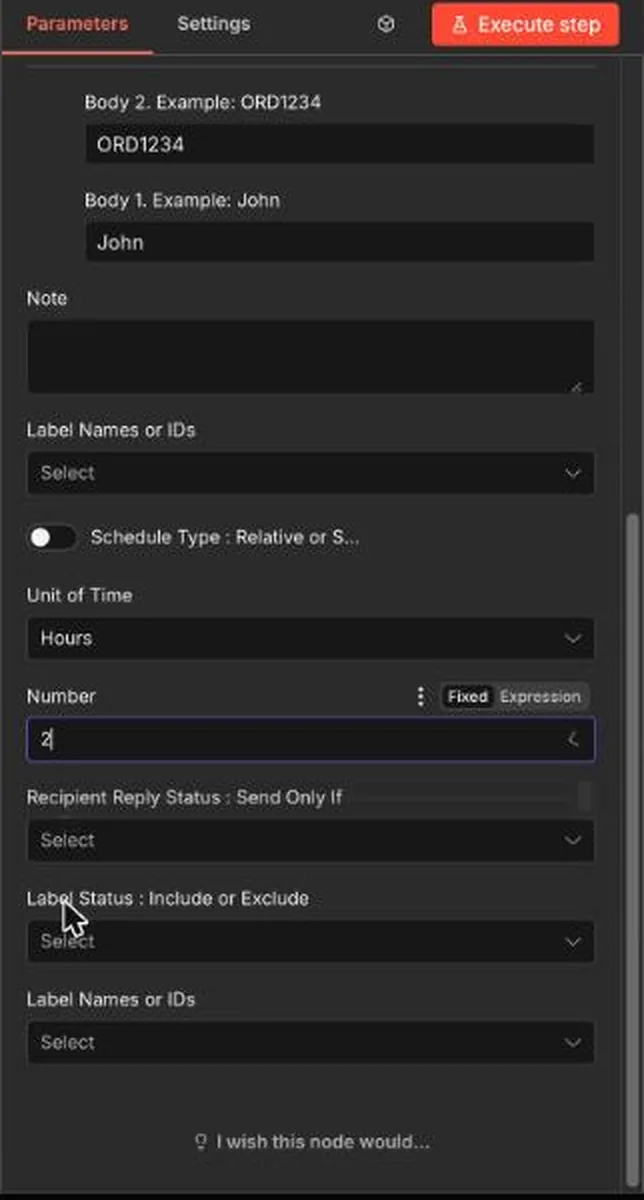 *Relative mode: send 2 hours after the workflow runs*
> [!NOTE]
>
> Both fields are required in this mode. n8n shows a red warning on them until you choose a value.
**At a specific time**
Turn **Schedule Type : Relative or Specific** on.
| Field | What to enter |
| --- | --- |
| **Scheduled Date and Time** | The exact moment to send, for example `2026-11-20 09:00:00` |
| **Timezone** | The timezone that date and time belong to |
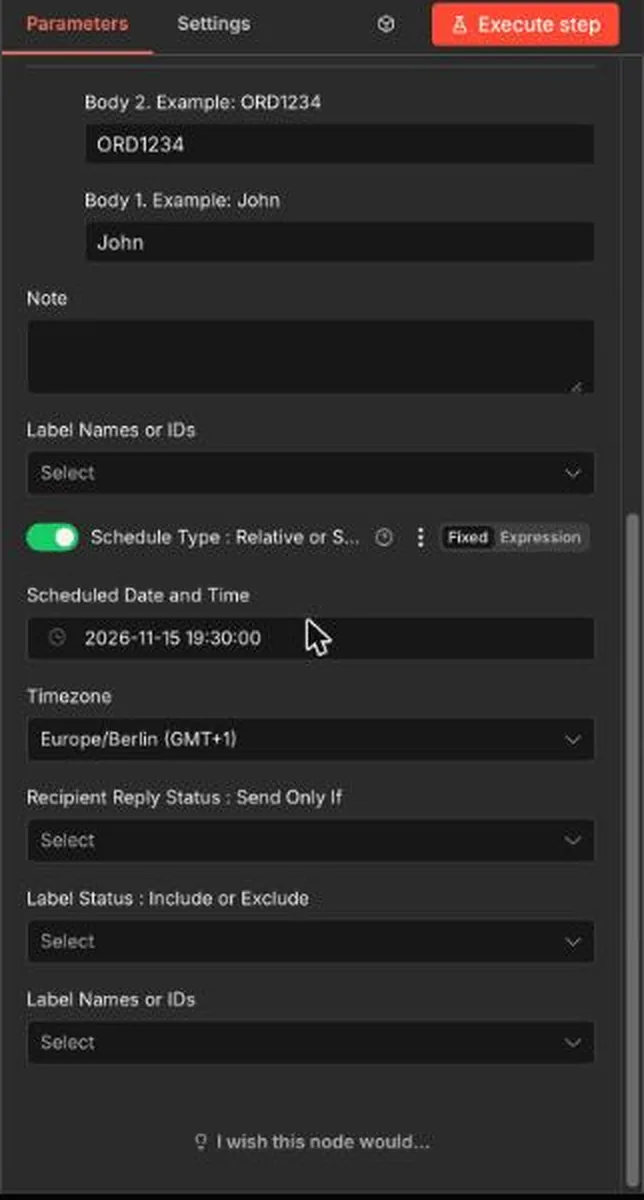 *Specific mode: a date and time, and the timezone they belong to*
> [!WARNING]
>
> The node sends the date and time exactly as you enter them, and WhatsAble reads them in the **Timezone** you choose, not in the timezone of your n8n server. Set the timezone on purpose, especially when n8n runs in a different region from your customers.
## Only send when it still makes sense
Both modes accept two optional conditions. WhatsAble checks them when the send time arrives, not when the node runs. When a condition is not met, the message is not sent.
### Recipient reply status
**Recipient Reply Status : Send Only If** compares the send time with the contact's replies.
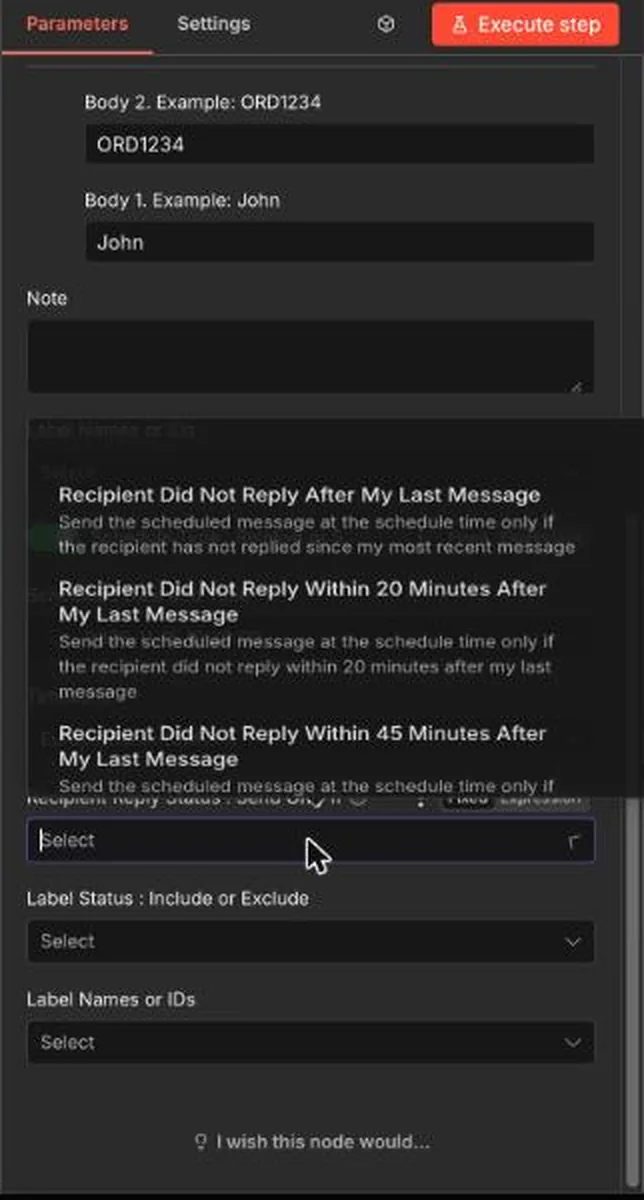 *The reply conditions in the Recipient Reply Status dropdown*
| Option | Sends the message only if |
| --- | --- |
| Recipient Did Not Reply After My Last Message | The contact has not replied since your most recent message |
| Recipient Did Not Reply Within 20 Minutes, 45 Minutes, 3, 6, 12, 24, 48 or 72 Hours After My Last Message | The contact did not reply within that time after your most recent message |
| Recipient Never Replied to Any of My Messages | The contact has never replied to any of your messages |
Leave the field empty to send whatever the contact did.
### Label status
**Label Status : Include or Exclude** works together with **Label Names or IDs** in the schedule section.
| Label Status | Sends the message only if the contact |
| --- | --- |
| Include | Has the selected labels at send time |
| Does Not Include | Does not have the selected labels at send time |
## Example: a follow-up that skips people who replied
**Start the workflow**
Use the event that begins the conversation, for example a new form submission. While you test, use **Execute workflow**.
**Send the first message**
Add a Whatsable node with **Send WhatsApp Message** and your template.
**Schedule the follow-up**
Add a second Whatsable node with **Schedule WhatsApp Message**. Turn the schedule switch off, set **Hours** and **2**, and choose **Recipient Did Not Reply After My Last Message**.
A lead who answers within two hours gets no nudge. A lead who stays silent gets exactly one.
> [!WARNING]
>
> Whatsable is not a drip builder. A day-0, day-3, day-6 sequence is several Schedule WhatsApp Message steps in n8n, each scheduling one message. The sequence logic lives in n8n.
## Test it safely
> [!TIP]
>
> Test with your own phone number first. A scheduled message is a real message, and WhatsAble sends it when its time comes.
1. Use your own number and a delay of a few minutes.
2. Click **Execute step** and confirm that n8n shows a success result.
3. Wait for the send time and check the conversation with your number.
## Troubleshooting
Red warnings on Unit of Time and Number
These fields are required when the schedule switch is off. Choose a unit and a number, or turn the switch on to use a specific date and time.
The message went out at the wrong hour
Check the **Timezone** field. In specific mode, WhatsAble reads the date and time in that timezone.
The message was not sent
A reply or label condition may not have been met when the time arrived. Also check that the template is approved, and that a non-template message is still inside the 24-hour window.