# Start a Make scenario from a WhatsApp message
> Use the Whatsable trigger in Make to run a scenario when a contact writes to your WhatsApp number: create the webhook, connect your API key, and map the message fields.
The Whatsable trigger runs a Make scenario when a contact sends a message to your WhatsApp number. In Make it is the instant trigger **New message arrived to my WhatsApp Number (Whatsable - Notifyer)** of the **Whatsable** app.
This page is the how-to guide. For every field the trigger sends, and for the second trigger, see the [Make overview](/integration/make#triggers). **New message Sent or Received** also receives incoming messages only. A message your business sends does not start either trigger. It arrives through **Settings** → [**Webhooks**](https://console.whatsable.app/settings/outgoing-webhooks), with **Outgoing messages** ticked.
## When to use it
- **Reply fast**:
Answer a first message with a template, an AI reply, or a routing step.
- **Save every lead**:
Write each new contact and message into a sheet, a CRM, or a database.
- **Alert your team**:
Post to Slack or send an email when a message contains a word such as "refund".
- **Read ad leads**:
Read the Click-to-WhatsApp data (`referral`) of a new lead and label it by ad.
## Set up the trigger
**Add the trigger**
In a new scenario, click the large **+**, search for **Whatsable**, and open the **Whatsable** app with the **Verified** badge. Under **Triggers**, choose **New message arrived to my WhatsApp Number (Whatsable - Notifyer)**.
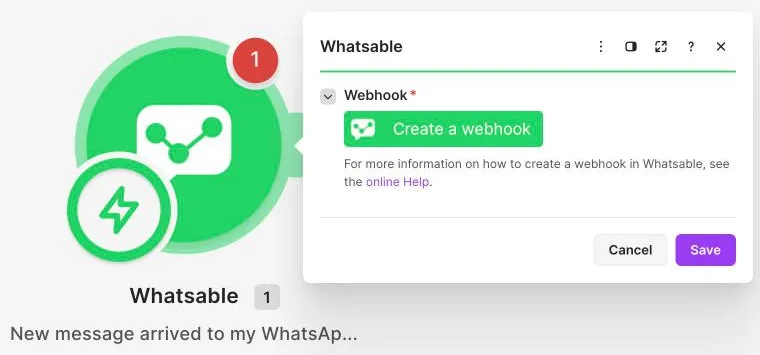 *A new trigger asks for a webhook first*
**Create the webhook**
Click **Create a webhook**. If you already have webhooks, click **Add** next to the **Webhook** dropdown instead. In the dialog:
1. Type a **Webhook name** you will recognize later, for example `Whatsable incoming messages`.
2. Under **Connection**, choose your Whatsable connection. The first time, click **Add**, give the connection a name, paste your Whatsable API key, and click **Save**.
3. Click **Save**.
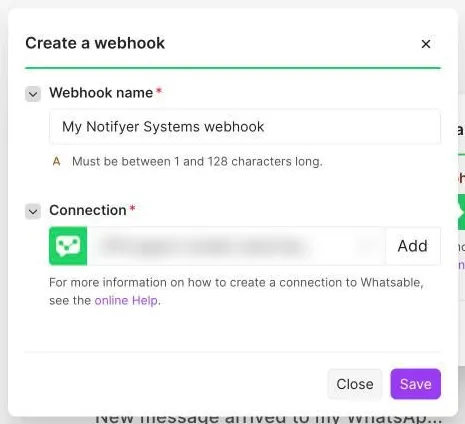 *The Create a webhook dialog*
Use the Whatsable API key from [**API keys**](https://console.whatsable.app/settings/api-keys), not a Meta or WhatsApp key.
**Save the module**
Back in the module, check that your webhook is selected, then click **Save**.
When you save, the Make app registers the webhook URL with Whatsable. The webhook then appears under **Settings** → [**Webhooks**](https://console.whatsable.app/settings/outgoing-webhooks) in Whatsable.
**Load a real message**
Click **Run once**, then send a WhatsApp message from your own phone to your WhatsApp number. Make receives the message and shows its fields on the trigger, so you can map them in the next modules.
**Add your modules, then turn the scenario on**
Add the modules that should run for each message. Set the schedule to **Immediately as data arrives**, then switch the scenario on.
> [!NOTE]
>
> An API key belongs to one WhatsApp number, and the trigger receives the messages of that number only, unless you set its webhook to all channels (see below). To work with two numbers, create one API key and one Make connection for each number.
> [!NOTE]
>
> After a teammate replies by hand in a chat, this trigger skips that chat for 24 hours, so your scenario and your team do not both answer. To change or remove the pause, edit the webhook in **Settings** → [**Webhooks**](https://console.whatsable.app/settings/outgoing-webhooks) and change **Pause when your team replies**.
## Receive Instagram or Messenger messages
A trigger that the app registers listens to the WhatsApp number of its API key, so it does not receive Instagram or Messenger messages. There are two ways to receive them.
**In Whatsable, for the app's trigger.** Open **Settings** → [**Webhooks**](https://console.whatsable.app/settings/outgoing-webhooks), edit the webhook that the app registered, and set **Channel** to **All channels**. The trigger then receives WhatsApp, Instagram and Messenger messages, and each message names its `channel`.
> [!WARNING]
>
> Do not set the app's webhook to one Instagram or Messenger channel. It stops receiving WhatsApp messages at once. The app also registers its URL again when you turn the Zap or scenario back on, or save the n8n credential, and it asks for the API key's WhatsApp number. Whatsable refuses that registration, because the URL listens to another channel, so the trigger cannot be turned back on. Set **Channel** back to **All channels** to fix it.
**With the API, for a URL of your own.** Use a webhook step that the app did not register, such as **Webhooks by Zapier → Catch Hook**, a Make **Custom webhook**, or an n8n **Webhook** node. Register its URL with your API key and name the account with `channel_account_id`. Choose the endpoint by the payload shape you want:
| Endpoint | URL field | Payload shape |
| --- | --- | --- |
| `POST https://api.insightssystem.com/api:dBShrB6H/zapier` | `hookUrl` | The same fields as the Zapier trigger and Make's **New message arrived** trigger. It pauses a chat for 24 hours after a teammate replies by hand; change that under **Settings** → **Webhooks** |
| `POST https://api.insightssystem.com/api:ErOQ8pSj/n8n/webhook/io` | `url` | The same fields as Make's **New message Sent or Received** trigger, with the `incoming_message` key. No pause |
```bash
curl -X POST https://api.insightssystem.com/api:dBShrB6H/zapier \
-H "Authorization: Bearer YOUR_API_KEY" \
-H "Content-Type: application/json" \
-d '{"hookUrl": "https://your-catch-hook-url", "channel_account_id": "YOUR_CHANNEL_ACCOUNT_ID"}'
```
- **Without `channel_account_id`**, the URL listens to the API key's own WhatsApp number, as before, or to every account for a key created before any number was connected.
- **With `channel_account_id`**, the URL receives the messages of that account only, on any channel: WhatsApp, Instagram or Messenger. The value is a non-empty string. The account must be connected, and the API key must be allowed to use it: its own number, an account it is granted in **Settings** → [**API keys**](https://console.whatsable.app/settings/api-keys), or any account for a key not limited to some.
- **Each Instagram message** carries `channel: "instagram"` and the customer's `username`, and no phone number. A Messenger message carries `channel: "messenger"`.
- **Changing the API key to another number** moves only the URLs on the key's own number. A URL on another account stays on that account.
- **Registering the same URL again** returns the stored webhook. Send the same `channel_account_id` each time: without it, the call names the key's own number and is refused. If the account has been disconnected since, or the key lost access to it, the call is refused until the account is connected and the key may use it again.
Whatsable does not show a channel account's id in the app yet. To get it, write to team@whatsable.app.
The call answers HTTP 400 with `ERROR_CODE_INPUT_ERROR` when it cannot register the URL:
| Message | What happened |
| --- | --- |
| `channel_account_id does not name a connected account this API key can use.` | The id is unknown, belongs to another workspace, names a disconnected account, or names an account this API key cannot use. All four answer the same. |
| A message starting `This URL is already registered for` | The URL already listens to another account, or to one account while this call asks for every account. One URL listens to one account, or to all accounts. |
| A message naming `channel_account_id` | The value is empty or is not a string. |
## What the trigger gives you
Each run receives one message. These are the fields you map most often. The full list is in the [Make overview](/integration/make#new-message-arrived-to-my-whatsapp-number-whatsable---notifyer).
| Field | Meaning |
| --- | --- |
| `phone_number` | The contact's number, digits only, for example `14155550132` |
| `recipient_name` | The contact's name in Whatsable |
| `last_message_of_user` | The text of the message that started the run |
| `message_type` | The kind of message, for example `text`, `audio`, `image`, or `document` |
| `attachment_url` | Present on every delivery, and always empty. Whatsable does not put a link to the attached file in this field |
| `labels` | The labels on the conversation, separated by commas |
| `note` | The note saved on the contact |
| `conversation_paragraph` | The recent conversation as one block of text, ready for an AI prompt |
| `referral` | Click-to-WhatsApp ad data. Present only on a lead that came from an ad. |
## Example: save a lead and reply
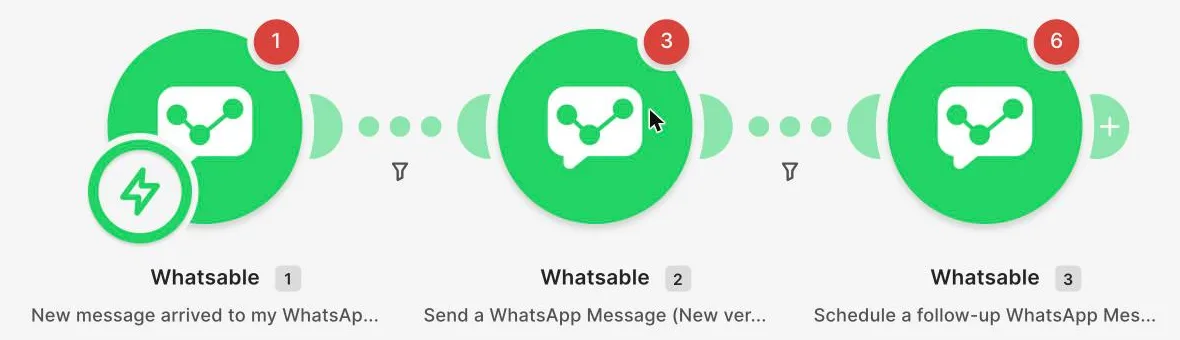 *A scenario that starts on a message, replies, and schedules a follow-up*
**Trigger**
Add the Whatsable trigger.
**Save the lead**
Add a Google Sheets, Airtable or CRM module. Map `phone_number`, `recipient_name` and `last_message_of_user` to its columns.
**Reply**
Add **Whatsable: [Send a WhatsApp Message](/integration/make/send-message)**. Map the phone number from `phone_number`. The contact just wrote to you, so a non-template message works for the next 24 hours.
## Turning the scenario off
Turning the scenario off does not remove the webhook from Whatsable: it stays under **Settings** → [**Webhooks**](https://console.whatsable.app/settings/outgoing-webhooks). Whatsable turns a webhook off by itself after its URL answers "not found" (HTTP 404 or 410) 20 times in a row, for example after you delete the webhook in Make.
## Troubleshooting
Run once waits and nothing arrives
Send the message to the number of the API key that the connection uses, not to another number. Then check that the webhook appears under **Settings** → **Webhooks**.
The scenario stopped running
Switch the scenario off and on again. This registers its webhook with Whatsable again.
A chat stopped starting the scenario
A teammate probably replied by hand in that chat in the last 24 hours. See the note about **Pause when your team replies** above.
The connection fails
Make checks the API key when you save the connection. Create a new key on the [**API keys**](https://console.whatsable.app/settings/api-keys) page and connect again. Use the Whatsable API key, not a Meta or WhatsApp key.