> ## Documentation Index
> Fetch the complete documentation index at: https://docs.whatsable.app/llms.txt
> Use this file to discover all available pages before exploring further.

# Zapier

> Learn how to seamlessly integrate Zapier with the Notifyer System for enterprise-level WhatsApp automation

# Notifyer System Integration with Zapier

<Frame caption="Automate your WhatsApp messaging workflows with Zapier and Notifyer System">
  <img src="https://mintlify.s3.us-west-1.amazonaws.com/whatsable/guides/notifyer-system/%20" className="rounded-xl" />
</Frame>

<Tip>
  This guide walks you through connecting Notifyer System with Zapier to create powerful automated WhatsApp messaging workflows for your business
</Tip>

## Prerequisites

Before getting started, make sure you have:

<CardGroup cols={2}>
  <Card title="Notifyer System Account" icon="user">
    Active Notifyer System account with a subscription plan (Monthly or Pay-as-you-go)
  </Card>

  <Card title="Zapier Account" icon="user">
    Access to [Zapier](https://zapier.com/sign-up/) workflow automation platform
  </Card>
</CardGroup>

<Tip>
  New to Notifyer System? [Sign up here](https://console.notifyer-systems.com/)
</Tip>

## Setting up your Notifyer System account

<Steps>
  <Step title="Complete the Embedding Process">
    Before sending WhatsApp messages, you must complete the platform embedding process, which connects your WhatsApp Business account to Notifyer System.

    <Info>
      The embedding process is required by Meta to ensure proper business verification and compliance with WhatsApp Business Platform policies.
    </Info>
  </Step>

  <Step title="Set up message templates">
    Notifyer System provides two methods for sending WhatsApp messages:

    <Accordion title="Option A: Template messages" defaultOpen={true}>
      <p>WhatsApp templates are pre-approved message formats that allow for personalization while maintaining compliance with WhatsApp policies.</p>

      <Steps>
        <Step title="Navigate to Templates">
          Go to **Your Templates** in your Notifyer dashboard
        </Step>

        <Step title="Create Template">
          Click the **Create Template** tab at the top of the page
        </Step>

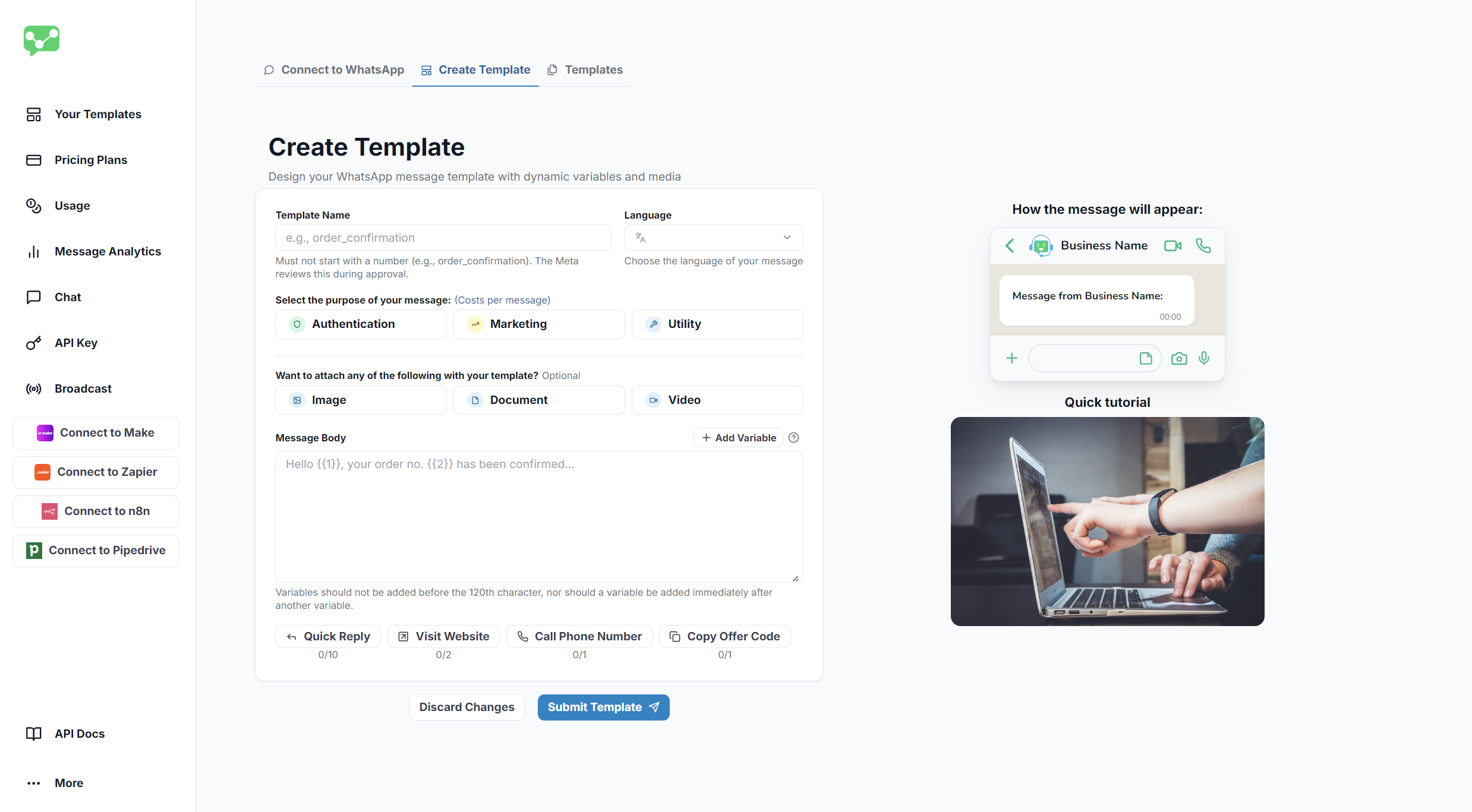
        <Step title="Fill out the form">
          Complete the template creation form with the following details:

          <ResponseField name="Template Name" type="string" required>
            Choose a descriptive name for internal reference
          </ResponseField>

          <ResponseField name="Language" type="string" required>
            Choose your template's primary language
          </ResponseField>

          <ResponseField name="Category" type="string" required>
            Select the appropriate message category
          </ResponseField>

          <ResponseField name="Header" type="image | document | video">
            Optional: Add an image, document, or video header
          </ResponseField>

          <ResponseField name="Message Body" type="string" required>
            Craft your message content
          </ResponseField>

          <ResponseField name="Variables" type="string">
            Add placeholders using `{{1}}`, `{{2}}` format for personalization
          </ResponseField>

          <ResponseField name="Buttons" type="button">
            Optional: Configure call-to-action buttons
          </ResponseField>
        </Step>

        <Step title="Submit for review">
          Click **Preview and Submit**
        </Step>
      </Steps>

      <Frame caption="Template Creation Interface">
        <img src="https://mintcdn.com/whatsable/denF9KomrZc8Vz_c/images/notifyer_template_create.png?fit=max&auto=format&n=denF9KomrZc8Vz_c&q=85&s=e3abdd6f740b211c2d8ae61753fef0e3" alt="Template Creation Interface" width="2477" height="1367" data-path="images/notifyer_template_create.png" />
      </Frame>

      <Warning>
        Templates typically get reviewed within 24 hours. Creating compliant templates that avoid promotional language increases approval chances.
      </Warning>
    </Accordion>

    <Accordion title="Option B: Non-template messages">
      <p>For simpler communications, you can send non-template messages that include:</p>

      <CardGroup cols={2}>
        <Card title="Text" icon="message-text">
          Plain text messages within the 24-hour window
        </Card>

        <Card title="Images" icon="image">
          Photos and graphics in supported formats
        </Card>

        <Card title="Documents" icon="file-pdf">
          PDFs, Word docs, and other file types
        </Card>

        <Card title="Videos" icon="video">
          MP4 and other supported video formats
        </Card>
      </CardGroup>

      <Note>
        Non-template messages can only be sent within the 24-hour customer service window after a customer initiates contact with your business.
      </Note>
    </Accordion>
  </Step>

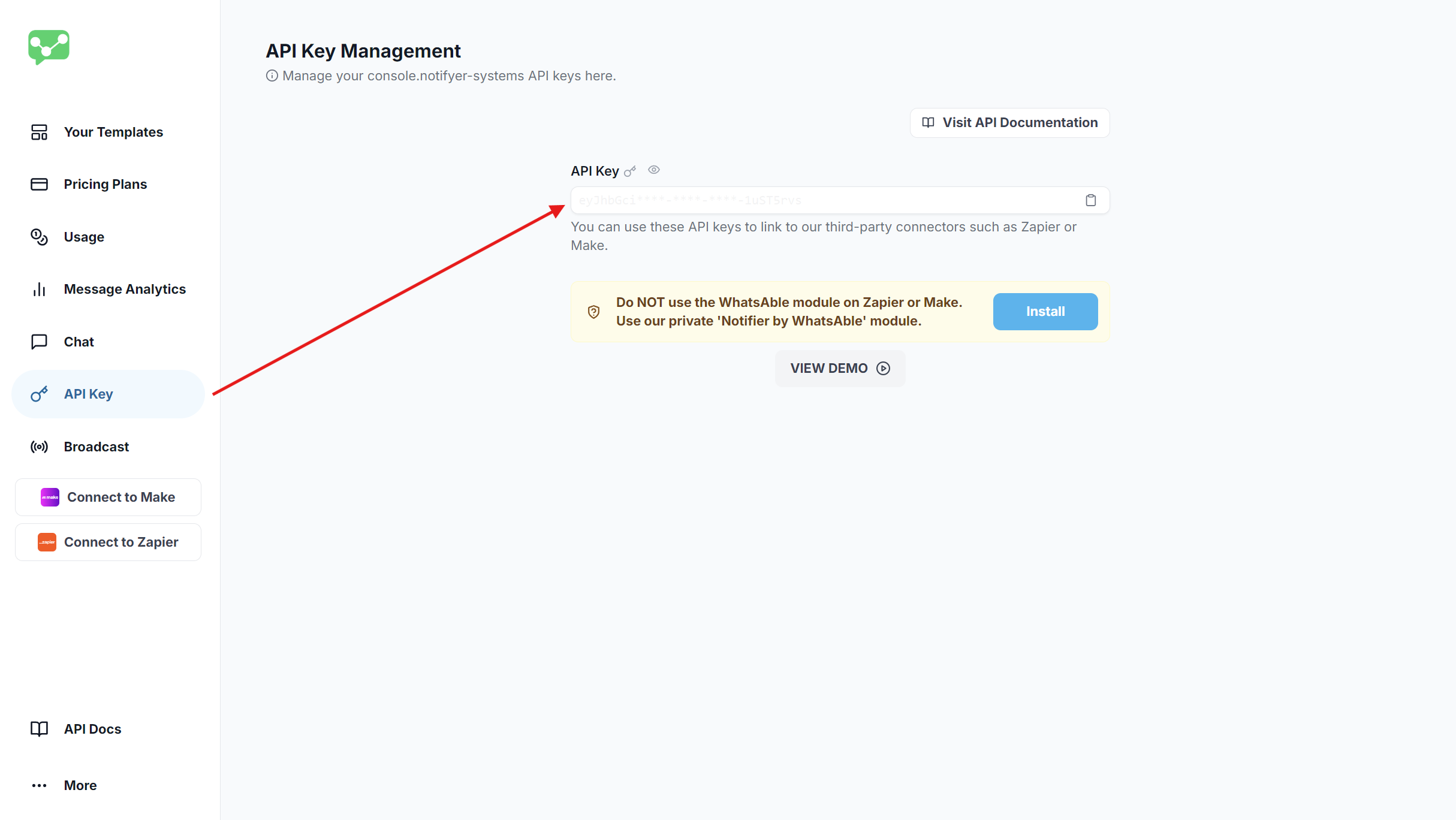
  <Step title="Get your API key">
    To connect Notifyer System with Zapier, you'll need an API key:

    1. In your Notifyer dashboard, navigate to [**API Keys**](https://console.notifyer-systems.com/api-key)
    2. Copy your unique API key
    3. Store it securely—you'll need it for the integration

    <Warning>
      Never share your API key publicly or commit it to version control systems.
    </Warning>

    <Frame caption="API Key Location">
      <img src="https://mintcdn.com/whatsable/denF9KomrZc8Vz_c/images/notifyer_apikey.png?fit=max&auto=format&n=denF9KomrZc8Vz_c&q=85&s=307e75f280fafa5cda469e1a2827d5bc" alt="API Key Location" width="2429" height="1368" data-path="images/notifyer_apikey.png" />
    </Frame>
  </Step>
</Steps>

## Connect Notifyer System to Zapier

Now that you have your Notifyer System account configured, let's connect it to Zapier to automate your messaging workflows.

<Steps>
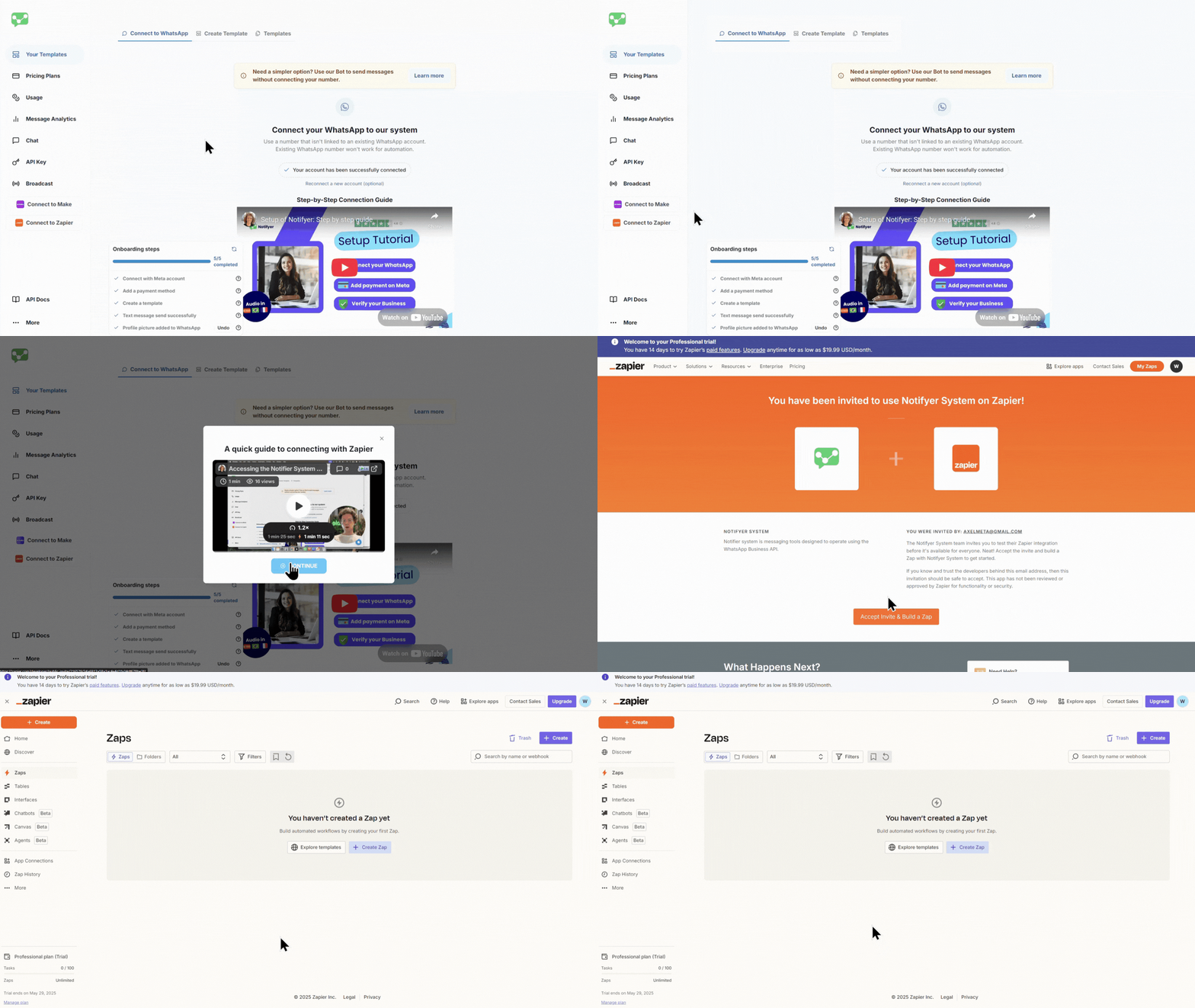
  <Step title="Connect Notifyer System to Zapier">
    1. Log in to your Zapier account
    2. Navigate to Notifyer System dashboard and select **Connect to Zapier** in the side menu
    3. Click **Continue** in the connection guide popup
    4. Click **Accept & Build a Zap** on the invitation page

    <Check>
      You're now ready to create Zaps with the Notifyer System app
    </Check>

    <Frame caption="Connecting Notifyer System to Zapier">
      <img src="https://mintcdn.com/whatsable/denF9KomrZc8Vz_c/images/connecting_notifyer_system_zapier.gif?s=0c4bbd12c6746af9bcf754851d97433d" alt="Connecting Notifyer System to Zapier" width="1536" height="864" data-path="images/connecting_notifyer_system_zapier.gif" />
    </Frame>
  </Step>

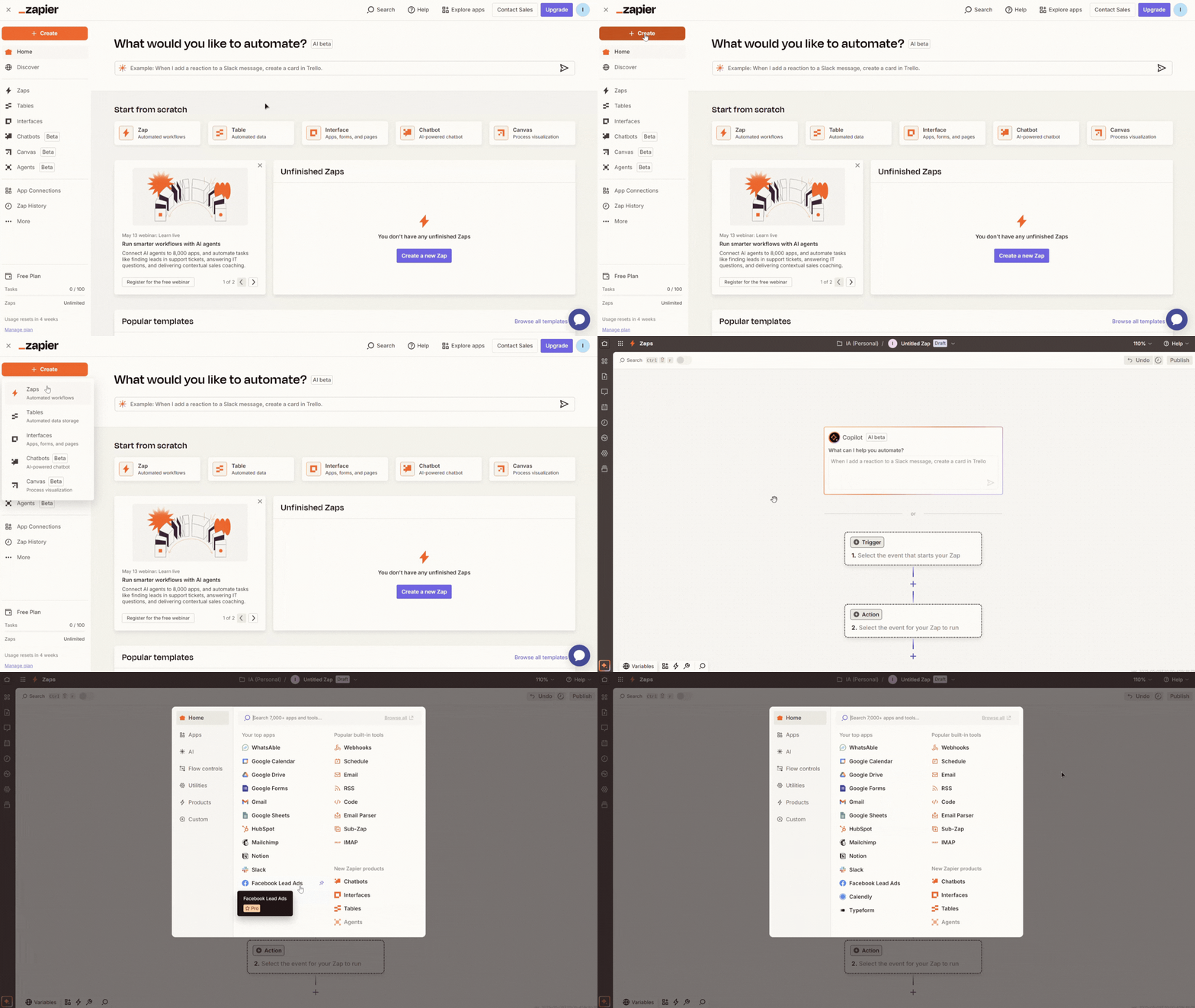
  <Step title="Set up your Zapier Zaps">
    1. Log in to your Zapier account
    2. Create a new workflow/Zap by clicking **+ Create** and select **Zaps**/**New Zap**
    3. Add a trigger step of your choice:
       * Popular triggers include Google Forms, Jotform, ClickUp, or a Schedule trigger
       * Connect and configure your trigger according to your use case

    <Frame caption="Setting up Zapier Zaps">
      <img src="https://mintcdn.com/whatsable/Hwp74IsMR8VZOPKs/images/whatsable_zapier1.gif?s=5a5334e7849bdb9759cdc91fc7f018cd" alt="Setting up Zapier Zaps" width="1536" height="864" data-path="images/whatsable_zapier1.gif" />
    </Frame>
  </Step>

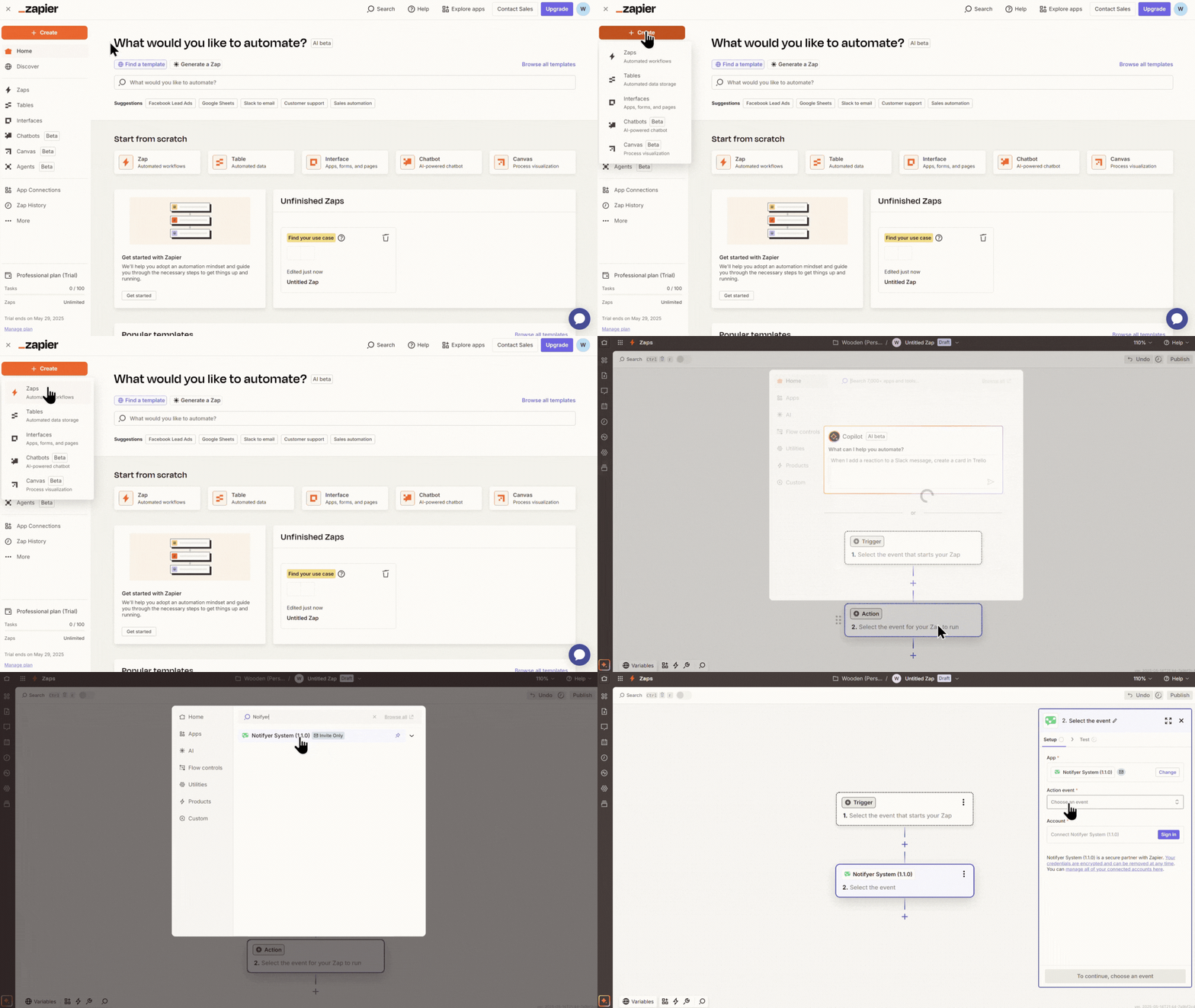
  <Step title="Add the Notifyer System app">
    1. Select the next **Action** step or click the **+** button to add a new step
    2. Search for "Notifyer System" in the apps and tools library
    3. Select the app with the official Notifyer System logo

    <Frame caption="Adding the Notifyer System app">
      <img src="https://mintcdn.com/whatsable/denF9KomrZc8Vz_c/images/adding_the_notifyer_system.gif?s=cb02e04e56b84da494042db897fa46f9" alt="Adding the WhatsAble app" width="1344" height="756" data-path="images/adding_the_notifyer_system.gif" />
    </Frame>
  </Step>

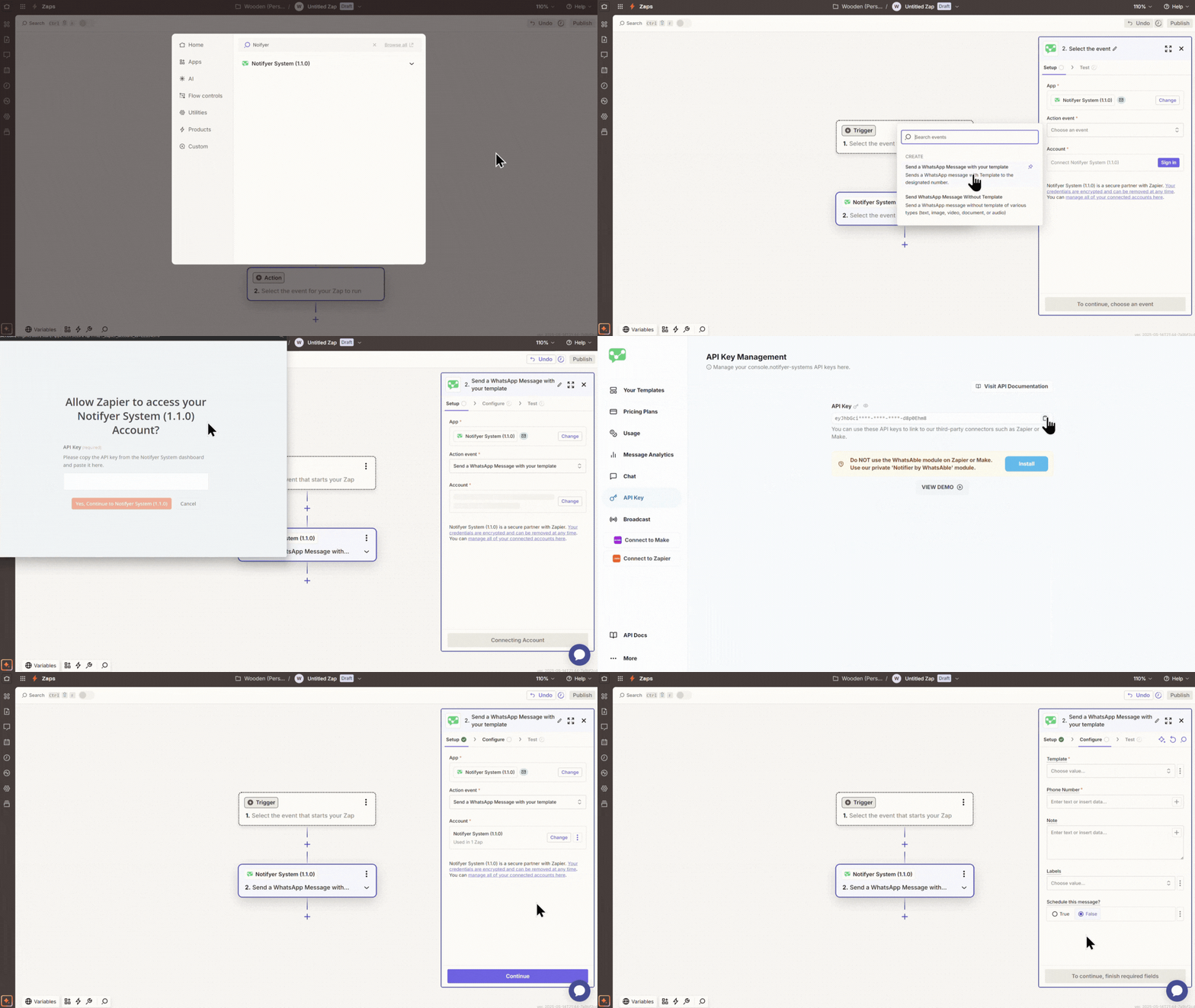
  <Step title="Configure Notifyer System credentials">
    <Accordion title="Credential Setup" defaultOpen>
      1. In the Notifyer System app Setup, select [**Send a WhatsApp Message with your template**](/guides/notifyer-system/zapier-overview#template-messages) or [**Send WhatsApp Message Without Template**](/guides/notifyer-system/zapier-overview#non-template-messages) in the **Action event** dropdown depending on your messaging needs
      2. Click **Sign In** in the **Account** field and you will be prompted to enter your API Key
      3. Enter your Notifyer System API key that you copied earlier
      4. Click **Yes, Continue to Notifyer System** to store your credential
      5. Next, click the **Continue** button in the Setup screen to proceed to the **Configure** section

      <Frame caption="Configuring Notifyer System credentials">
        <img src="https://mintcdn.com/whatsable/denF9KomrZc8Vz_c/images/configuring_notifyer_credentials.gif?s=b3bcc141ecd5c686d4b827de19f69615" alt="Configuring Notifyer System credentials" width="1248" height="702" data-path="images/configuring_notifyer_credentials.gif" />
      </Frame>
    </Accordion>
  </Step>

  <Step title="Configure your message">
    Depending on your messaging needs, choose one of the following operations:

    <Tabs>
      <Tab title="Template Messages">
        <Steps>
          <Step title="Select Action event">
            In the **Setup** section, select **Send a WhatsApp Message with your template** in the **Action event** dropdown and continue to the **Configure** section
          </Step>

          <Step title="Configure message">
            Complete the required fields in the **Configure** section:

            <ResponseField name="Template" type="string" required>
              Select from your pre-approved templates in the dropdown
            </ResponseField>

            <ResponseField name="Phone Number" type="string" required>
              Enter the recipient's phone number with country code (e.g., +14155552671) or use dynamic data from previous nodes
            </ResponseField>

            <ResponseField name="Note" type="string" optional>
              Add note for internal tracking. This data won't be sent to the recipient
            </ResponseField>

            <ResponseField name="Labels" type="multiselect" optional>
              Select label(s) for internal tracking. This data won't be sent to the recipient
            </ResponseField>

            <ResponseField name="Media" type="string" required>
              Enter publicly accessible media URL for Media (image/video/document) header.

              <Info>
                This field will only appear if you have a Media (image/video/document) header configured in your selected template.
              </Info>
            </ResponseField>

            <ResponseField name="Body ()" type="string" required>
              Fill in values for each Body(s) in your template, mapping them to dynamic data when applicable
            </ResponseField>

            <ResponseField name="Button(s)" type="string" required>
              Fill in values for each button in your template, mapping them to dynamic data when applicable.

              <Info>
                This field(s) will only appear if you have configured button(s) in your selected template. You will see the button name as the field name.
              </Info>
            </ResponseField>
          </Step>

          <Step title="Complete message details">
            Based on your selected message type, fill in the required fields:

            * For text messages: Enter your message content
            * For media messages: Provide a publicly accessible URL to your file
            * Optional caption (for media files)
          </Step>
        </Steps>

        <Frame caption="Template Message Configuration">
          <img src="https://notifyer.app/docs/images/n8n-template-config.png" alt="Template Message Configuration" />
        </Frame>
      </Tab>

      <Tab title="Non-Template Messages">
        <Steps>
          <Step title="Select operation">
            In the **Operation Name or ID** dropdown, select **Send Non Template Message**
          </Step>

          <Step title="Enter phone number">
            Enter the **Phone Number** with country code
          </Step>

          <Step title="Select message type">
            Choose from the following message types:

            <CardGroup cols={2}>
              <Card title="Text Message" icon="message">
                For plain text messages
              </Card>

              <Card title="Document Message" icon="file">
                For sending documents (PDF, Word, etc.)
              </Card>

              <Card title="Image Message" icon="image">
                For sending images (JPEG, PNG, etc.)
              </Card>

              <Card title="Video Message" icon="video">
                For sending videos (MP4, 3GP, etc.)
              </Card>
            </CardGroup>
          </Step>

          <Step title="Complete message details">
            Based on your selected message type, fill in the required fields:

            * For text messages: Enter your message content
            * For media messages: Provide a publicly accessible URL to your file
            * Optional caption (for media files)
          </Step>
        </Steps>

        <Warning>
          For all media types, ensure your file URLs are publicly accessible and match the supported file formats.
        </Warning>

        <Frame caption="Non-Template Message Configuration">
          <img src="https://notifyer.app/docs/images/n8n-non-template-config.png" alt="Non-Template Message Configuration" />
        </Frame>
      </Tab>
    </Tabs>
  </Step>

  <Step title="Test and activate your Zap">
    1. Click **Continue** and then click **Test step** in the **Test** to verify it's working correctly
    2. If the test is successful, you'll see a confirmation message
    3. Click **Publish** to save your entire Zap
    4. Toggle the **Active** switch in the top-left corner to activate your Zap
  </Step>
</Steps>

## Example use cases

<CardGroup cols={2}>
  <Card title="Customer Onboarding" icon="user-plus">
    Send a welcome message when a new customer signs up
  </Card>

  <Card title="Order Notifications" icon="box-check">
    Update customers when their order status changes
  </Card>

  <Card title="Appointment Reminders" icon="calendar">
    Automatically send reminders before scheduled appointments
  </Card>

  <Card title="Lead Follow-up" icon="user-check">
    Send personalized messages to new leads from your form submissions
  </Card>

  <Card title="Support Ticket Updates" icon="ticket">
    Notify customers when their support ticket status changes
  </Card>
</CardGroup>

## Workflow Diagram

<Frame caption="Sample Notifyer System Zapier Workflow">
  ```mermaid theme={null}
  flowchart LR
    A[Trigger Step] --> B[Data Transformation]
    B --> C[Notifyer System App]
    C --> D{Message Sent?}
    D -->|Yes| E[Success Path]
    D -->|No| F[Error Handling]
    E --> G[Additional Actions]
    F --> H[Retry Logic]
  ```
</Frame>

## Example use cases

<CardGroup cols={3}>
  <Card title="Order confirmations" icon="box-check">
    Send automatic order confirmations when new orders are placed
  </Card>

  <Card title="Appointment reminders" icon="calendar">
    Schedule reminders before upcoming appointments
  </Card>

  <Card title="Lead notifications" icon="user-plus">
    Alert your sales team when new leads come in
  </Card>

  <Card title="Customer support" icon="headset">
    Route support inquiries to the appropriate team member
  </Card>

  <Card title="Delivery updates" icon="truck">
    Keep customers informed about their delivery status
  </Card>

  <Card title="Payment reminders" icon="credit-card">
    Send automatic payment reminders for overdue accounts
  </Card>
</CardGroup>

## Best practices

<AccordionGroup>
  <Accordion title="Test thoroughly" icon="vial">
    Always test your workflows with test phone numbers before activating them for production use.
  </Accordion>

  <Accordion title="Use templates" icon="file-lines">
    Whenever possible, use pre-approved templates for better deliverability and compliance.
  </Accordion>

  <Accordion title="Add personalization" icon="user">
    Include customer names and specific details to increase engagement and response rates.
  </Accordion>

  <Accordion title="Follow WhatsApp policies" icon="shield-check">
    Ensure all message content complies with WhatsApp Business policies to avoid account restrictions.
  </Accordion>

  <Accordion title="Monitor performance" icon="chart-line">
    Regularly check your message delivery rates in your Notifyer dashboard.
  </Accordion>
</AccordionGroup>

## Troubleshooting

<AccordionGroup>
  <Accordion title="Messages not sending?" icon="circle-exclamation">
    <Steps>
      <Step title="Verify API key">
        Ensure your API key is entered correctly in the Zapier credentials
      </Step>

      <Step title="Check phone numbers">
        Confirm phone numbers are in the correct international format (e.g., +14155552671)
      </Step>

      <Step title="Check subscription">
        Verify your Notifyer subscription is active and has available credits
      </Step>

      <Step title="Template verification">
        For template messages, ensure you're using an approved template
      </Step>
    </Steps>
  </Accordion>

  <Accordion title="Template errors?" icon="file-exclamation">
    <Steps>
      <Step title="Variable check">
        Verify all required variables are included in your template message
      </Step>

      <Step title="Format verification">
        Check that variable formats match the expected values (text, number, date, etc.)
      </Step>

      <Step title="Template name">
        Ensure you're using the correct template name exactly as it appears in your dashboard
      </Step>
    </Steps>
  </Accordion>

  <Accordion title="Media not displaying?" icon="image">
    <Steps>
      <Step title="URL access">
        Confirm your media URLs are publicly accessible (test in an incognito browser)
      </Step>

      <Step title="File format">
        Verify the file format is supported by WhatsApp
      </Step>

      <Step title="File size">
        Check that file sizes are within WhatsApp limits:

        * Images: up to 5MB
        * Videos: up to 16MB
        * Documents: up to 100MB
      </Step>
    </Steps>
  </Accordion>
</AccordionGroup>

## Need help?

Our support team is ready to assist you:

<CardGroup cols={3}>
  <Card title="Email support" icon="envelope" href="mailto:team@whatsable.app">
    Contact [team@whatsable.app](mailto:team@whatsable.app)
  </Card>

  <Card title="Schedule a demo" icon="calendar" href="https://tidycal.com/axelmeta/notifyer-systems-demo">
    Book a personalized walkthrough
  </Card>

  <Card title="Live chat" icon="message-dots" href="">
    Click the green chat button in the bottom right corner of the Notifyer System dashboard
  </Card>
</CardGroup>

<Info>
  For additional automation platform integrations (Make.com, n8n, etc.), please contact our support team or check our integration documentation.
</Info>