> ## Documentation Index
> Fetch the complete documentation index at: https://docs.whatsable.app/llms.txt
> Use this file to discover all available pages before exploring further.
# Shared Team Inbox
> How the 2-way WhatsApp inbox works for Pro and Agency: first open, who sees what, replying as the business, labels and notes, and AI/human handoff.
The shared team inbox is available on the **Pro** and **Agency** plans. **Bulk Message does not include a 2-way inbox** — it sends one-way broadcasts and campaigns only.
The shared team inbox — **Notifyer Chat** in the product — is where your team reads WhatsApp conversations in real time and replies as your business. This page walks through what a new team actually sees and does in there, not just the API fields behind it.
Bulk Message doesn't include the shared 2-way inbox — it's built for one-way broadcast sending. Upgrade to Pro or Agency to get it. Once you're on Pro or Agency, **the inbox lives in the left-side menu.**
 ## First open: what you'll see
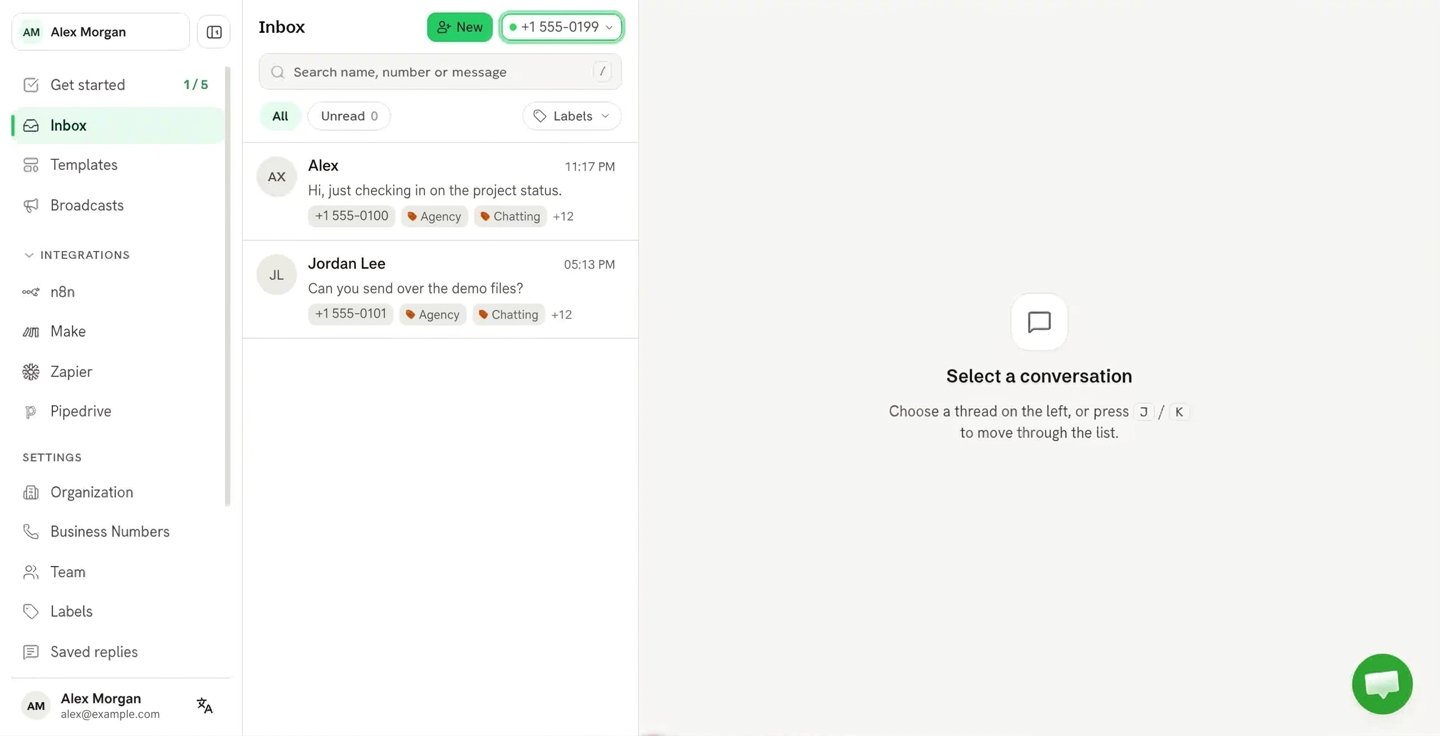
The inbox is not pre-loaded with demo content. After you connect a WhatsApp number:
* It shows **only real conversations** — no sample chats to click through.
* It's **empty** until a real customer messages you (or an import finishes — see below).
If you connect the number through [Meta WhatsApp Coexistence](/guides/notifyer-system/embedding-process#whatsapp-coexistence) during Embedded Signup, you can optionally import roughly the **last 6 months** of chat history from the WhatsApp Business app. That import **can take hours** to finish. If the inbox looks emptier than expected right after connecting, that's usually the import still running — not a bug.
## Who sees what: access layers
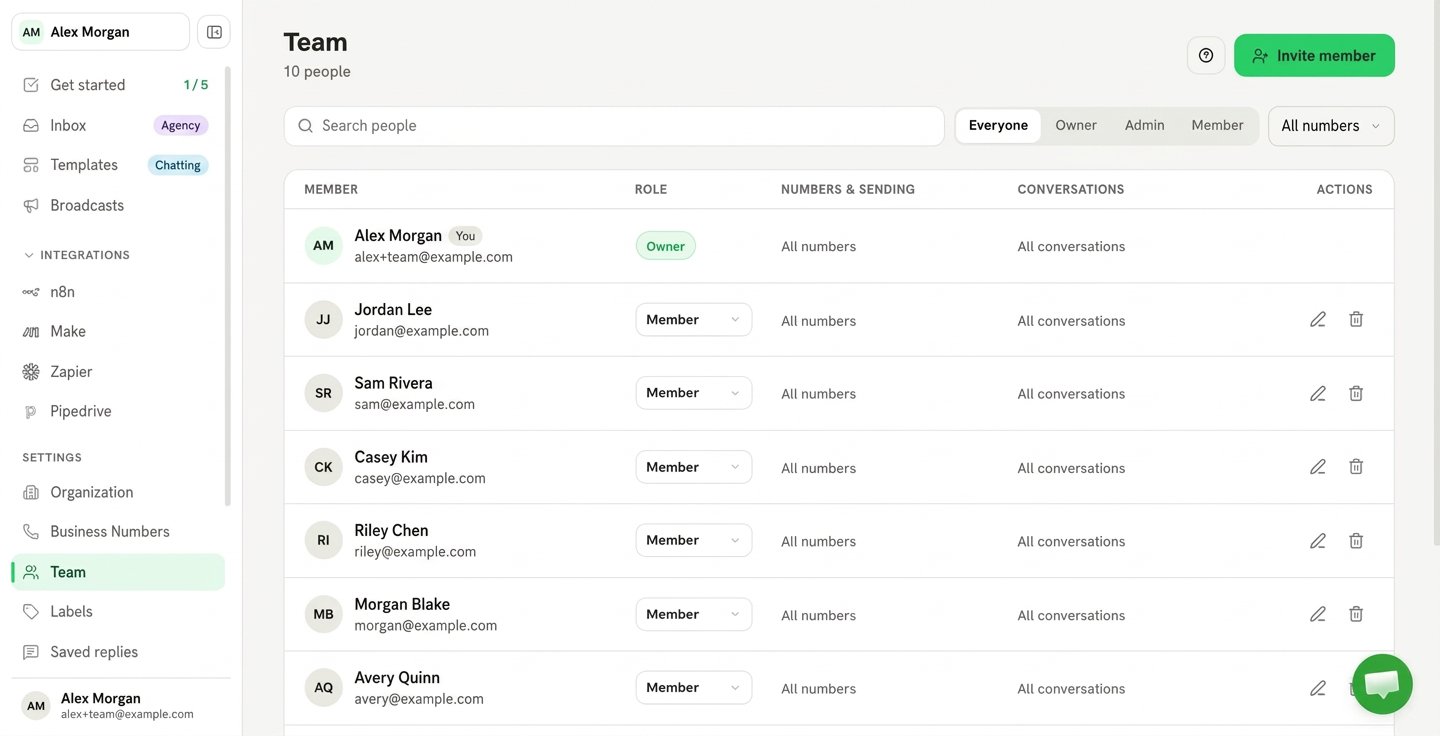
Visibility in the inbox stacks in three layers, plain and simple:
Which connected WhatsApp number (or numbers, on Agency) this person can work at all.
**Admin** can manage the account (billing, integrations, templates, other teammates). A **chat-only** teammate works conversations in the inbox without full account admin.
Within a number, a chat-only teammate can be further limited to only the conversations carrying certain labels — for example, only "Sales" or only "Support" chats.
Underneath, these map to real team roles: `Admin`, `Team Member (All Labels)`, and `Team Member` (label-scoped). See [team & roles](/guides/notifyer-system/agent-skills/setup-notifyer) for the API/Agent Skills view of the same roles.
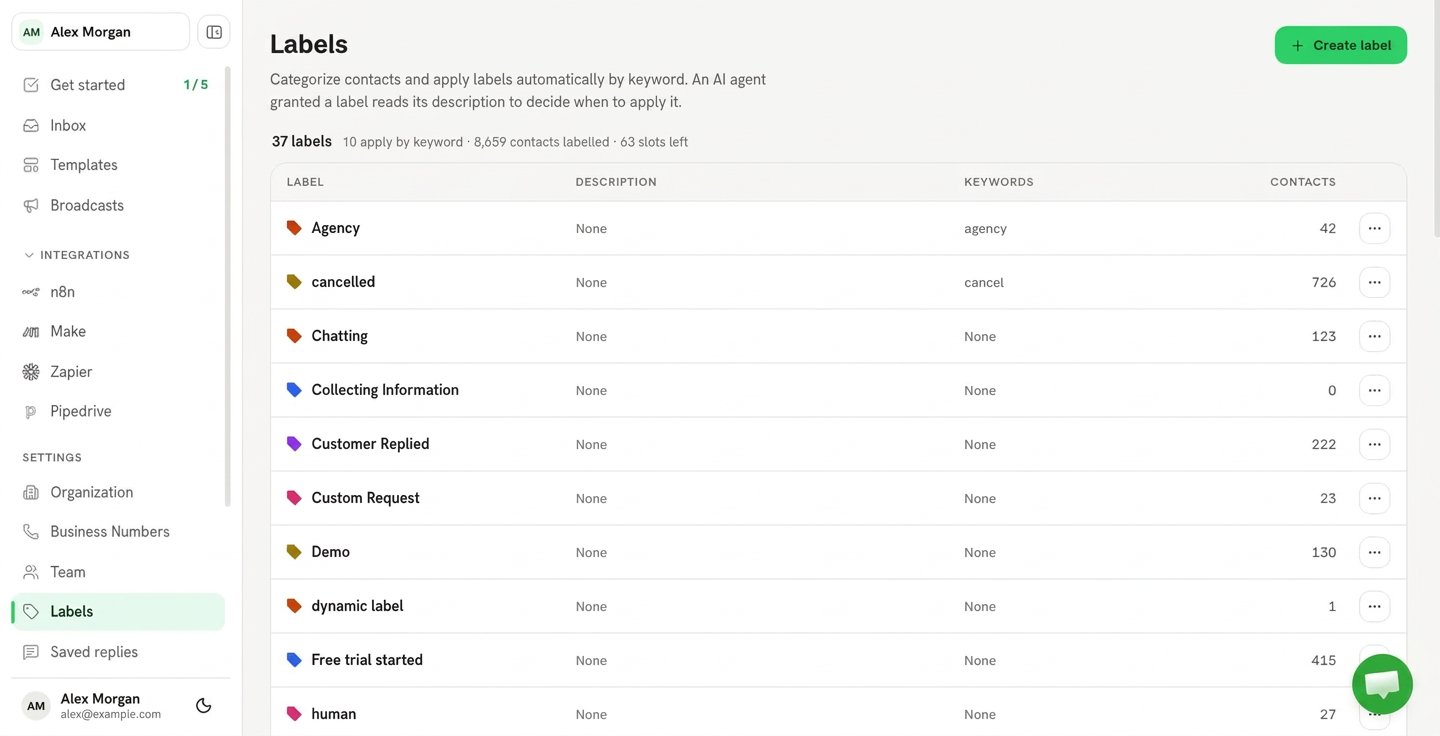
Labels themselves can be created, assigned, or removed from several places — not only inside the inbox: the **API**, **Agent Skills**, **Zapier**, **Make**, and the **proactive bot** can all update a contact's labels.
Mobile push notifications follow the same access rule: a teammate is notified only for chats they **can access** (their number + role + label scope) — not every chat on the account.
## First open: what you'll see
The inbox is not pre-loaded with demo content. After you connect a WhatsApp number:
* It shows **only real conversations** — no sample chats to click through.
* It's **empty** until a real customer messages you (or an import finishes — see below).
If you connect the number through [Meta WhatsApp Coexistence](/guides/notifyer-system/embedding-process#whatsapp-coexistence) during Embedded Signup, you can optionally import roughly the **last 6 months** of chat history from the WhatsApp Business app. That import **can take hours** to finish. If the inbox looks emptier than expected right after connecting, that's usually the import still running — not a bug.
## Who sees what: access layers
Visibility in the inbox stacks in three layers, plain and simple:
Which connected WhatsApp number (or numbers, on Agency) this person can work at all.
**Admin** can manage the account (billing, integrations, templates, other teammates). A **chat-only** teammate works conversations in the inbox without full account admin.
Within a number, a chat-only teammate can be further limited to only the conversations carrying certain labels — for example, only "Sales" or only "Support" chats.
Underneath, these map to real team roles: `Admin`, `Team Member (All Labels)`, and `Team Member` (label-scoped). See [team & roles](/guides/notifyer-system/agent-skills/setup-notifyer) for the API/Agent Skills view of the same roles.
Labels themselves can be created, assigned, or removed from several places — not only inside the inbox: the **API**, **Agent Skills**, **Zapier**, **Make**, and the **proactive bot** can all update a contact's labels.
Mobile push notifications follow the same access rule: a teammate is notified only for chats they **can access** (their number + role + label scope) — not every chat on the account.
 ## Collaborating inside a conversation
Open a conversation and a few things are always available to your team:
* **Reassigning a chat, in practice, means changing its labels.** There isn't a separate "assign" button today — the way ownership and routing actually happens in the inbox is by adding or removing a label on the conversation (for example, swapping "Unassigned" for a teammate's name label, or a routing label your automations watch for).
* **Let the agent reply.** In the contact panel, this toggle controls whether the AI agent sends automatic replies on that chat. When it's **off** — for example because a person replied — the bot **stops immediately**. Turn it **on** again to hand the conversation back to the agent. See [AI Chatbots](/guides/notifyer-system/ai-chatbot/overview) for bot assignment and other handoff settings.
* **A reply typed in the WhatsApp Business app also stops the bot** — it's treated as human, the same as turning off **Let the agent reply**. See [Coexistence](#coexistence-phone-and-inbox-together) below for exactly what that looks like in the inbox.
If your workspace has **webhook accounts** wired up: turning off **Let the agent reply** (human takeover) pauses **webhook pings on the bot path** while the chat is in that state. It does **not** pause everything — **CRM webhooks can still fire** on that same chat. If a partner integration assumes "human mode = silence," confirm which webhook path they're listening on.
## Collaborating inside a conversation
Open a conversation and a few things are always available to your team:
* **Reassigning a chat, in practice, means changing its labels.** There isn't a separate "assign" button today — the way ownership and routing actually happens in the inbox is by adding or removing a label on the conversation (for example, swapping "Unassigned" for a teammate's name label, or a routing label your automations watch for).
* **Let the agent reply.** In the contact panel, this toggle controls whether the AI agent sends automatic replies on that chat. When it's **off** — for example because a person replied — the bot **stops immediately**. Turn it **on** again to hand the conversation back to the agent. See [AI Chatbots](/guides/notifyer-system/ai-chatbot/overview) for bot assignment and other handoff settings.
* **A reply typed in the WhatsApp Business app also stops the bot** — it's treated as human, the same as turning off **Let the agent reply**. See [Coexistence](#coexistence-phone-and-inbox-together) below for exactly what that looks like in the inbox.
If your workspace has **webhook accounts** wired up: turning off **Let the agent reply** (human takeover) pauses **webhook pings on the bot path** while the chat is in that state. It does **not** pause everything — **CRM webhooks can still fire** on that same chat. If a partner integration assumes "human mode = silence," confirm which webhook path they're listening on.
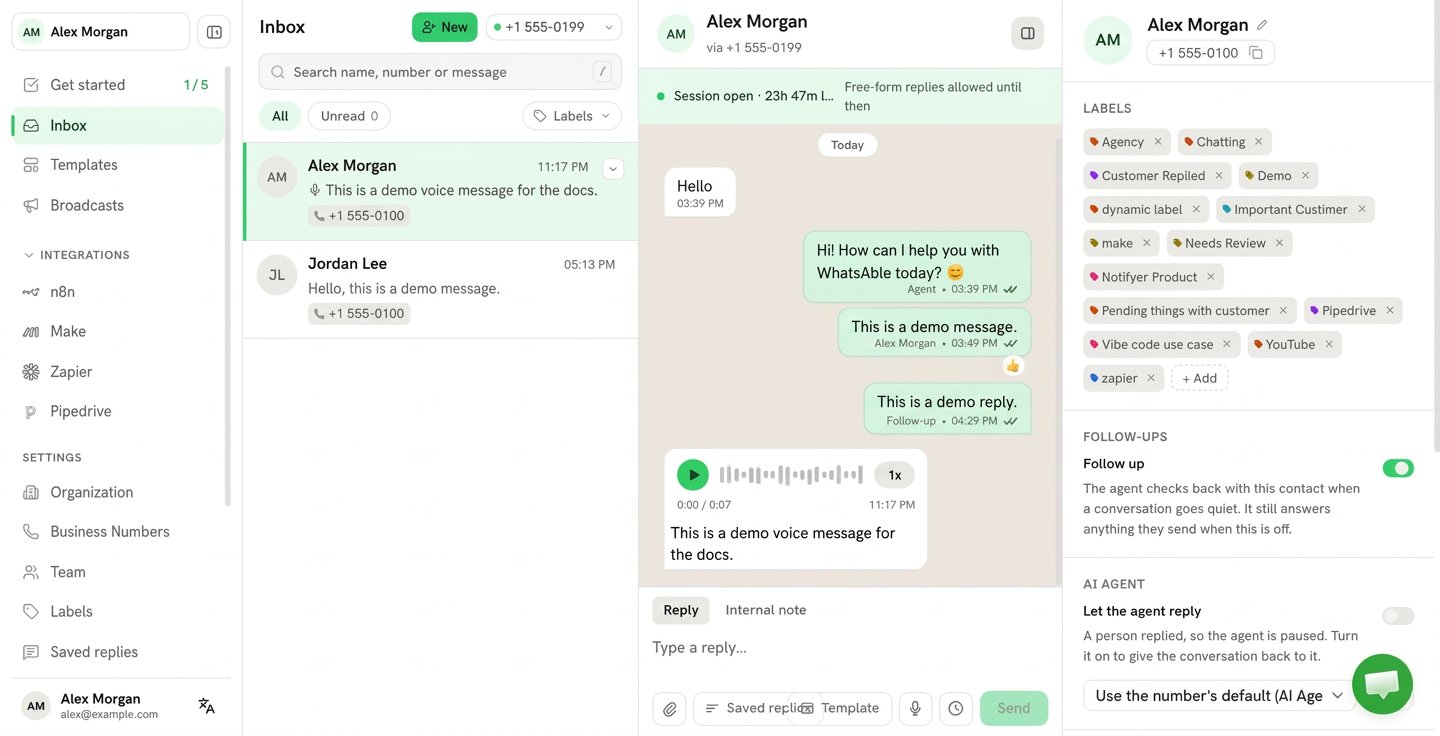 Human and automation **notes** sit in the same contact panel (use the **Internal note** tab in the composer when replying). They are not shown as a separate screenshot here.
## Labels vs. notes
These look similar but do different jobs:
**Organize and target.** Labels group conversations (keyword labels, interest labels, teammate/routing labels) and are also what you aim a **broadcast** at — see [Label Condition](/guides/notifyer-system/zapier-overview#schedule-a-follow-up-message) in the Zapier scheduling flow.
**Give context, don't organize.** Notes come in two flavors: **automation notes** (form or Lead Ad field data pushed in via Zapier/Make so the bot has context) and **human notes** (a teammate's own written context on the contact).
Setting either from outside the inbox: see **Update a Contact** in [Zapier](/guides/notifyer-system/zapier-overview#update-a-contact) or [Make](/guides/notifyer-system/make-overview#update-a-contact), or `assign-label.js` / `add-note.js` in the [chat-notifyer](/guides/notifyer-system/agent-skills/chat-notifyer) Agent Skill.
When an automation trigger fires (Zapier, Make, n8n), it carries the current **labels** and **notes** along with the **conversation paragraph** — roughly the **last 20 messages** of that chat. See the [message webhook payload](/guides/notifyer-system/api/incoming-message#payload-fields) for the exact fields (`labels`, `note`, `note_automation`, `last_messages`).
Human and automation **notes** sit in the same contact panel (use the **Internal note** tab in the composer when replying). They are not shown as a separate screenshot here.
## Labels vs. notes
These look similar but do different jobs:
**Organize and target.** Labels group conversations (keyword labels, interest labels, teammate/routing labels) and are also what you aim a **broadcast** at — see [Label Condition](/guides/notifyer-system/zapier-overview#schedule-a-follow-up-message) in the Zapier scheduling flow.
**Give context, don't organize.** Notes come in two flavors: **automation notes** (form or Lead Ad field data pushed in via Zapier/Make so the bot has context) and **human notes** (a teammate's own written context on the contact).
Setting either from outside the inbox: see **Update a Contact** in [Zapier](/guides/notifyer-system/zapier-overview#update-a-contact) or [Make](/guides/notifyer-system/make-overview#update-a-contact), or `assign-label.js` / `add-note.js` in the [chat-notifyer](/guides/notifyer-system/agent-skills/chat-notifyer) Agent Skill.
When an automation trigger fires (Zapier, Make, n8n), it carries the current **labels** and **notes** along with the **conversation paragraph** — roughly the **last 20 messages** of that chat. See the [message webhook payload](/guides/notifyer-system/api/incoming-message#payload-fields) for the exact fields (`labels`, `note`, `note_automation`, `last_messages`).
 ## AI ↔ human resume behavior
What happens after a teammate takes over from the bot:
The bot **stops immediately** on that chat (a person replied, or you switched it off).
Nothing is lost — the **full conversation history** stays exactly as it was, bot messages and all.
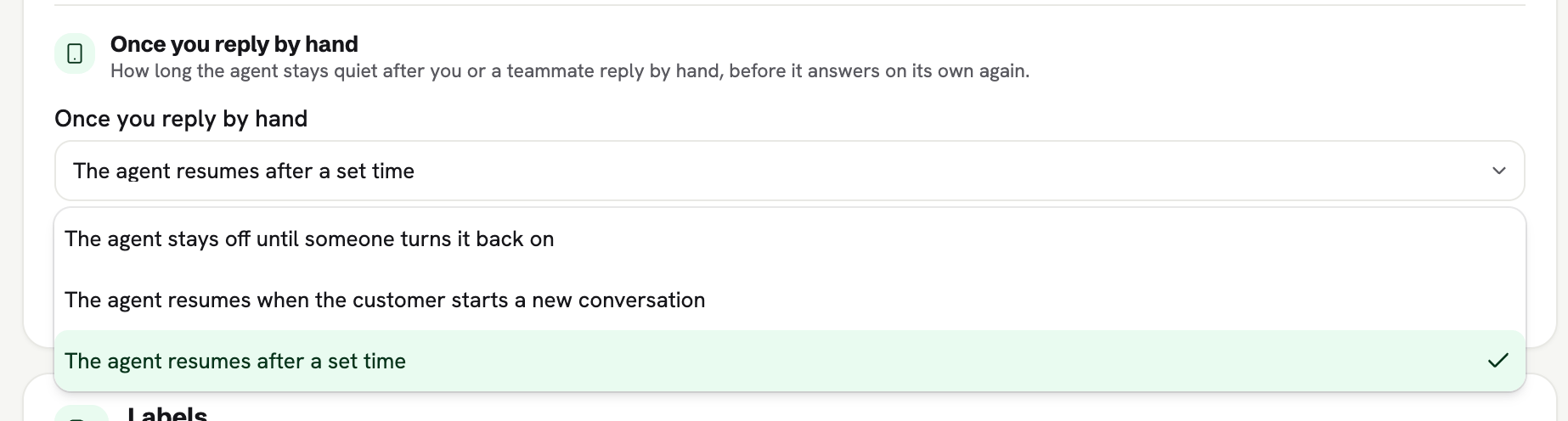
Open **Once you reply by hand** in Settings and choose when the agent may start replying again after a hand reply — one of the three options in the next section.
**Once you reply by hand** controls how long the agent stays quiet after you or a teammate reply by hand, before it answers on its own again. In Settings, pick one of:
1. **The agent stays off until someone turns it back on**
2. **The agent resumes when the customer starts a new conversation**
3. **The agent resumes after a set time**
## AI ↔ human resume behavior
What happens after a teammate takes over from the bot:
The bot **stops immediately** on that chat (a person replied, or you switched it off).
Nothing is lost — the **full conversation history** stays exactly as it was, bot messages and all.
Open **Once you reply by hand** in Settings and choose when the agent may start replying again after a hand reply — one of the three options in the next section.
**Once you reply by hand** controls how long the agent stays quiet after you or a teammate reply by hand, before it answers on its own again. In Settings, pick one of:
1. **The agent stays off until someone turns it back on**
2. **The agent resumes when the customer starts a new conversation**
3. **The agent resumes after a set time**
 ## Coexistence: phone and inbox together
This is the exact, confirmed behavior when your number uses [Meta WhatsApp Coexistence](/guides/notifyer-system/embedding-process#whatsapp-coexistence) and a teammate is in the web inbox while someone replies from the **WhatsApp Business app** on the same number:
* It's the **same customer thread** in the web inbox — the sync is **real time**, not a delayed refresh.
* The reply shows as coming from the **WhatsApp Business app**, **not** a named teammate. On the [message webhook payload](/guides/notifyer-system/api/incoming-message#payload-fields): `send_by: "WhatsApp App"`, `was_message_by_human: true`, `incoming_message: false`.
* That phone reply **turns off Let the agent reply** — the native AI **stops auto-replying** on that chat, the same as switching the toggle off in the inbox.
* **Make, Zapier, and n8n do not auto-pause** just because of this. Your scenario keeps running unless you explicitly filter on the human / `"WhatsApp App"` signal — see [filtering for phone-app replies](/guides/notifyer-system/api/outbound-whatsapp-app).
* **Groups, Status, and Calls do not sync** into the web inbox — only 1:1 WhatsApp conversations do.
What this does **not** do: it doesn't change chat assignment, it doesn't guarantee an unread badge fires, and it doesn't require a hard refresh to see the new message. If you notice any of those, that's a bug to report, not expected behavior.
## Agency: one number or many
If your Agency workspace manages more than one WhatsApp number, you have two ways to work them:
* **One shared view, filterable by number or by label** — your team stays in a single inbox and uses the number dropdown (for example **All numbers** or one connected line) and the **Labels** filter on the list to narrow what they see, instead of switching accounts.
* **Per-customer logins** — if you'd rather keep each client's number and team fully separate, that's supported too.
This replaces an earlier draft of this page that said Agency only supported fully separate accounts per number with no shared view. That was outdated — the shared, filterable view above is what's live. (There's still no "shared pool of numbers" for billing or usage — filtering a shared view is a UI convenience, not a merged subscription.)
## Next steps
Complete Embedded Signup (with Coexistence support) before the inbox has any conversations to show.
Bot assignment, handoff keywords, and settings that work with Let the agent reply in the inbox.
Full payload reference — `send_by`, `note`, `note_automation`, `labels`, `last_messages`.
Script-level operations for labels, handoff, notes, and conversation history.
## Coexistence: phone and inbox together
This is the exact, confirmed behavior when your number uses [Meta WhatsApp Coexistence](/guides/notifyer-system/embedding-process#whatsapp-coexistence) and a teammate is in the web inbox while someone replies from the **WhatsApp Business app** on the same number:
* It's the **same customer thread** in the web inbox — the sync is **real time**, not a delayed refresh.
* The reply shows as coming from the **WhatsApp Business app**, **not** a named teammate. On the [message webhook payload](/guides/notifyer-system/api/incoming-message#payload-fields): `send_by: "WhatsApp App"`, `was_message_by_human: true`, `incoming_message: false`.
* That phone reply **turns off Let the agent reply** — the native AI **stops auto-replying** on that chat, the same as switching the toggle off in the inbox.
* **Make, Zapier, and n8n do not auto-pause** just because of this. Your scenario keeps running unless you explicitly filter on the human / `"WhatsApp App"` signal — see [filtering for phone-app replies](/guides/notifyer-system/api/outbound-whatsapp-app).
* **Groups, Status, and Calls do not sync** into the web inbox — only 1:1 WhatsApp conversations do.
What this does **not** do: it doesn't change chat assignment, it doesn't guarantee an unread badge fires, and it doesn't require a hard refresh to see the new message. If you notice any of those, that's a bug to report, not expected behavior.
## Agency: one number or many
If your Agency workspace manages more than one WhatsApp number, you have two ways to work them:
* **One shared view, filterable by number or by label** — your team stays in a single inbox and uses the number dropdown (for example **All numbers** or one connected line) and the **Labels** filter on the list to narrow what they see, instead of switching accounts.
* **Per-customer logins** — if you'd rather keep each client's number and team fully separate, that's supported too.
This replaces an earlier draft of this page that said Agency only supported fully separate accounts per number with no shared view. That was outdated — the shared, filterable view above is what's live. (There's still no "shared pool of numbers" for billing or usage — filtering a shared view is a UI convenience, not a merged subscription.)
## Next steps
Complete Embedded Signup (with Coexistence support) before the inbox has any conversations to show.
Bot assignment, handoff keywords, and settings that work with Let the agent reply in the inbox.
Full payload reference — `send_by`, `note`, `note_automation`, `labels`, `last_messages`.
Script-level operations for labels, handoff, notes, and conversation history.