> ## Documentation Index
> Fetch the complete documentation index at: https://docs.whatsable.app/llms.txt
> Use this file to discover all available pages before exploring further.

# Pipedrive

> Learn how to seamlessly integrate Pipedrive with the Notifyer System for automated WhatsApp messaging

# Notifyer System Integration with Pipedrive

<Frame caption="Automate your WhatsApp messaging workflows with Pipedrive and Notifyer System">
  <img src="https://mintcdn.com/whatsable/ybRDW0df7Pd2uENs/images/notifyerxpipedrive.svg?fit=max&auto=format&n=ybRDW0df7Pd2uENs&q=85&s=814676e44aeb76ff3a5b0949ed1b6ed4" className="rounded-xl" width="1920" height="1080" data-path="images/notifyerxpipedrive.svg" />
</Frame>

<Tip>
  This guide walks you through connecting Notifyer System with Pipedrive to create powerful automated WhatsApp messaging workflows for your sales and CRM processes
</Tip>

## Prerequisites

Before getting started, make sure you have:

<CardGroup cols={2}>
  <Card title="Notifyer System Account" icon="user">
    Active Notifyer System account with a subscription plan (Monthly or Pay-as-you-go)
  </Card>

  <Card title="Pipedrive Account" icon="user">
    Access to [Pipedrive](https://www.pipedrive.com/) CRM platform
  </Card>
</CardGroup>

<Tip>
  New to Notifyer System? [Sign up here](https://console.notifyer-systems.com/)
</Tip>

## Setting up your Notifyer System account

<Steps>
  <Step title="Complete the Embedding Process">
    Before sending WhatsApp messages, you must complete the platform [embedding process](/guides/notifyer-system/embedding-process), which connects your WhatsApp Business account to Notifyer System.

    <Info>
      The embedding process is required by Meta to ensure proper business verification and compliance with WhatsApp Business Platform policies.
    </Info>
  </Step>

  <Step title="Set up message templates">
    Notifyer System provides two methods for sending WhatsApp messages:

    <Accordion title="Option A: Template messages" defaultOpen={true}>
      <p>WhatsApp templates are pre-approved message formats that allow for personalization while maintaining compliance with WhatsApp policies.</p>

      <Steps>
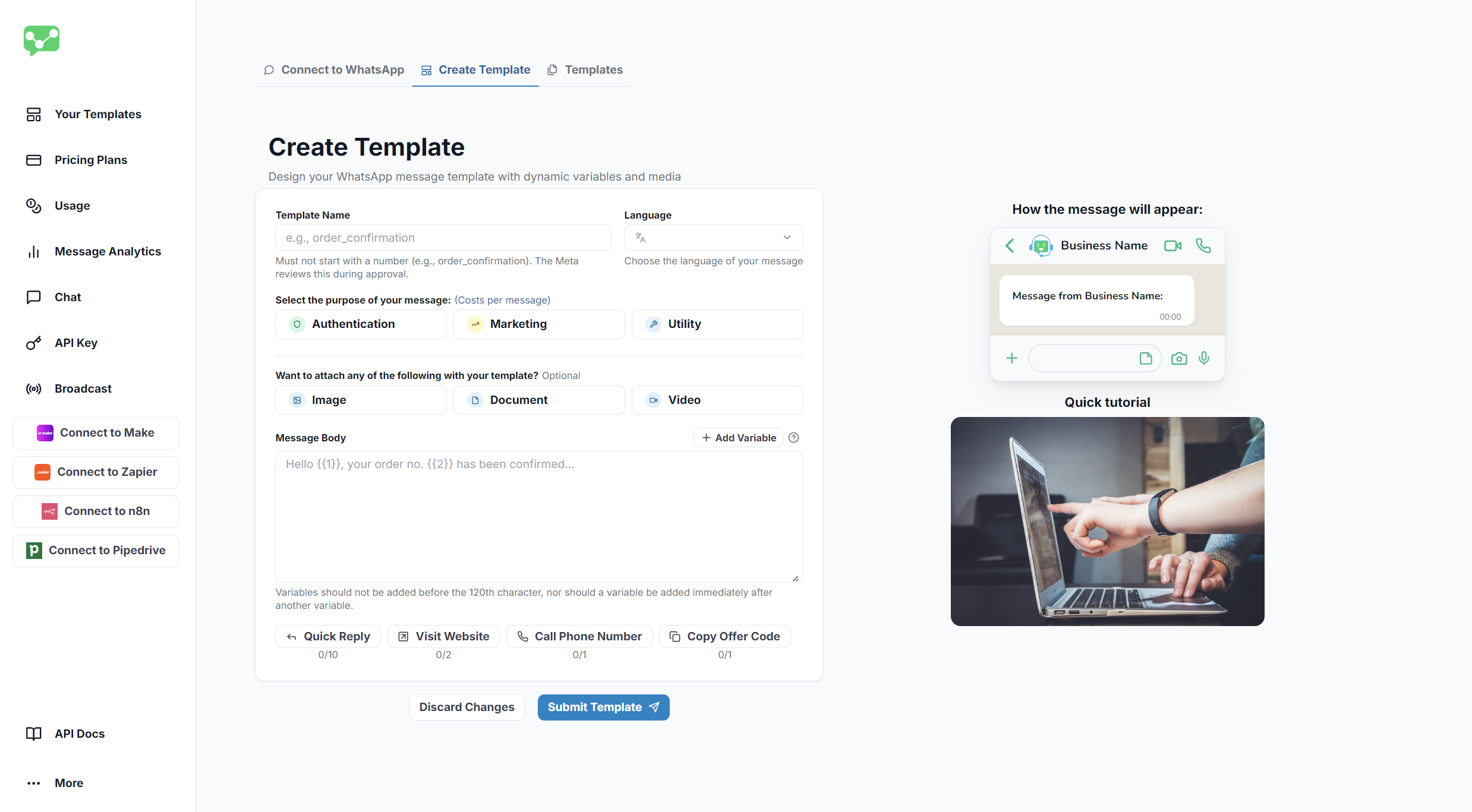
        <Step title="Navigate to Templates">
          Go to **Your Templates** in your Notifyer dashboard
        </Step>

        <Step title="Create Template">
          Click the **Create Template** tab at the top of the page
        </Step>

        <Step title="Fill out the form">
          Complete the template creation form with the following details:

          <ResponseField name="Template Name" type="string" required>
            Choose a descriptive name for internal reference
          </ResponseField>

          <ResponseField name="Language" type="string" required>
            Choose your template's primary language
          </ResponseField>

          <ResponseField name="Category" type="string" required>
            Select the appropriate message category
          </ResponseField>

          <ResponseField name="Header" type="image | document | video">
            Optional: Add an image, document, or video header
          </ResponseField>

          <ResponseField name="Message Body" type="string" required>
            Craft your message content
          </ResponseField>

          <ResponseField name="Variables" type="string">
            Add placeholders using `{{1}}`, `{{2}}` format for personalization
          </ResponseField>

          <ResponseField name="Buttons" type="button">
            Optional: Configure call-to-action buttons
          </ResponseField>
        </Step>

        <Step title="Submit for review">
          Click **Preview and Submit**
        </Step>
      </Steps>

      <Frame caption="Template Creation Interface">
        <img src="https://mintcdn.com/whatsable/denF9KomrZc8Vz_c/images/notifyer_template_create.png?fit=max&auto=format&n=denF9KomrZc8Vz_c&q=85&s=e3abdd6f740b211c2d8ae61753fef0e3" alt="Template Creation Interface" width="2477" height="1367" data-path="images/notifyer_template_create.png" />
      </Frame>

      <Warning>
        Templates typically get reviewed within 24 hours. Creating compliant templates that avoid promotional language increases approval chances.
      </Warning>
    </Accordion>

    <Accordion title="Option B: Non-template messages">
      <p>For simpler communications, you can send non-template messages that include:</p>

      <CardGroup cols={2}>
        <Card title="Text" icon="message-text">
          Plain text messages within the 24-hour window
        </Card>

        <Card title="Images" icon="image">
          Photos and graphics in supported formats
        </Card>

        <Card title="Documents" icon="file-pdf">
          PDFs, Word docs, and other file types
        </Card>

        <Card title="Videos" icon="video">
          MP4 and other supported video formats
        </Card>
      </CardGroup>

      <Note>
        Non-template messages can only be sent within the 24-hour customer service window after a customer initiates contact with your business.
      </Note>
    </Accordion>
  </Step>

  <Step title="Connect Notifyer System with Pipedrive">
    Follow these simple steps to integrate your Pipedrive account with Notifyer System:

    <Steps>
      <Step title="Access the Integration Page">
        In your Notifyer dashboard, go to [**Connect to Pipedrive**](https://console.notifyer-systems.com/pipedrive).
      </Step>

      <Step title="Initiate the Connection">
        Click the 'Connect Pipedrive Organization' button.
      </Step>

      <Step title="Authorize Access">
        You'll be redirected to Pipedrive's authorization page. Review the permissions and click 'Authorize' to grant Notifyer System access to your Pipedrive organization.
      </Step>

      <Step title="Confirm Connection">
        After authorization, you'll be automatically redirected back to your Notifyer System dashboard. Look for the connection status showing 'Connected to Pipedrive' to confirm the integration was successful.
      </Step>
    </Steps>

    <Frame caption="Connecting Notifyer System with Pipedrive">
      <img src="https://mintcdn.com/whatsable/denF9KomrZc8Vz_c/images/pipedrive-connection.gif?s=cf93cff7e5e8d5c60d67b21f66ed28f6" alt="Connecting Notifyer System with Pipedrive" width="1920" height="1080" data-path="images/pipedrive-connection.gif" />
    </Frame>
  </Step>
</Steps>

## Sending WhatsApp Messages from Pipedrive

WhatsAble's integration with Pipedrive allows you to send WhatsApp messages directly from your deals and contacts without leaving your CRM. This guide will walk you through the complete process.

### Verifying Prerequisites

Before sending WhatsApp messages, ensure the following requirements are met:

<CardGroup cols={3}>
  <Card title="WhatsAble License Status" icon="badge-check">
    Must show as **PAID**
  </Card>

  <Card title="WhatsApp Connection Status" icon="signal">
    Must show as **ACTIVE**
  </Card>

  <Card title="WhatsApp Business Account" icon="whatsapp">
    Must be properly synced with WhatsAble
  </Card>
</CardGroup>

<Info>
  You can verify these settings in the WhatsAble Integration section of any deal or contact.
</Info>

## Sending Messages from Deals

### Accessing the WhatsAble Integration Panel

<Steps>
  <Step title="Navigate to your Pipeline">
    1. Go to your **Pipedrive Dashboard**
    2. Open your desired **Pipeline**
    3. Select a **Deal** from your pipeline
  </Step>

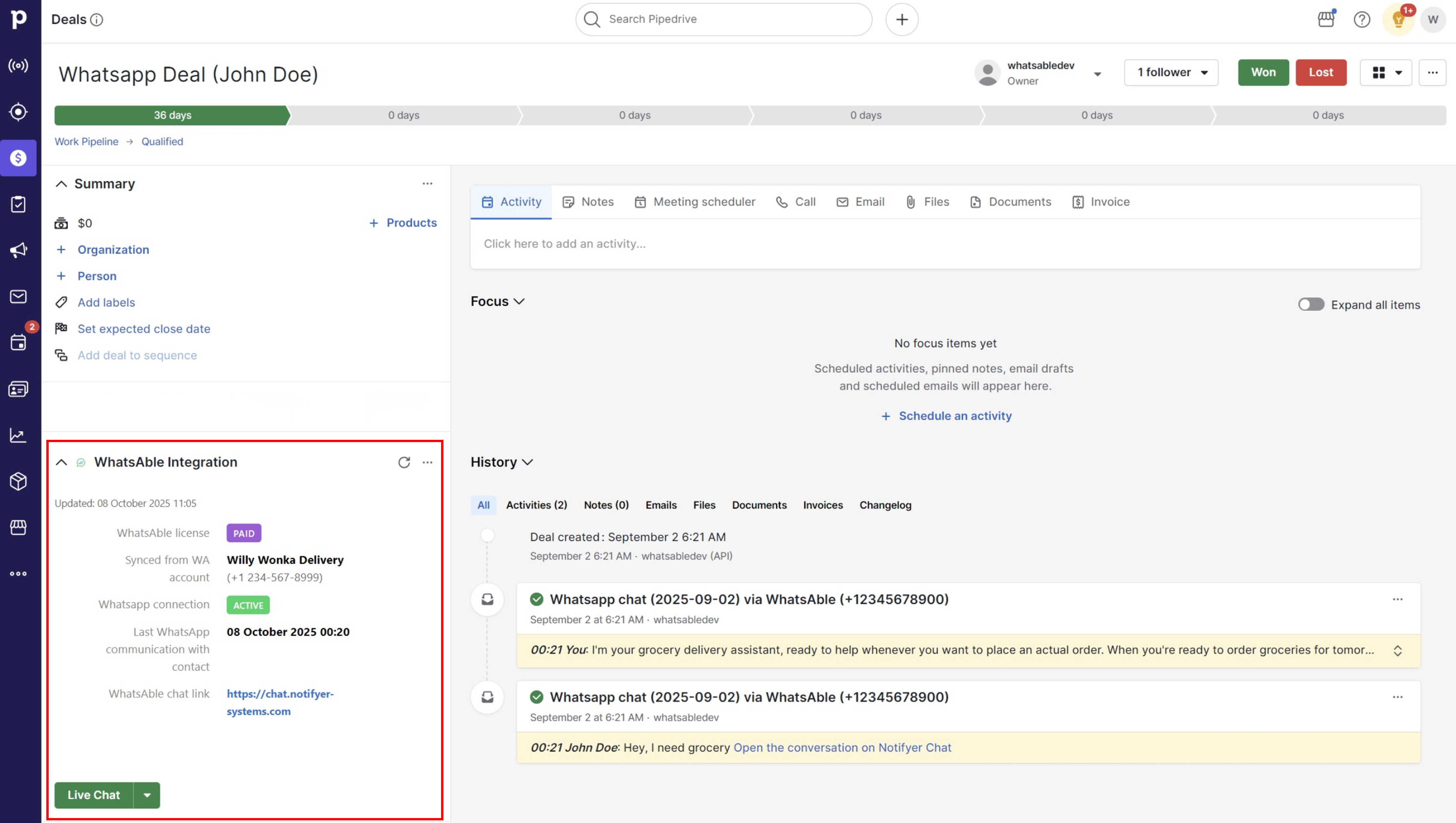
  <Step title="Locate the Integration Panel">
    1. On the right-hand panel, scroll down past the Summary section
    2. Find the **WhatsAble Integration** section

    <Frame caption="WhatsAble Integration Panel">
      <img src="https://mintcdn.com/whatsable/oYUAA-_sMM6ZTtiK/images/integration_panel.png?fit=max&auto=format&n=oYUAA-_sMM6ZTtiK&q=85&s=baea451e08901d635b9dc01c31b5f4b6" alt="WhatsAble Integration Panel" width="4400" height="2487" data-path="images/integration_panel.png" />
    </Frame>
  </Step>
</Steps>

### Understanding the Integration Panel

The WhatsAble Integration panel displays important connection information:

<CardGroup cols={2}>
  <Card title="WhatsAble License Status" icon="circle-check">
    Confirms your subscription is active
  </Card>

  <Card title="Synced WhatsApp Account" icon="link">
    Shows which WhatsApp Business account is connected
  </Card>

  <Card title="WhatsApp Connection Status" icon="signal-bars">
    Indicates if your WhatsApp connection is active
  </Card>

  <Card title="Last WhatsApp Communication" icon="clock">
    Displays the date and time of the most recent message
  </Card>

  <Card title="WhatsAble Chat URL" icon="arrow-up-right-from-square">
    Provides a direct link to the conversation
  </Card>
</CardGroup>

### Sending Options

Within the WhatsAble Integration section, you'll find a green **"Live Chat"** button with a dropdown menu offering three options:

<CardGroup cols={3}>
  <Card title="Live Chat" icon="messages">
    Opens the WhatsAble chat interface directly within Pipedrive
  </Card>

  <Card title="Send Scheduled Message" icon="clock">
    Schedule a message to be sent at a specific date and time
  </Card>

  <Card title="Send Template" icon="paper-plane">
    Send a pre-configured template message immediately
  </Card>
</CardGroup>

## Option 1: Send Scheduled Message

Use this option when you want to send a message at a specific future date and time.

<Steps>
  <Step title="Open the Scheduled Message Modal">
    1. Click the dropdown next to the **Live Chat** button
    2. Select **"Send Scheduled Message"**
    3. A modal window will appear with the following fields
  </Step>

  <Step title="Configure Required Fields">
    <ResponseField name="To" type="string" required>
      The recipient's phone number(s) associated with the deal. This field is automatically populated from the deal's contact information.
    </ResponseField>

    <ResponseField name="From" type="string" required>
      Your connected WhatsApp Business account. This field is pre-filled and cannot be modified from this interface.
    </ResponseField>

    <ResponseField name="Select Template" type="dropdown" required>
      Choose from your pre-created message templates. These templates must be created beforehand in the **Notifyer by WhatsAble** dashboard.
    </ResponseField>

    <ResponseField name="Template Variables" type="string" required>
      Once you select a template, all required placeholder fields will appear dynamically. Fill in each field carefully to personalize your message (e.g., customer name, appointment time, order details).
    </ResponseField>

    <ResponseField name="Scheduled Date and Time" type="datetime" required>
      Select the exact date and time you want the message to be sent.
    </ResponseField>

    <ResponseField name="Timezone" type="dropdown" required>
      Specify the timezone from which you're scheduling the message to ensure accurate delivery timing.
    </ResponseField>
  </Step>

  <Step title="Add Optional Information">
    <Expandable title="Optional Fields">
      <ResponseField name="Add a Note" type="text">
        Include an internal note for your team. This note is only visible within Pipedrive and helps with tracking and context.
      </ResponseField>

      <ResponseField name="Select Labels" type="tags">
        Assign labels to categorize and organize your communications for easier filtering and reporting.
      </ResponseField>
    </Expandable>

    <Note>
      At the top of the modal, you'll see your **most recent messages** with this contact (if any previous conversations exist), providing helpful context before sending.
    </Note>
  </Step>

  <Step title="Schedule the Message">
    1. Review all information carefully
    2. Click the **"Schedule Template"** button at the bottom of the modal
    3. Your message is now scheduled and will be sent automatically at the specified time

    <Check>
      Message successfully scheduled! It will be sent at the specified time.
    </Check>

    <Frame caption="Schedule Template Modal">
      <img src="https://mintcdn.com/whatsable/oYUAA-_sMM6ZTtiK/images/pd_schedule_message.png?fit=max&auto=format&n=oYUAA-_sMM6ZTtiK&q=85&s=2d6165c8e4caa1813471998f59d50511" alt="Schedule Template Modal" width="2433" height="1375" data-path="images/pd_schedule_message.png" />
    </Frame>
  </Step>
</Steps>

## Option 2: Send Template (Immediate)

Use this option to send a pre-configured template message immediately without scheduling.

<Steps>
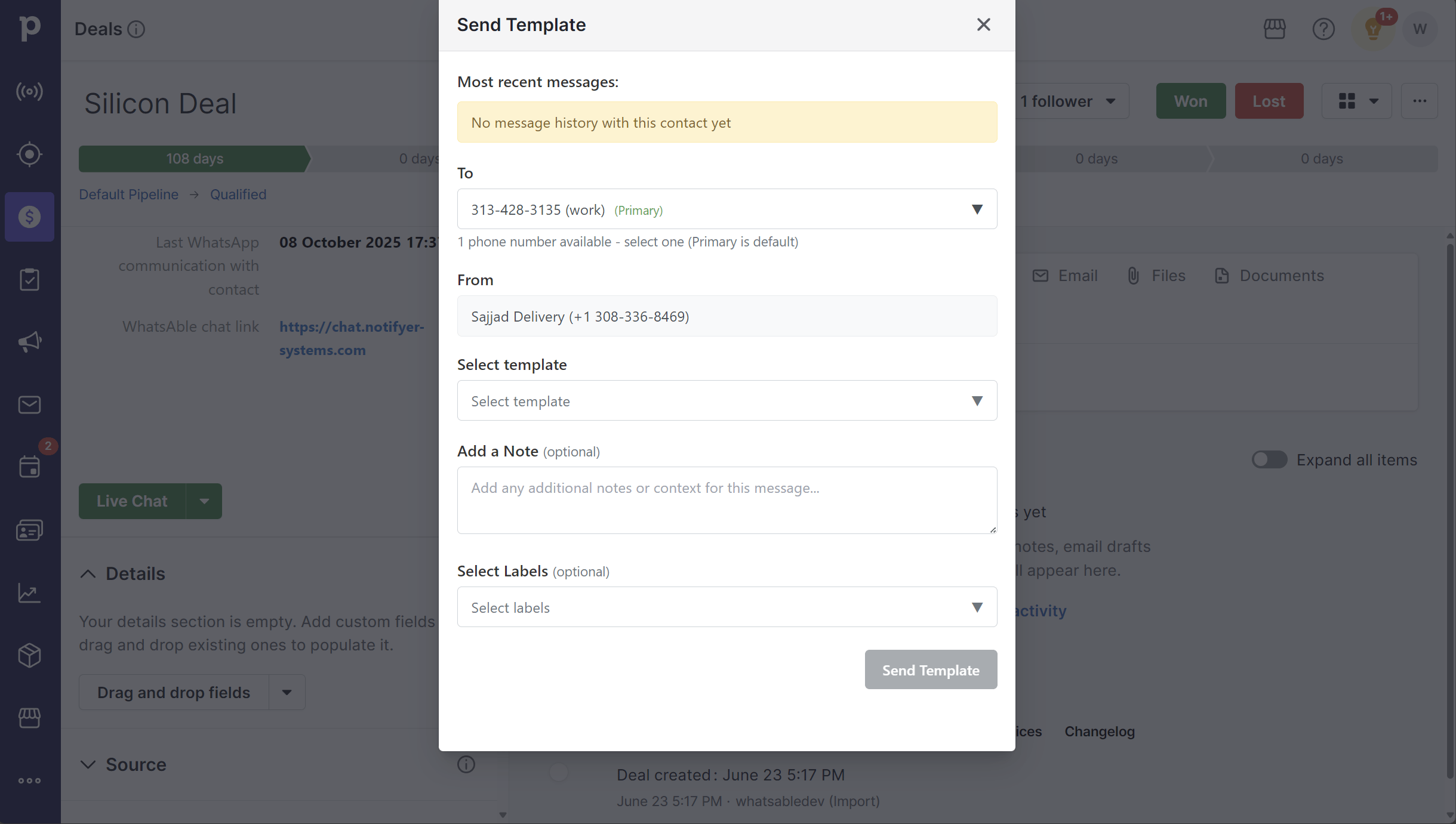
  <Step title="Open the Send Template Modal">
    1. Click the dropdown next to the **Live Chat** button
    2. Select **"Send Template"**
    3. A modal window will appear with the following fields
  </Step>

  <Step title="Configure Required Fields">
    <ResponseField name="To" type="string" required>
      The recipient's phone number(s) associated with the deal. This field is automatically populated from the deal's contact information.
    </ResponseField>

    <ResponseField name="From" type="string" required>
      Your connected WhatsApp Business account. This field is pre-filled and cannot be modified from this interface.
    </ResponseField>

    <ResponseField name="Select Template" type="dropdown" required>
      Choose from your pre-created message templates. These templates must be created beforehand in the **Notifyer by WhatsAble** dashboard.
    </ResponseField>

    <ResponseField name="Template Variables" type="string" required>
      Once you select a template, all required placeholder fields will appear dynamically. Fill in each field carefully to personalize your message (e.g., customer name, product details, tracking numbers).
    </ResponseField>
  </Step>

  <Step title="Add Optional Information">
    <Expandable title="Optional Fields">
      <ResponseField name="Add a Note" type="text">
        Include an internal note for your team. This note is only visible within Pipedrive and helps with tracking and context.
      </ResponseField>

      <ResponseField name="Select Labels" type="tags">
        Assign labels to categorize and organize your communications for easier filtering and reporting.
      </ResponseField>
    </Expandable>

    <Note>
      At the top of the modal, you'll see your **most recent messages** with this contact (if any previous conversations exist), providing helpful context before sending.
    </Note>
  </Step>

  <Step title="Send the Message">
    1. Review all information carefully
    2. Click the **"Send Template"** button at the bottom of the modal
    3. Your message will be sent immediately

    <Check>
      Message sent successfully!
    </Check>

    <Frame caption="Send Template Modal">
      <img src="https://mintcdn.com/whatsable/oYUAA-_sMM6ZTtiK/images/pd_template_message.png?fit=max&auto=format&n=oYUAA-_sMM6ZTtiK&q=85&s=02b5d62f29b8dcecaeb544d5675ac315" alt="Send Template Modal" width="2439" height="1381" data-path="images/pd_template_message.png" />
    </Frame>
  </Step>
</Steps>

## Sending Messages from Contacts

The process for sending WhatsApp messages from contacts is nearly identical to sending from deals, with minor differences noted below.

### Accessing the WhatsAble Integration Panel

<Steps>
  <Step title="Navigate to Contacts">
    1. Go to your **Pipedrive Dashboard**
    2. Navigate to the **Contacts** menu
    3. Select your desired **Contact**
  </Step>

  <Step title="Locate the Integration Panel">
    1. On the right-hand panel, scroll down past the Summary section
    2. Find the **WhatsAble Integration** section

    <Frame caption="WhatsAble Integration Panel">
      <img src="https://mintcdn.com/whatsable/oYUAA-_sMM6ZTtiK/images/contact_integration_panel.png?fit=max&auto=format&n=oYUAA-_sMM6ZTtiK&q=85&s=5db145e8a51e62a07fe0575779c08b00" alt="WhatsAble Integration Panel" width="4400" height="2481" data-path="images/contact_integration_panel.png" />
    </Frame>
  </Step>
</Steps>

### Understanding the Integration Panel

The WhatsAble Integration panel displays the same connection information as in deals:

<CardGroup cols={2}>
  <Card title="WhatsAble License Status" icon="circle-check">
    Confirms your subscription is active
  </Card>

  <Card title="Synced WhatsApp Account" icon="link">
    Shows which WhatsApp Business account is connected
  </Card>

  <Card title="WhatsApp Connection Status" icon="signal-bars">
    Indicates if your WhatsApp connection is active
  </Card>

  <Card title="Last WhatsApp Communication" icon="clock">
    Displays the date and time of the most recent message
  </Card>

  <Card title="WhatsAble Chat URL" icon="arrow-up-right-from-square">
    Provides a direct link to the conversation
  </Card>
</CardGroup>

### Sending Options

The same three options are available:

<CardGroup cols={3}>
  <Card title="Live Chat" icon="messages">
    Opens the WhatsAble chat interface directly within Pipedrive
  </Card>

  <Card title="Send Scheduled Message" icon="clock">
    Schedule a message for a specific date and time
  </Card>

  <Card title="Send Template" icon="paper-plane">
    Send a template message immediately
  </Card>
</CardGroup>

<Info>
  **Key Difference**: Phone numbers are pulled from the contact's information rather than deal-specific numbers. All other fields and processes remain identical to sending from deals.
</Info>

## Best Practices

<AccordionGroup>
  <Accordion title="Verify Connection Status" icon="shield-check">
    **Before Sending Messages**

    Always check that your WhatsApp connection shows as ACTIVE before attempting to send messages to avoid delivery failures.
  </Accordion>

  <Accordion title="Review Templates" icon="file-lines">
    **Template Management**

    * Ensure your message templates are up-to-date in the Notifyer dashboard
    * Test templates with yourself before using them with customers
    * Create templates in advance for different scenarios
  </Accordion>

  <Accordion title="Double-Check Phone Numbers" icon="phone">
    **Phone Number Verification**

    * Confirm the recipient's phone number is correct
    * Verify the number includes the country code (e.g., +1 for US)
    * Update contact information if numbers are missing or incorrect
  </Accordion>

  <Accordion title="Use Labels Consistently" icon="tags">
    **Message Organization**

    * Develop a clear labeling system for easier tracking
    * Apply consistent labels across your team
    * Use labels for reporting and analytics purposes
  </Accordion>

  <Accordion title="Add Internal Notes" icon="note-sticky">
    **Documentation Best Practices**

    * Document the purpose of each message for future reference
    * Include context that will help team members understand the communication
    * Keep notes concise but informative
  </Accordion>

  <Accordion title="Review Recent Messages" icon="message-lines">
    **Maintain Context**

    * Always check conversation history before sending new messages
    * Avoid sending duplicate or redundant information
    * Ensure message continuity for better customer experience
  </Accordion>

  <Accordion title="Schedule Strategically" icon="calendar-clock">
    **Timing Considerations**

    * Consider your recipient's timezone when scheduling messages
    * Avoid sending messages during off-hours or weekends unless necessary
    * Set reminders to follow up if no response is received
  </Accordion>

  <Accordion title="Create Clear Variable Names" icon="input-text">
    **Template Creation**

    * Make placeholder fields intuitive for anyone on your team
    * Use descriptive variable names (e.g., customer\_name, order\_date)
    * Test variable population before mass sending
  </Accordion>
</AccordionGroup>

## Troubleshooting

<AccordionGroup>
  <Accordion title="WhatsApp Connection Shows as INACTIVE" icon="circle-exclamation">
    <Steps>
      <Step title="Reconnect WhatsApp Account">
        Reconnect your WhatsApp Business account in the WhatsAble dashboard
      </Step>

      <Step title="Verify Configuration">
        Verify your WhatsApp Business account is properly configured
      </Step>

      <Step title="Contact Support">
        Contact WhatsAble support if the issue persists after reconnection
      </Step>
    </Steps>
  </Accordion>

  <Accordion title="No Templates Available in Dropdown" icon="empty-set">
    <Steps>
      <Step title="Create Templates">
        Create templates in the Notifyer by WhatsAble dashboard first
      </Step>

      <Step title="Check Approval Status">
        Ensure templates are approved by WhatsApp (if required for your template type)
      </Step>

      <Step title="Refresh Page">
        Refresh your Pipedrive page after creating new templates to see them appear
      </Step>
    </Steps>
  </Accordion>

  <Accordion title="Scheduled Message Not Sent" icon="clock-rotate-left">
    <Steps>
      <Step title="Check Connection Status">
        Verify your WhatsApp connection was active at the scheduled time
      </Step>

      <Step title="Verify Timezone">
        Check that the timezone was set correctly when scheduling
      </Step>

      <Step title="Review Message Logs">
        Review the message logs in WhatsAble for error details and delivery status
      </Step>
    </Steps>
  </Accordion>

  <Accordion title="Phone Number Not Appearing" icon="phone-slash">
    <Steps>
      <Step title="Verify Phone Number Exists">
        Ensure the contact or deal has a valid phone number in Pipedrive
      </Step>

      <Step title="Check Format">
        Verify the phone number format includes the country code (e.g., +1234567890)
      </Step>

      <Step title="Update Contact">
        Update the contact information if the phone number is missing or incorrect
      </Step>
    </Steps>
  </Accordion>

  <Accordion title="Template Variables Not Populating" icon="brackets-curly">
    <Steps>
      <Step title="Check Variable Names">
        Ensure variable names in your template match the fields you're filling
      </Step>

      <Step title="Verify Data Source">
        Confirm the data source (contact or deal) has the required information
      </Step>

      <Step title="Test Template">
        Send a test message to yourself to verify variable population before sending to customers
      </Step>
    </Steps>
  </Accordion>

  <Accordion title="Message Delivery Failed" icon="triangle-exclamation">
    <Steps>
      <Step title="Verify Recipient Number">
        Confirm the recipient has an active WhatsApp account on that number
      </Step>

      <Step title="Check Message Content">
        Ensure your message complies with WhatsApp's business messaging policies
      </Step>

      <Step title="Review Credits">
        Verify your WhatsAble account has sufficient credits or an active subscription
      </Step>

      <Step title="Contact Support">
        If issues persist, contact WhatsAble support with the message details
      </Step>
    </Steps>
  </Accordion>
</AccordionGroup>

<Info>
  For more information about template creation and management, visit the Notifyer by WhatsAble dashboard or contact our support team.
</Info>

## Need help?

Our support team is ready to assist you:

<CardGroup cols={3}>
  <Card title="Email support" icon="envelope" href="mailto:team@whatsable.app">
    Contact [team@whatsable.app](mailto:team@whatsable.app)
  </Card>

  <Card title="Schedule a demo" icon="calendar" href="https://tidycal.com/axelmeta/notifyer-systems-demo">
    Book a personalized walkthrough
  </Card>

  <Card title="Live chat" icon="message-dots" href="">
    Click the green chat button in the bottom right corner of the Notifyer System dashboard
  </Card>
</CardGroup>

<Info>
  For additional automation platform integrations and advanced configurations, please contact our support team or check our integration documentation.
</Info>