> ## Documentation Index
> Fetch the complete documentation index at: https://docs.whatsable.app/llms.txt
> Use this file to discover all available pages before exploring further.
# Zapier
> Connect Notifier with Zapier to automate powerful WhatsApp messaging workflows
# Notifier Integration with Zapier
 Notifier enables you to send automated WhatsApp messages through your favorite workflow automation tools. This guide walks you through integrating Notifier with Zapier to create powerful messaging workflows
## Prerequisites
Before getting started, make sure you have:
Active Notifier account with a subscription plan (Monthly or Pay-as-you-go)
Access to [Zapier](https://zapier.com/sign-up) workflow automation platform
New to Notifier? [Sign up here](https://notifier.whatsable.app/)
## Set up your Notifier account
First, let's set up your business profile in Notifier:
1. Log in to your Notifier dashboard
2. Navigate to **Business Information**
3. Complete all required fields:
* **Business Name**: Enter the name that will appear in messages sent to recipients
* **Business Website or Social Media**: Add your website or social media URL
* **Preferred Language**: Select the language for standard WhatsApp message elements
* **Default Reply Text**: Create a template message that appears when recipients click "Reply"
* **WhatsApp Number**: Add your business WhatsApp number where replies will be directed
Notifier enables you to send automated WhatsApp messages through your favorite workflow automation tools. This guide walks you through integrating Notifier with Zapier to create powerful messaging workflows
## Prerequisites
Before getting started, make sure you have:
Active Notifier account with a subscription plan (Monthly or Pay-as-you-go)
Access to [Zapier](https://zapier.com/sign-up) workflow automation platform
New to Notifier? [Sign up here](https://notifier.whatsable.app/)
## Set up your Notifier account
First, let's set up your business profile in Notifier:
1. Log in to your Notifier dashboard
2. Navigate to **Business Information**
3. Complete all required fields:
* **Business Name**: Enter the name that will appear in messages sent to recipients
* **Business Website or Social Media**: Add your website or social media URL
* **Preferred Language**: Select the language for standard WhatsApp message elements
* **Default Reply Text**: Create a template message that appears when recipients click "Reply"
* **WhatsApp Number**: Add your business WhatsApp number where replies will be directed
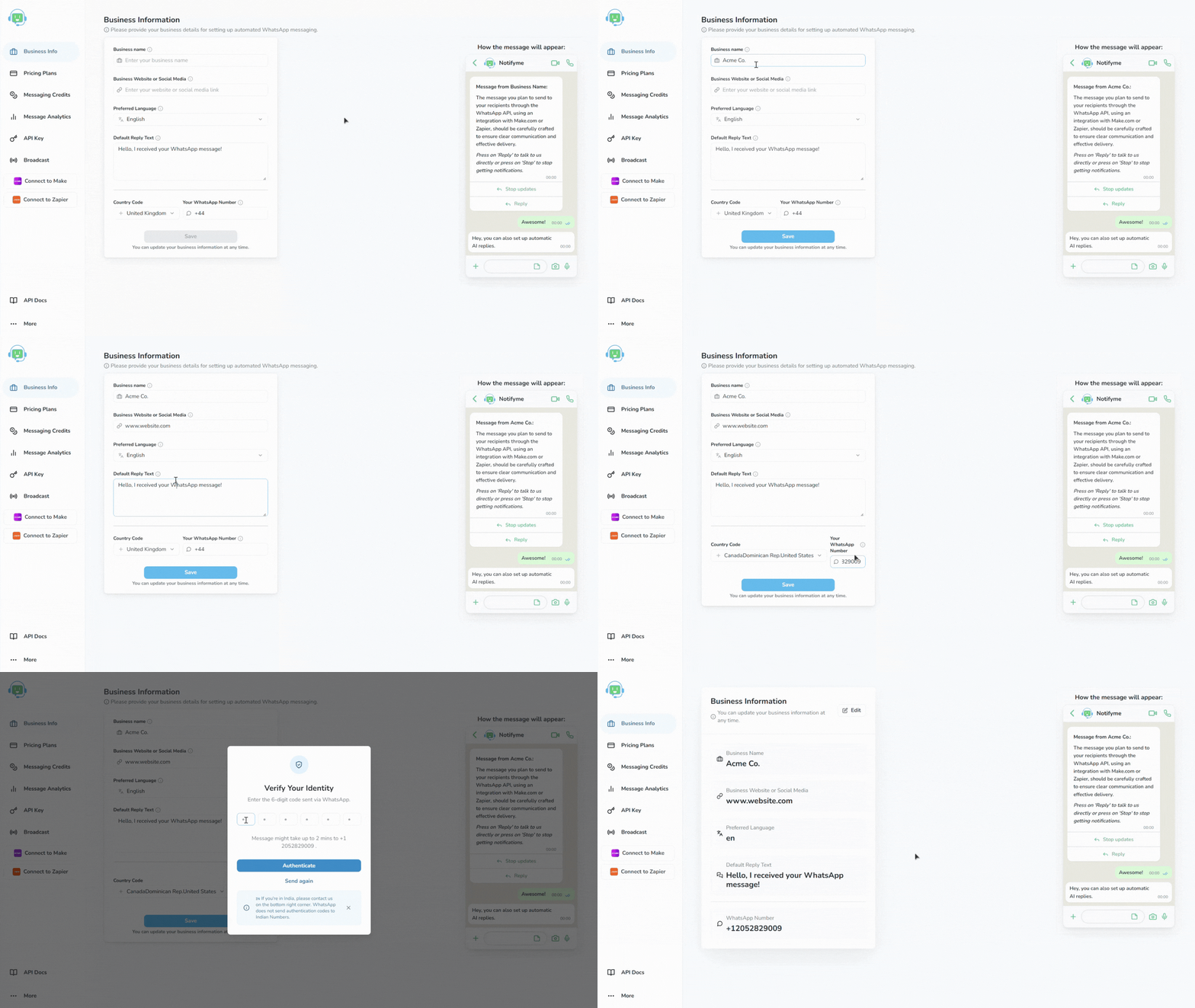 After entering your WhatsApp number, Notifier will send a verification code to this number. Enter the code to verify ownership.
Once saved, you'll see a preview of how your messages will appear to recipients. The actual message structure may vary slightly based on variables and attachments you include.
To connect Notifier with Zapier, you'll need your API key:
1. In your Notifier dashboard, go to **API Keys**
2. Copy your unique API key
3. Store it securely—you'll need it for the integration
Never share your API key publicly or commit it to version control systems.
## Connect Notifier to Zapier
Now that you have your Notifier account configured, let's connect it to Zapier to automate your messaging workflows.
1. Log in to your Zapier account
2. Navigate to Notifier dashboard and select **Connect to Zapier** in the side menu
3. Click **Continue** in the connection guide popup
4. Select Accept & Build a Zap on the invitation page
You're now ready to create Zaps with the Notifier app
1. Log in to your Zapier account
2. Create a new workflow/Zap by clicking **+ Create** and select **Zaps**/**New Zap**
3. Add a trigger step of your choice:
* Popular triggers include Google Forms, Jotform, ClickUp, or a Schedule trigger
* Connect and configure your trigger according to your use case
1. Select the next **Action** step or click the **+** button to add a new step
2. Search for "Notifier by WhatsAble" in the apps and tools library
3. Select the app with the official Notifier logo
1. In the Notifier app Setup, select **Send WhatsApp Message** in the **Action event** dropdown
2. Click **Sign In** in the **Account** field and you will be prompted to enter your API Key
3. Enter your Notifier API key that you copied earlier
4. Click **Yes, Continue to Notifier** to store your credential
5. Next, click the **Continue** button in the Setup screen to proceed to the **Configure** section
After entering your WhatsApp number, Notifier will send a verification code to this number. Enter the code to verify ownership.
Once saved, you'll see a preview of how your messages will appear to recipients. The actual message structure may vary slightly based on variables and attachments you include.
To connect Notifier with Zapier, you'll need your API key:
1. In your Notifier dashboard, go to **API Keys**
2. Copy your unique API key
3. Store it securely—you'll need it for the integration
Never share your API key publicly or commit it to version control systems.
## Connect Notifier to Zapier
Now that you have your Notifier account configured, let's connect it to Zapier to automate your messaging workflows.
1. Log in to your Zapier account
2. Navigate to Notifier dashboard and select **Connect to Zapier** in the side menu
3. Click **Continue** in the connection guide popup
4. Select Accept & Build a Zap on the invitation page
You're now ready to create Zaps with the Notifier app
1. Log in to your Zapier account
2. Create a new workflow/Zap by clicking **+ Create** and select **Zaps**/**New Zap**
3. Add a trigger step of your choice:
* Popular triggers include Google Forms, Jotform, ClickUp, or a Schedule trigger
* Connect and configure your trigger according to your use case
1. Select the next **Action** step or click the **+** button to add a new step
2. Search for "Notifier by WhatsAble" in the apps and tools library
3. Select the app with the official Notifier logo
1. In the Notifier app Setup, select **Send WhatsApp Message** in the **Action event** dropdown
2. Click **Sign In** in the **Account** field and you will be prompted to enter your API Key
3. Enter your Notifier API key that you copied earlier
4. Click **Yes, Continue to Notifier** to store your credential
5. Next, click the **Continue** button in the Setup screen to proceed to the **Configure** section
 Complete the required fields:
Enter the recipient’s phone number (with country code) or use dynamic data from previous steps
Type your message text or use variables from previous steps
Enter public URL of a file, image, or video to send with your message
Specify a custom filename for your attachment
Customize advanced options as needed
Complete the required fields:
Enter the recipient’s phone number (with country code) or use dynamic data from previous steps
Type your message text or use variables from previous steps
Enter public URL of a file, image, or video to send with your message
Specify a custom filename for your attachment
Customize advanced options as needed
1. Click **Continue** and then click **Test step** in the **Test** to verify it's working correctly
2. If the test is successful, you'll see a confirmation message
3. Click **Publish** to save your entire Zap
4. Toggle the **Active** switch in the top-left corner to activate your Zap
## Example use cases
Send a welcome message when a new customer signs up
Update customers when their order status changes
Automatically send reminders before scheduled appointments
Send personalized messages to new leads from your form submissions
Notify customers when their support ticket status changes
## Workflow Diagram
```mermaid theme={null}
flowchart LR
A[Trigger Step] --> B[Data Transformation]
B --> C[Notifier App]
C --> D{Message Sent?}
D -->|Yes| E[Success Path]
D -->|No| F[Error Handling]
E --> G[Additional Actions]
F --> H[Retry Logic]
```
## Best practices
For optimal results when using Notifier with Zapier:
Use data from previous steps in your workflow to create personalized, relevant messages for each recipient.
Focus on a single call-to-action and keep your messages brief to maintain recipient engagement.
Always run complete tests of your workflow before deploying to production to catch any potential issues.
Regularly check your Notifier dashboard to monitor delivery rates and optimize your messaging strategy.
Always provide clear opt-out instructions and respect recipient preferences regarding messaging.
## Troubleshooting
Verify that your Notifier account is active and has available credits
Ensure your business information is complete and properly verified
Double-check that your API key is entered correctly in Zapier
Confirm that the recipient's phone number is in the correct format (including country code)
Check your message template for any invalid characters or formatting issues
Ensure variables from previous steps are properly formatted
Verify your message doesn't exceed WhatsApp's length limitations
## Need help?
Our support team is ready to assist you:
Contact [team@whatsable.app](mailto:team@whatsable.app)
Book a personalized walkthrough
Click the green chat button in the bottom right corner of the Notifier dashboard
For additional automation platform integrations (Make.com, n8n, etc.), please contact our support team or check our integration documentation.